Badges Management
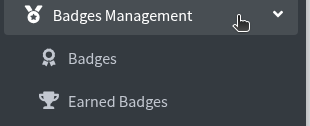
Badges Management is in the left sidebar. Use Badges to create the badges users can earn. Use Earned Badges to see who already has them.
Badges Management menu
badges management badges earned badges
Click Badges Management. You see:
- Badges — create, edit, and delete badge rules
- Earned Badges — who earned which badge, and when
Manage Badges
manage badges all badges create new badge all categories newest first
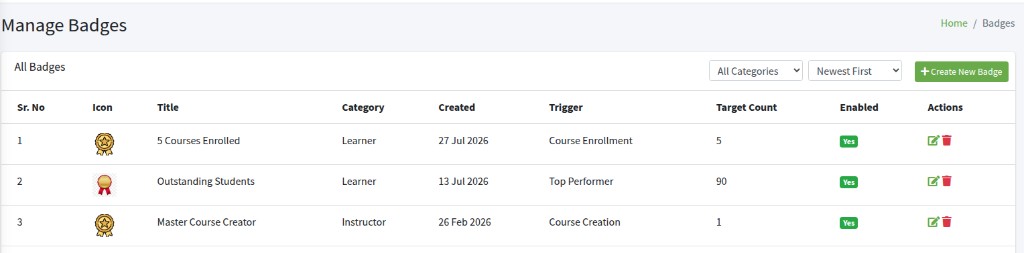
Click Badges. The page title is Manage Badges. Breadcrumb: Home / Badges. The list heading is All Badges.
If the list is empty: No badges found. Create one to get started.
Filters (they apply as soon as you change them):
- All Categories — show every badge, or only Learner or only Instructor
- Newest First — newest badges at the top. Oldest First puts the oldest first
+ Create New Badge opens the form.
Each row is one badge: icon, title, category, created date, trigger, target count, enabled (Yes / No).
Pencil icon — Edit Badge. Trash icon — Delete Badge.
Create New Badge
create new badge title category description trigger target count icon enabled
Click + Create New Badge. The box is Create New Badge.
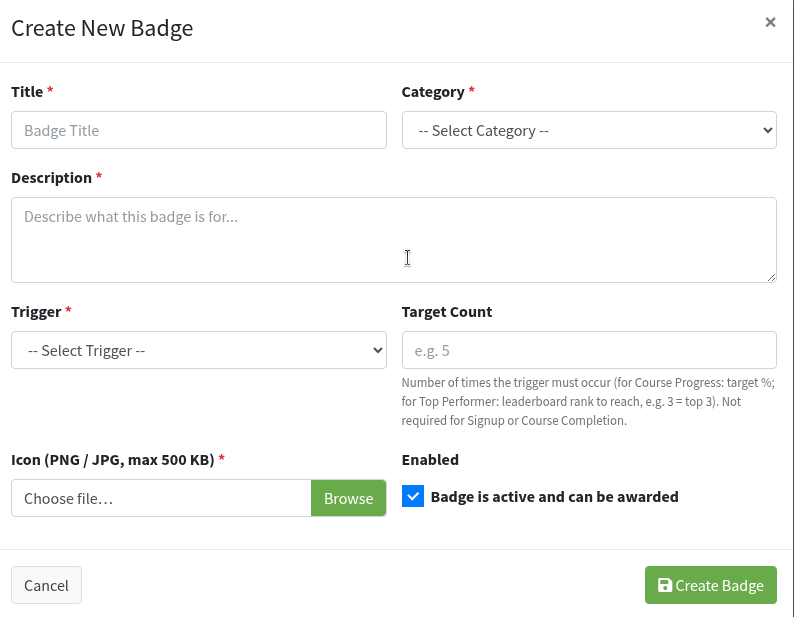
Title * — name shown to users. Placeholder: Badge Title.
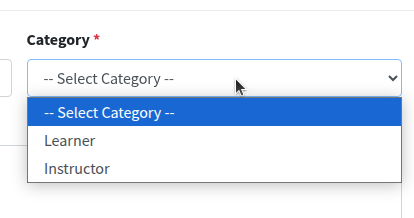
Category * — who this badge is for. Learner or Instructor. Placeholder: -- Select Category --.
Description * — short text about the badge. Placeholder: Describe what this badge is for... Users can see this when they hover a badge on Earned Badges.
Trigger * — the action that awards the badge. Placeholder: -- Select Trigger --.
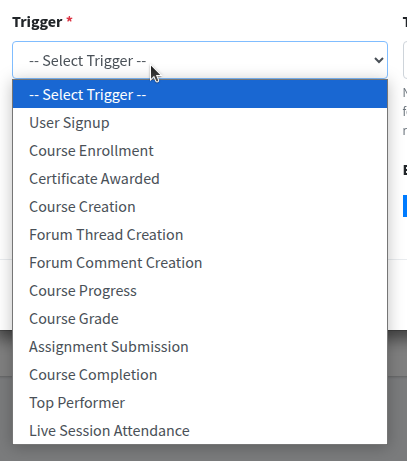
- User Signup — account created
- Course Enrollment — joined a course
- Certificate Awarded — certificate issued
- Course Creation — a course was created (Instructor)
- Forum Thread Creation — started a discussion thread
- Forum Comment Creation — posted a comment
- Course Progress — reached a % of the course
- Course Grade — reached a grade %
- Assignment Submission — submitted an assignment
- Course Completion — finished a course
- Top Performer — reached a leaderboard rank
- Live Session Attendance — attended a live session
Target Count — how many times the trigger must happen. Placeholder: e.g. 5.
- Course Enrollment with 5 → badge after 5 enrollments
- Course Progress → the % to reach (for example 33)
- Course Grade → the grade % to reach
- Top Performer → rank to reach (for example 3 = top 3)
- User Signup and Course Completion — leave empty (the field hides)
Icon (PNG / JPG, max 500 KB) * — click Browse and pick the picture. Max 500 KB.
Enabled — Badge is active and can be awarded. Leave checked so users can earn it. Uncheck to stop new awards without deleting the badge.
Click Create Badge. Cancel or x closes without saving.
Edit and delete a badge
edit badge save changes delete badge yes delete it
Pencil icon — Edit Badge. Same fields as create. Replace Icon (PNG / JPG, max 500 KB) — leave empty to keep the current picture. Click Save Changes.
Trash icon — Delete Badge. The box asks Are you sure you want to delete (title)? and This will also remove all earned records for this badge and cannot be undone. Click Yes, Delete it, or Cancel.
Earned Badges
earned badges users all badges latest earned total count
Click Earned Badges. The page title is Earned Badges. Breadcrumb: Home / Badges / Earned Badges. The list heading is Users & Their Earned Badges.
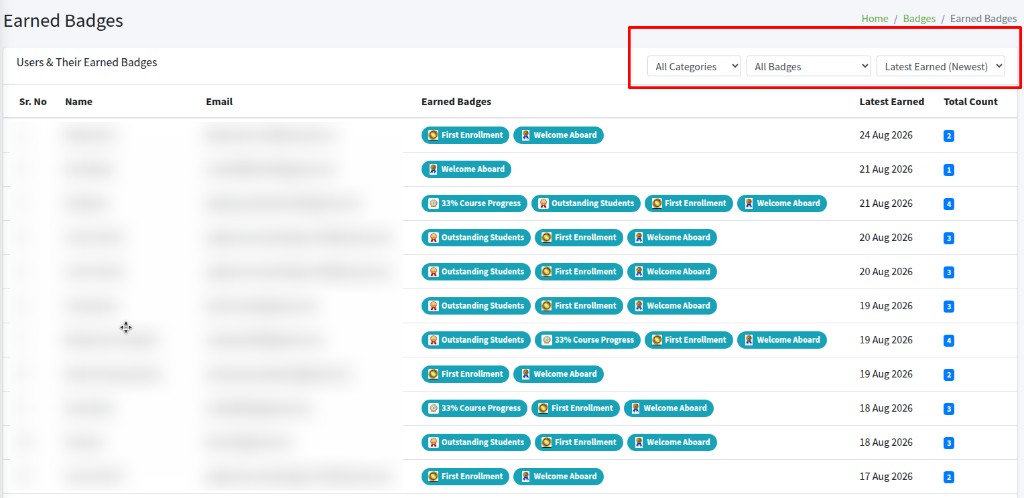
This page is a view only. You cannot award or remove a badge here. Change the badge rule under Badges.
Filters:
- All Categories — Learner or Instructor
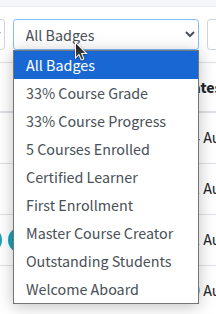
- All Badges — one badge title, to see only users who earned that badge
- Latest Earned (Newest) — users whose latest badge is most recent. Latest Earned (Oldest) reverses that
Each row: Name, Email, Earned Badges (chips with icon and title), Latest Earned (date), Total Count.
Hover a chip to read the badge description.
If the list is empty: No users have earned any badges yet.