Certificate Manage
Certificate Manage is where you create certificate templates. Then assign a template to a course in Course Management. Learners who complete that course get the certificate with their name, the course name, and the rest of the details.
Certificate Manage overview
certificate manage templates new template
Click Certificate Manage in the sidebar. The page title is Certificate Manage. Breadcrumb: Home / Certificate Manage.
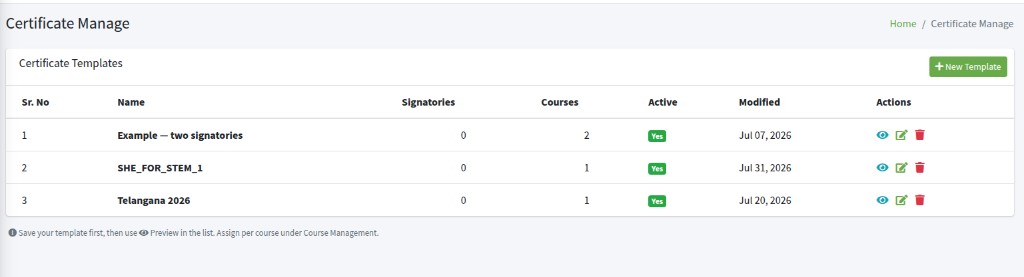
The list is Certificate Templates. Click New Template to make a new one.
Save the template first, then use the eye icon Preview in the list. Assign it per course under Course Management.
New Template
new certificate template name active html css images
Click New Template. The box is New Certificate Template.
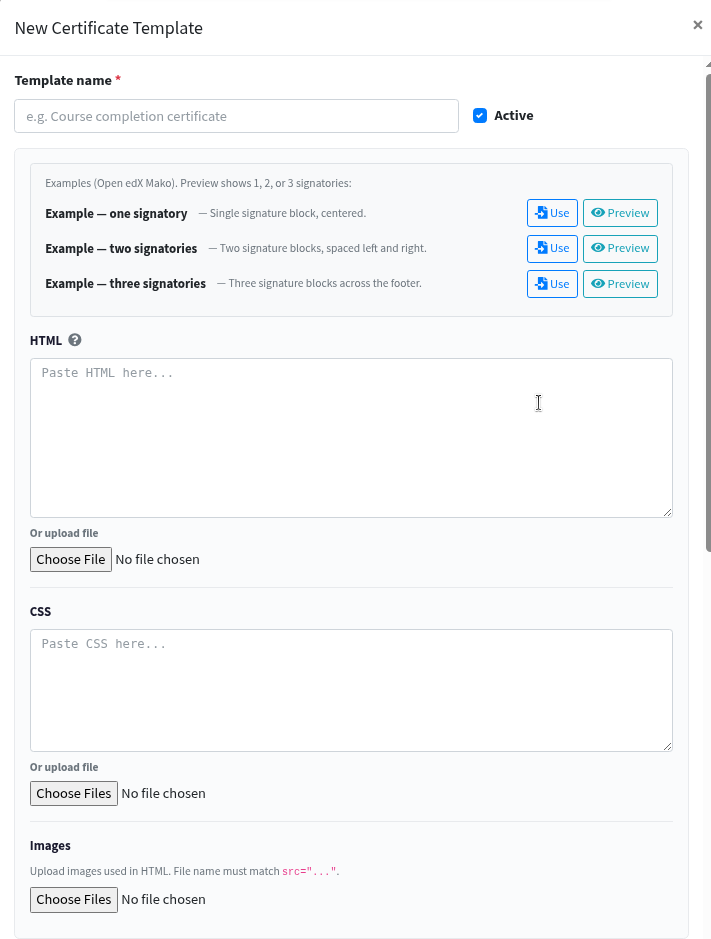
Type a Template name. This name is required, and two templates cannot share the same name. Keep Active checked so the template appears in Course Management → Certificate template.
Paste HTML and CSS, or use Or upload file. You need HTML and/or CSS before Save will work. Under Images, upload pictures used in the HTML. The file name must match src="...". If a name is marked missing, upload that file.
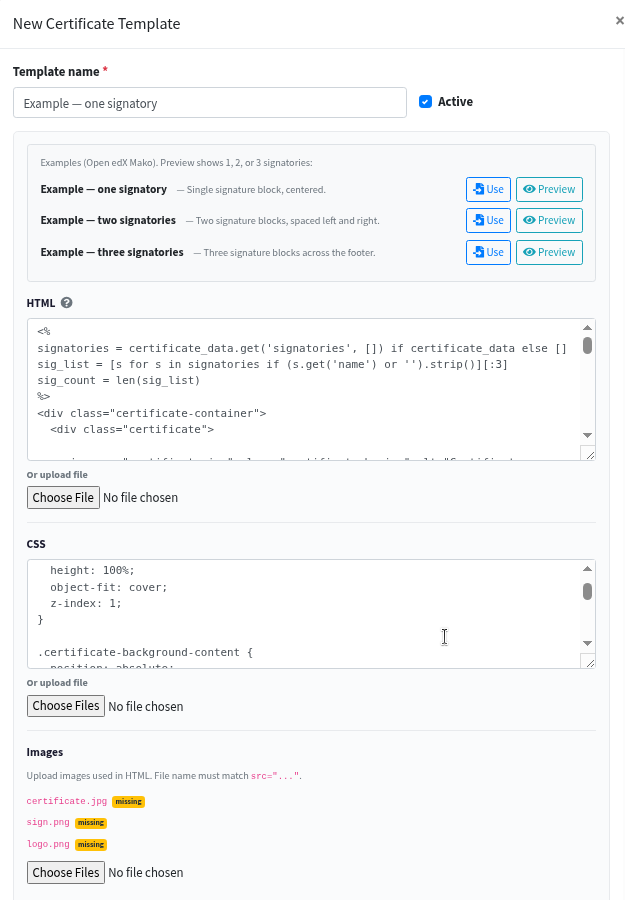
Click Save. Cancel or x closes without saving.
If names in Images do not match the HTML, those pictures will not show on the certificate.
Examples — Use and Preview
example one two three signatories use preview
Under Examples (Open edX Mako). Preview shows 1, 2, or 3 signatories:
- Example — one signatory — single signature block, centered
- Example — two signatories — two signature blocks, spaced left and right
- Example — three signatories — three signature blocks across the footer
On the right of each row: Use and Preview.
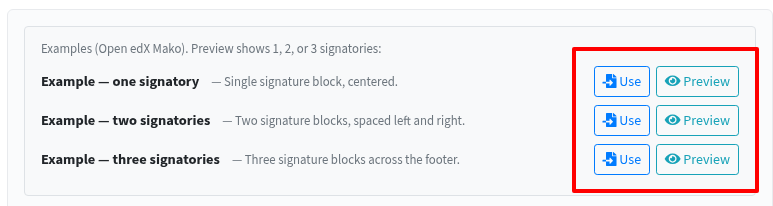
Click Preview to see how that example looks.
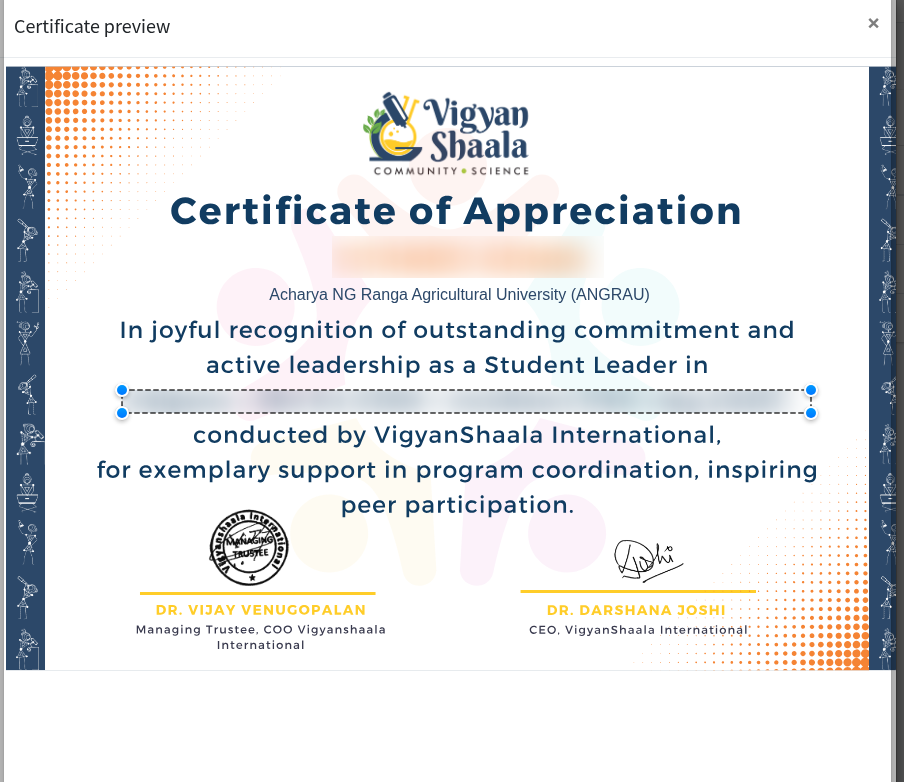
Click Use if you want that layout (one, two, or three signatories). HTML, CSS, and Images fill in automatically. Then click Save — Use only fills the form; it does not save by itself.
Preview on an example works before you save. Preview in the list (eye icon) works only after Save.
Certificate details
certificate details signatories add signatory maximum 3
Further down the same box, Certificate details says Open edX certificate settings (same as Studio).
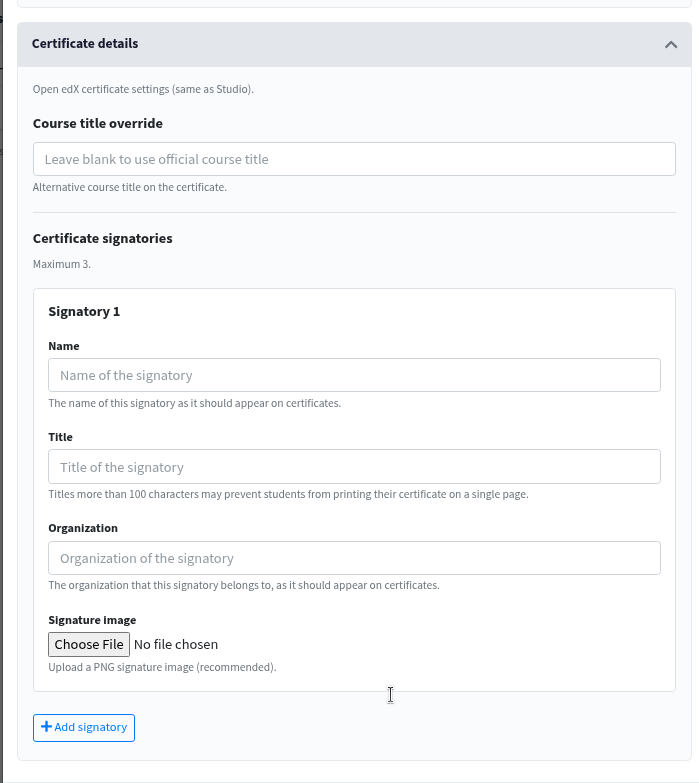
Course title override — leave blank to use the official course title. This is the course name learners see on the certificate.
Certificate signatories — Maximum 3. Click + Add signatory to add Signatory 1, then 2, then 3.
For each signatory:
- Name
- Title — titles more than 100 characters may prevent learners from printing the certificate on a single page
- Organization
- Signature Image — Choose File (PNG recommended)
You cannot add a fourth signatory. After Save, courses that already use this template pick up the new signatories.
Actions
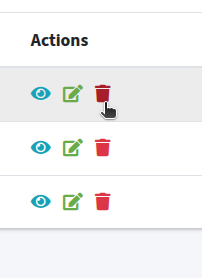
preview edit delete certificate template eye pencil trash
In the list Actions:
Eye icon — Preview. See how the saved template looks.
Pencil icon — Edit. Opens Edit Certificate Template. Change the template, then Save.
Trash icon — Delete. The box is Delete template? Click Delete, or Cancel.
You cannot delete a template that is still assigned to a course. First open Update Course Configuration for those courses, set Certificate template to Open edX Default Certificate, Save, then delete the template.
Assign a certificate to a course
update course configuration certificate template save
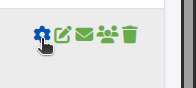
After the template is saved, open Course Management → Courses. In Actions, click the gear icon.
The box is Update Course Configuration. At the bottom, Certificate template. Choose the template name, then click Save.
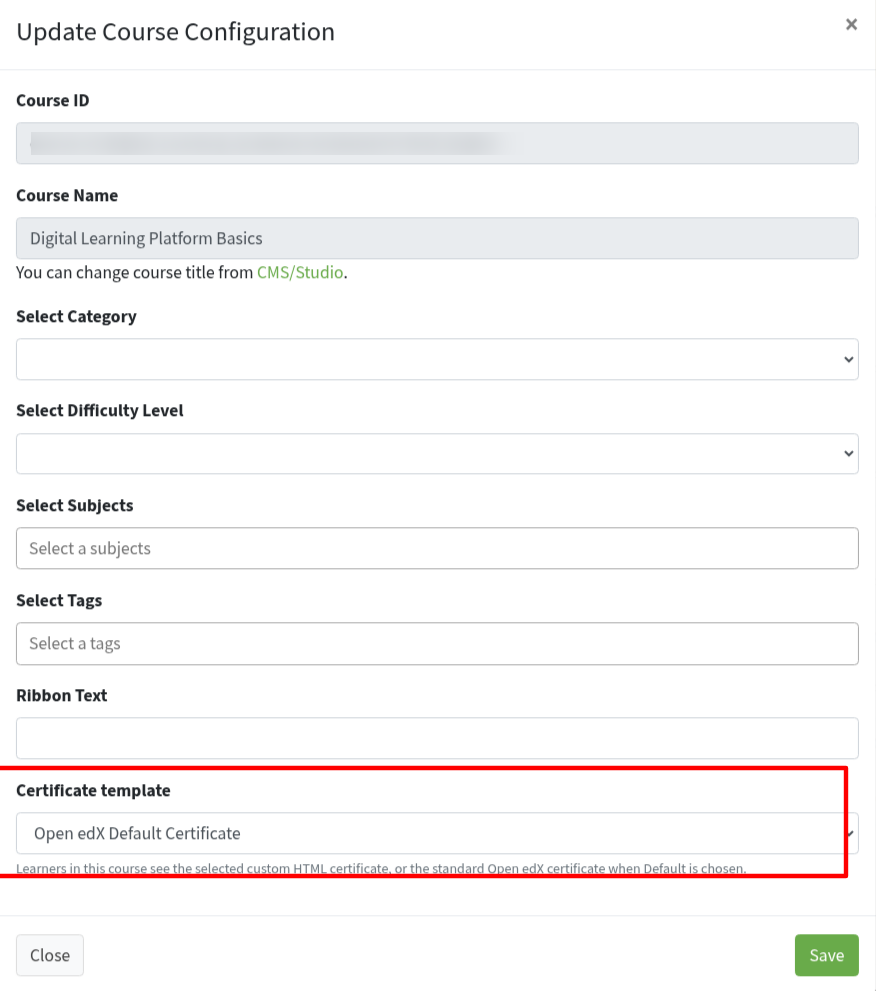
That course now uses this certificate. Learners who complete the course get it with their name, the course name (or your Course title override), and the signatories.
If you leave Open edX Default Certificate, they get the standard Open edX certificate instead.
Only Active templates appear in this list. If you uncheck Active, or the template has no HTML, the course falls back to the default certificate.
After you Save a template you already assigned, those courses update automatically. You do not need to assign it again unless you want a different template.