Cohort Manage Form
Cohort Manage Form is in the left sidebar. The page title is Cohort Management Form. Breadcrumb: Home / Templates.
Here you can:
- Create a registration form and link it to one course
- Choose the questions, who can register, and which questions appear
- Copy the registration link (or put it in a QR code) so learners can apply
- See who submitted, who started but did not finish, and send them a resume email
- Edit, duplicate, or delete a form
Cohort Management Form overview
cohort manage form templates submissions in-progress total templates add template
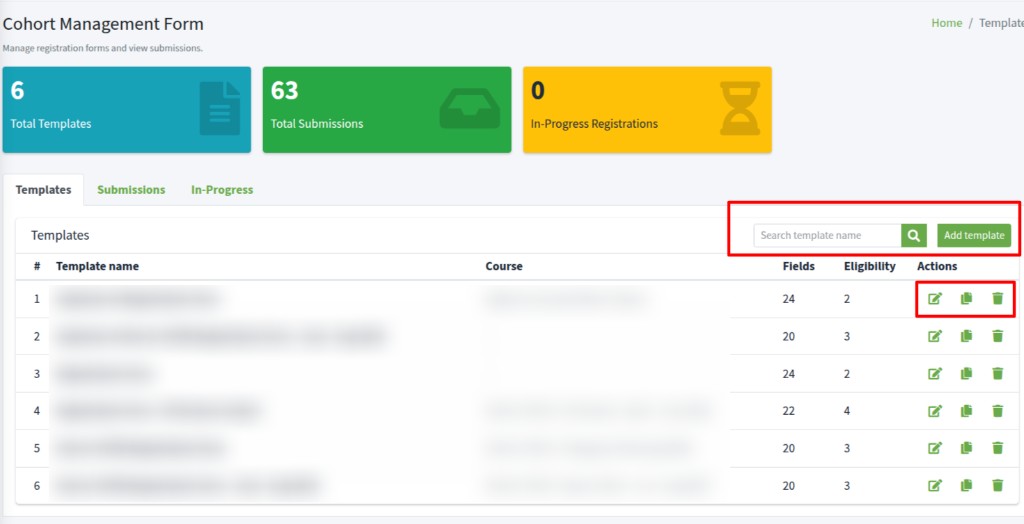
Click Cohort Manage Form. The line under the title says Manage registration forms and view submissions.
Cards (click a card to open that tab):
- Total Templates — how many forms you have
- Total Submissions — completed registrations (account created)
- In-Progress Registrations — people who passed eligibility but have not activated an account yet
Tabs: Templates, Submissions, In-Progress.
On Templates:
- Search template name, then click the search button
- Add template — new form
- Table: Template name, Course, Fields (extra questions), Eligibility (rules), Actions
If the list is empty: No templates yet. Click Add template.
Add template
add template template name description active save cancel unique
Click Add template. The box is Add template.
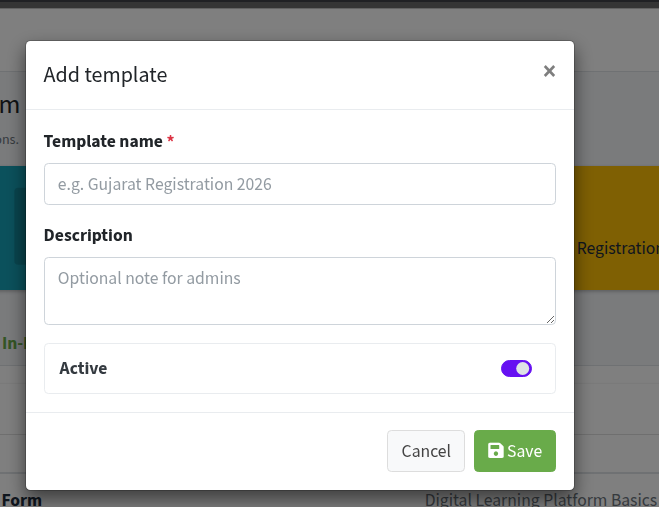
- Template name * — required. Must be unique. Placeholder: e.g. Gujarat Registration 2026. If the name is already used, you see A template with this label already exists.
- Description — short optional note on this box. The longer text learners see is set later in Form settings.
- Active — leave on so learners can open the form. Turn it off if the form is not ready yet.
Click Save. Cancel or x closes without saving.
After Save, you go straight to the template page. A registration link is created at that moment. Next: Form settings, Course assignment, Thank you message, fields, and eligibility.
Form settings
form settings template name description eligibility note name full name email email address active save
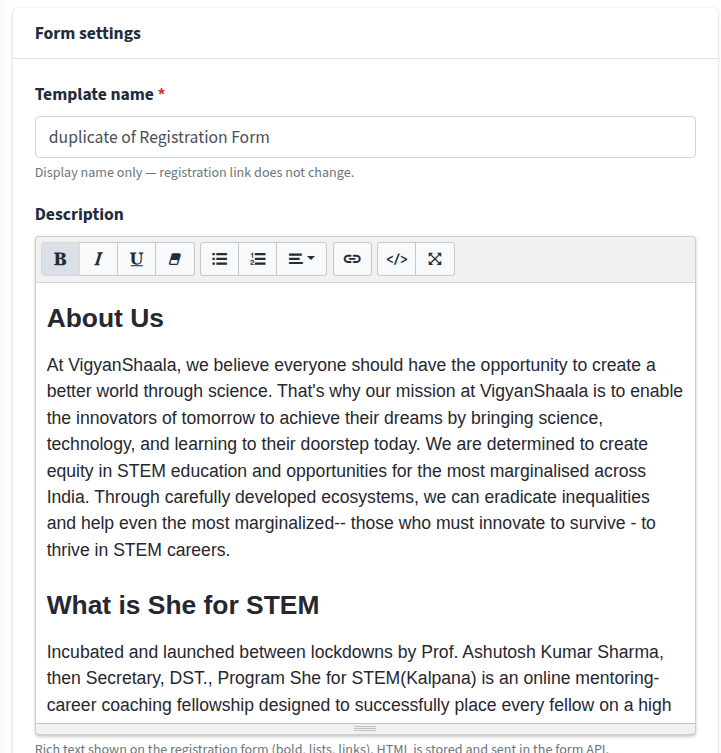
After Add template, or after the pencil icon Edit template, you see Form settings.
Template name * is what learners see as the form title. Changing it does not change the registration link.
Description is rich text on the registration form (bold, lists, links) — for example About Us and program details.
Further down the same card:
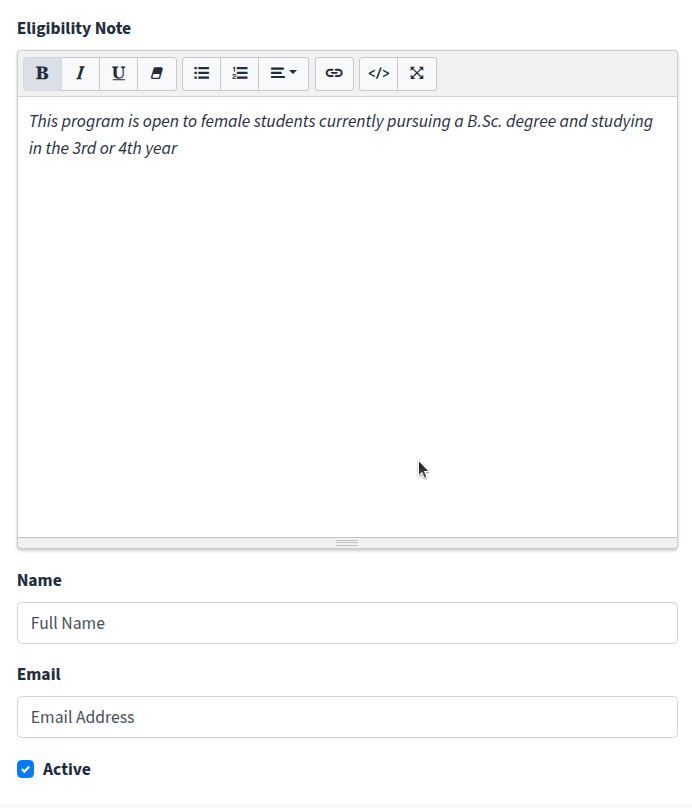
Eligibility Note — short line under the title on the learner form (who the program is for). This is not the same as Eligibility rules (those block or show questions).
Name — label for the required name field. Default Full name. Type Full Name if you want that wording. You cannot remove this field.
Email — label for the required email field. Default Email address. Type Email Address if you want that wording. The same email is used when they continue with Google or email. You cannot remove this field.
Active — uncheck to stop new registrations. Learners who open the link then see that the form is not available.
Click Save on Form settings. Each other card (Thank you message, Course assignment) has its own Save.
Thank you message
thank you message after submit google email save
On the right, Thank you message is what applicants see right after they submit the form — before they sign up with Google or email. You can use bold text, bullet points, and links.
If you leave this blank, they see: Congratulations! Your registration form has been submitted. Please continue with Google or email to create your account.
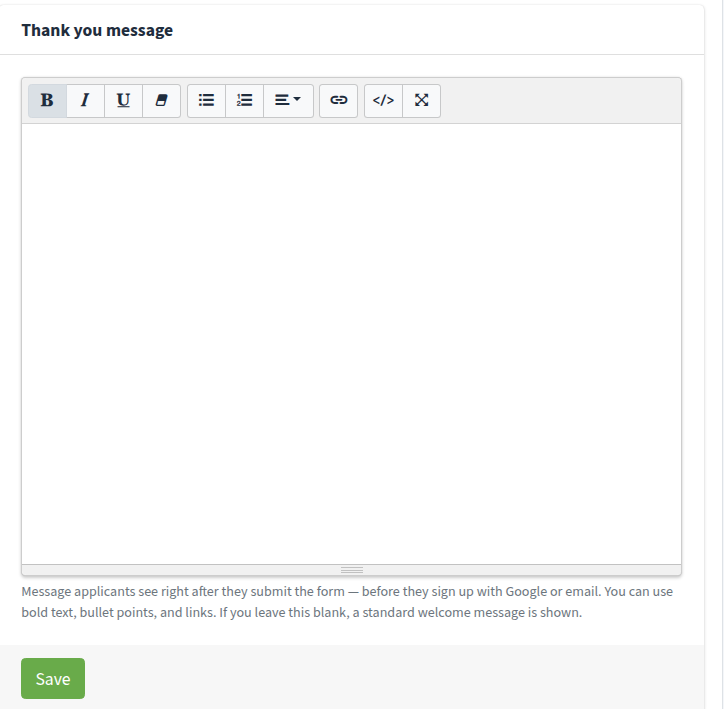
Click Save on this card.
Registration link
registration link copy link slug qr code share learners
Registration link is created when you save the template. This link is fixed when the template is created. Renaming does not change it.
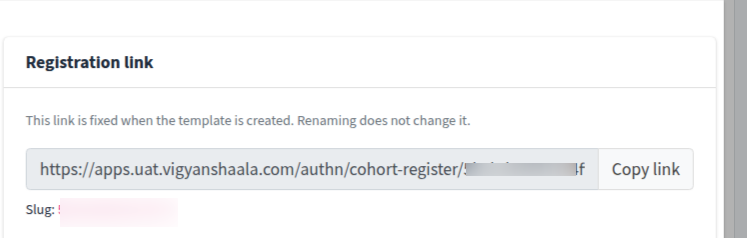
Click Copy link. You should see Link copied successfully. Share that URL with learners, or put the same URL in a QR code. They open the link or scan the QR to fill the form.
Slug is the last part of the URL. It stays the same if you rename the template. Duplicate creates a new link (new slug).
The form works for learners only when all of these are true:
- Template is Active
- A course is linked
- You added at least one extra field with Category order set
Course assignment
course assignment course linked to this template save
Course linked to this template * — choose the course this form enrolls people into. Each course can be linked to only one template. Courses already used by another template cannot be selected (the list marks them already used by:).
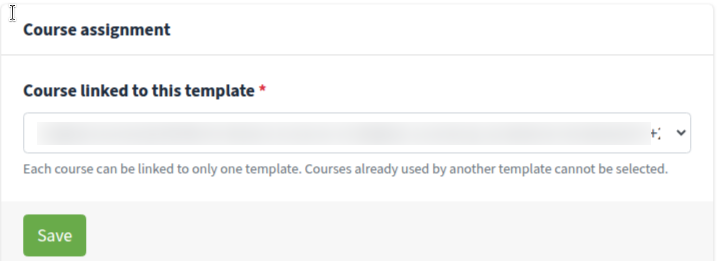
Click Save. If you skip this, learners cannot finish registration. After a Duplicate template, you must pick a different course here.
Form fields
form fields add field field key label type category eligibility guide
Form fields are the extra questions. Name and Email are already on every form — do not add full_name or email as extra fields.

- + Add field — new question
- Question-mark icon — Form Field Configuration Guide (types, validation, eligibility)
- Pencil icon — Edit field
- Trash icon — Delete field
Eligibility in the table is Yes if the field is used in a rule, or — if not.
Delete field? asks Remove this field from the form template? Click Delete. If rules use this field, the warning says those rules will be deleted too. Then the button is Delete anyway.
If people have already submitted, turn Active off on the field instead of deleting it. That hides it on new forms and keeps old answers.
Do not change Field key after people have submitted — new answers will not match the old ones.
Add field
add field label field key category order type options file upload eligibility required active save field
Click + Add field. The editor is Add field.
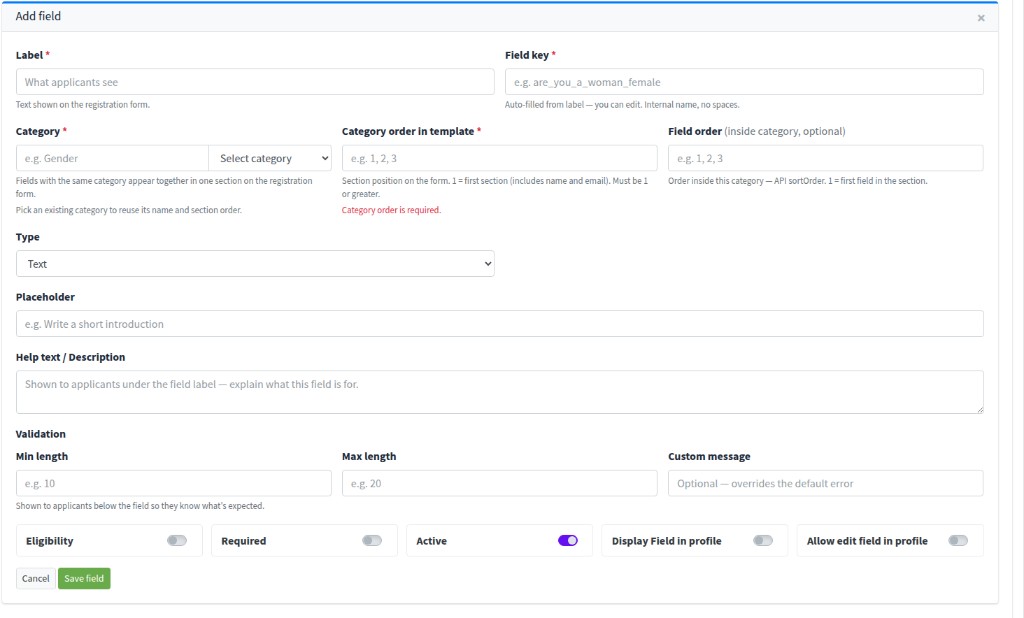
Label * — text shown on the registration form.
Field key * — auto-filled from the label. Internal name, no spaces. Unique on this template.
Category * — fields with the same category appear as one step on the form (for example Registration Form, then College & Academic Information). Pick an existing category to reuse its name and section order.
Category order in template * — which step comes first. 1 = first section (includes name and email). Must be 1 or greater. Empty shows Category order is required.
Field order (inside category, optional) — order inside that step.
Type
- Text — one line
- Textarea — several lines
- Email — email format
- Number — digits only
- Date
- Dropdown — pick one from a list
- Radio buttons — pick one, all options visible
- multi-select — pick more than one
- File upload — file or image
For Dropdown, Radio buttons, or multi-select, add Options with Add option, or use Master table (for example State). Add Other lets the learner type a value that is not in the list. Maximum selections is for multi-select.
For File upload, set Allowed file types (for example .pdf,.jpg,.png) and Max file size (MB) (empty = 10 MB).
Placeholder — text inside the box before they type. Help text / Description — under the label.
Min length, Max length, Custom message — for Text, Textarea, and Number. Number uses digit count (for example a 6-digit pin code).
Toggles:
- Eligibility — this field can be used in a rule. When on, you can set one Eligibility condition here (Rule type, Operator, Expected value, Ineligible message *). More rules for the same field go under Eligibility rules.
- Required — learner must answer before Next / submit
- Active — leave on to show the field
- Display Field in profile — answer appears on the learner’s Profile
- Allow edit field in profile — they can change it later on Profile
Click Save field. Cancel or x closes without saving.
Eligibility rules
eligibility rules add eligibility form access show fields
Eligibility rules decide who can register, and which extra questions appear. They are not the same as Eligibility Note (that is only text on the form).
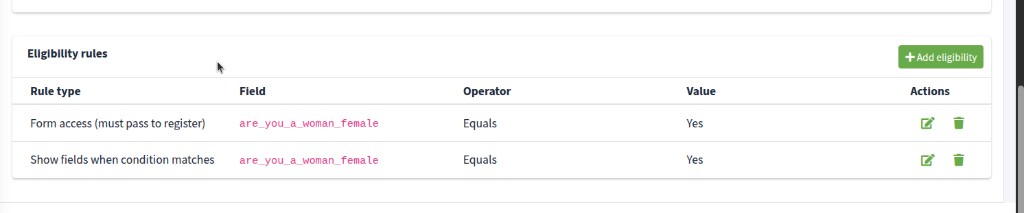
Click + Add eligibility. Pencil icon — edit. Trash icon — Delete eligibility. The box asks Remove this eligibility condition? Click Delete.
Add eligibility
add eligibility field rule type operator expected value target field keys save eligibility equals
Click + Add eligibility. The editor is Add eligibility.
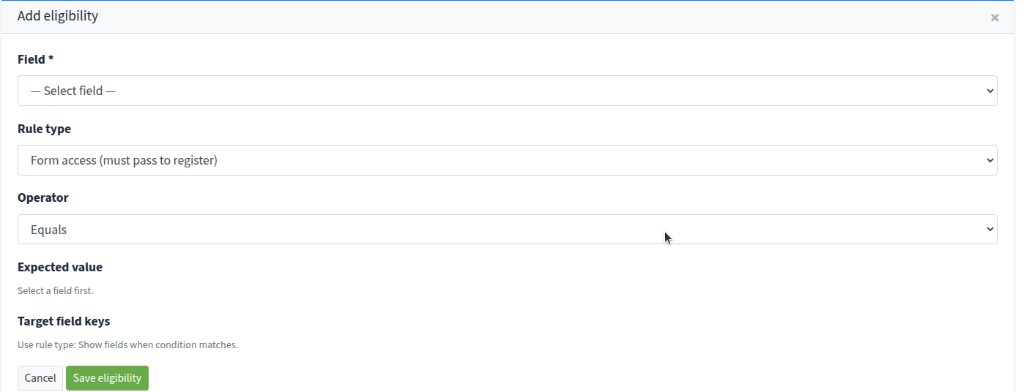
- Field * — the question the rule checks (placeholder — Select field —). Turn Eligibility on for that field first if it is not in the list.
- Rule type
- Form access (must pass to register) — if they fail, they cannot continue. Example: Are you a Woman/Female? Equals Yes.
- Show fields when condition matches — extra questions appear only when this matches (for example show document uploads only for one answer).
- Operator — Equals, Not equals, In list, Not in list, Greater than or equal, Less than or equal, Greater than, Less than.
- Expected value — select a field first, then tick answers. Tick All for any answer, or pick specific values. Several ticks mean any of those values.
For Show fields when condition matches, Target field keys lists which questions to show. Tick All or pick one or more fields.
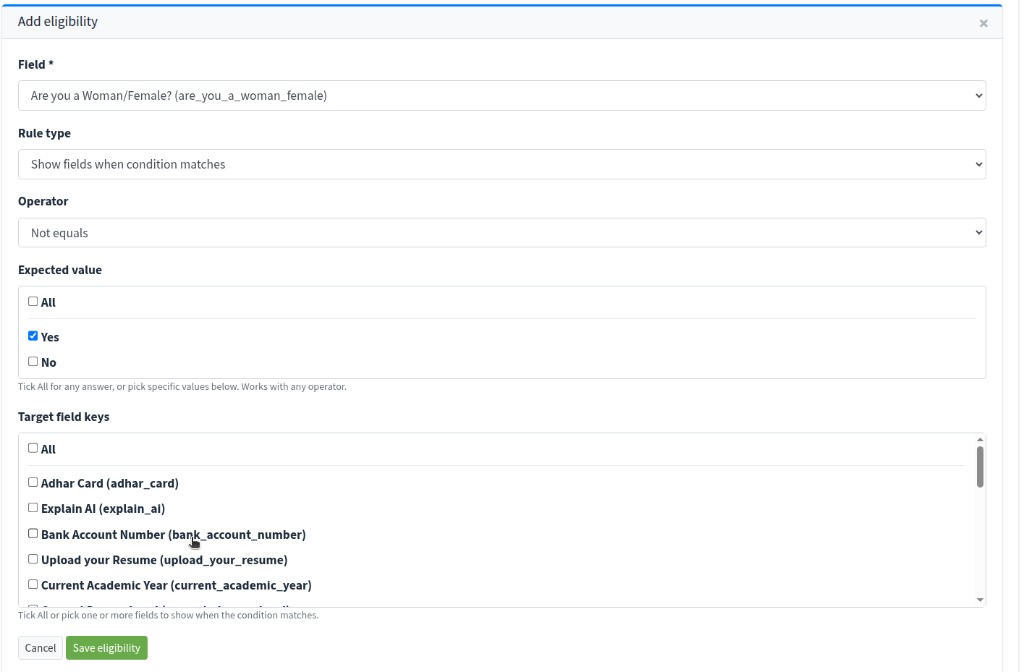
You cannot save two identical Form access rules on the same field.
Click Save eligibility. Cancel or x closes without saving.
Edit, duplicate, and delete a template
edit template duplicate template delete template back to templates
On Templates, hover an icon to see its name:
- Pencil icon — Edit template. Opens Form settings, the registration link, fields, and rules. Back to templates (or the Templates breadcrumb) returns to the list. The page title becomes the template name.
- Copy icon — Duplicate template. The new name is duplicate of (template name). Description, Eligibility Note, Thank you message, Name/Email labels, fields, and rules copy. The registration link is new. Course is not copied — you must choose a course that is not already used.
- Trash icon — Delete template.
Delete template? says This will permanently delete the form template, fields, rules, registration link, and course assignment. Click Delete, or Cancel. The old link and QR stop working. You cannot undo this.
Submissions
submissions cohort forms no of submissions view submissions export to excel previous response
Click Submissions (or the Total Submissions card). The list is Cohort Forms.

No. of Submissions is the count for that form. Eye icon — View submissions.
On that page:
- Columns: Name, Email, Submitted, Status, Actions
- Eye icon — View submitted data. The box is Submission Detail: Field, Answer, and Previous Response (from another form, if they applied before). Yellow means the answer changed.
- Export to Excel — CSV with Name, Email, Submitted, Status, Eligible, then each question
- Back to forms — this list
In-Progress
in-progress registrations send resume link delete selected drafts
Click In-Progress (or the In-Progress Registrations card). The list is Cohort Forms.
Applicants who submitted the form and passed eligibility, but have not yet finished creating and activating their account. Their answers are saved — send them a one-click link to pick up where they left off.

Eye icon — View in-progress registrations. You see Name, Email, Started, Last updated.
- Paper-plane icon — Send resume link. They get an email with a one-click link.
- Trash icon — Delete. Delete this in-progress registration? The saved draft is removed. They must fill the form again if they return.
- Tick rows (or Select all), then Send resume link or Delete selected. Send resume link? asks to email the selected people. Delete selected drafts? removes those drafts.
What learners see
registration form qr code link full name email address submit next steps
When a learner opens your Copy link URL, or scans a QR code made from that URL, they see the registration form.
The title is the Template name. The Eligibility Note is under it. Description is the longer about text. Name and Email use the labels you set (for example Full Name and Email Address). Extra fields appear in steps from Category and Category order. They click Next between steps.
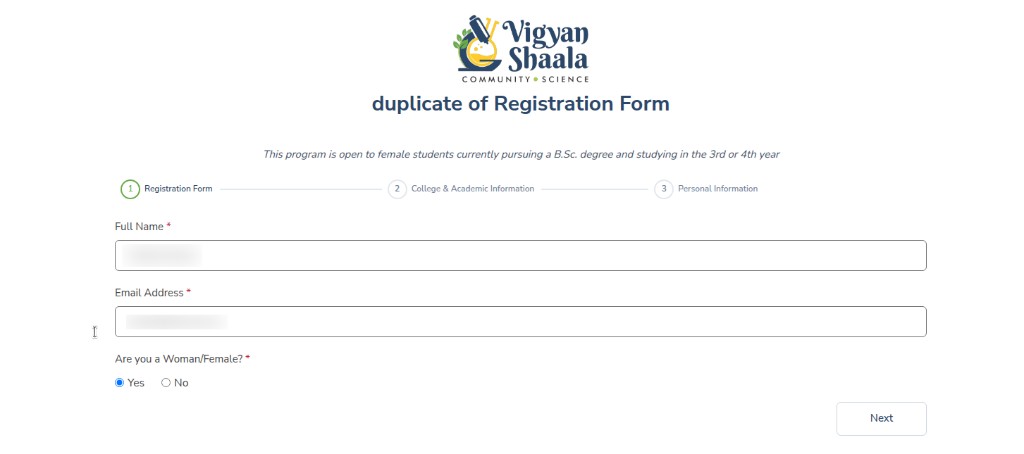
If they fail a Form access rule, they cannot continue (they see the Ineligible message). After a successful submit they see the Thank you message, then sign up with Google or email. When the account is activated they are enrolled in the linked course.
If they stop after submit, they appear under In-Progress. Send Send resume link so they can finish.