Dashboard
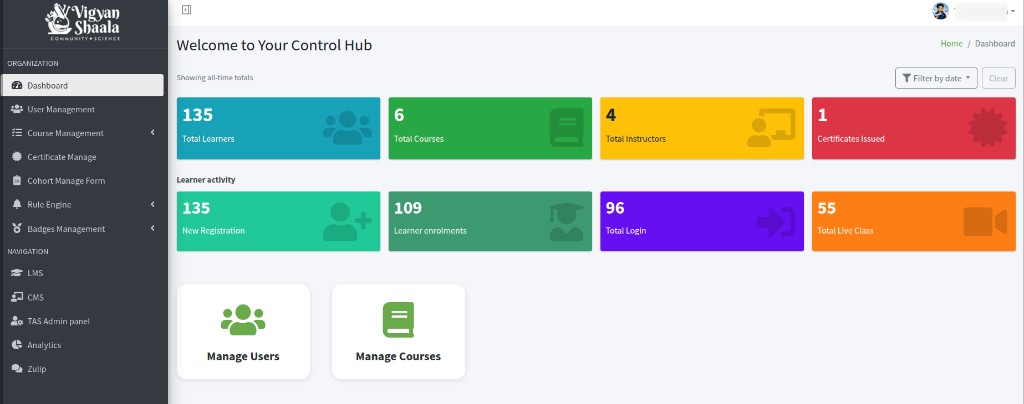
Dashboard is the first page in Control Hub. It shows platform totals, learner activity, and shortcuts to Manage Users and Manage Courses. The breadcrumb is Home / Dashboard.
Dashboard overview
control hub dashboard totals learners courses instructors certificates live class
When no date filter is set, the line above the cards says Showing all-time totals.
The first row is platform totals. In this example:
- 135 Total Learners
- 6 Total Courses
- 4 Total Instructors
- 1 Certificates Issued
Learner activity is the second row. In this example:
- 135 New Registration
- 109 Learner enrolments
- 96 Total Login
- 55 Total Live Class
These numbers are an example. Your Control Hub shows the counts for your site.
Filter by date
filter by date today yesterday last 7 days last 30 days this month last month
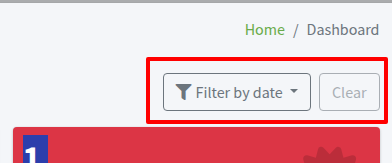
Use Filter by date to show counts for a time range instead of all time.
- Click Filter by date (top right).
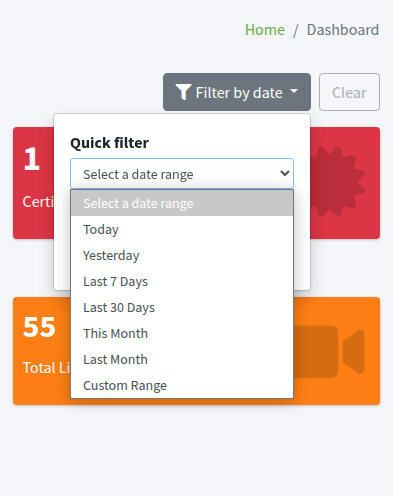
- Under Quick filter, choose a range:
- Today
- Yesterday
- Last 7 Days
- Last 30 Days
- This Month
- Last Month
- Custom Range
- Click OK.
The cards update to that range. Clear is available after a filter is applied. Click Clear to return to Showing all-time totals.
Custom date range
custom range start date end date filter ok
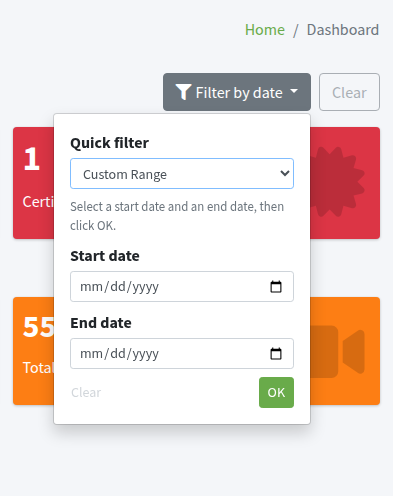
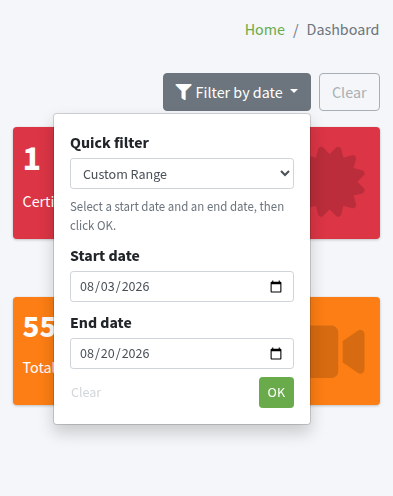
To pick your own dates:
- Click Filter by date.
- In Quick filter, choose Custom Range.
- Set Start date and End date.
- Click OK.
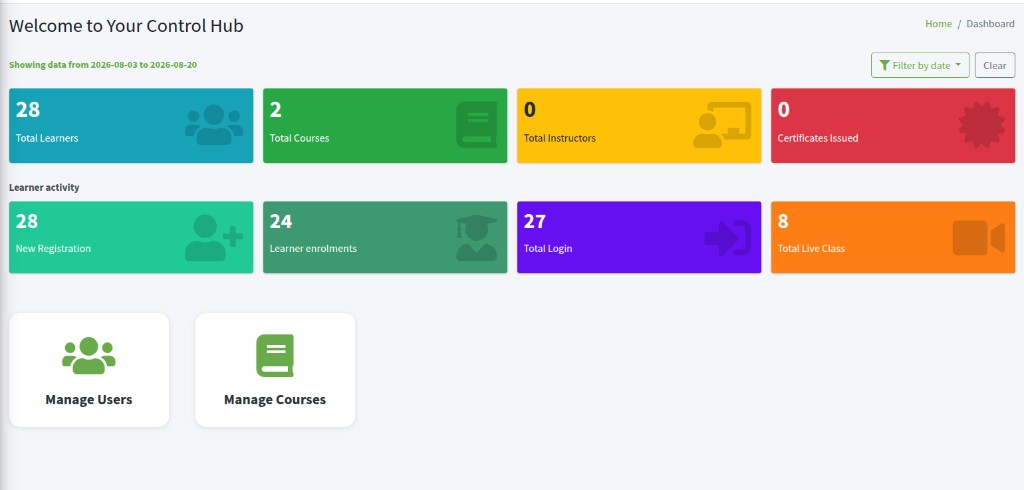
The dashboard then shows counts for that range only. Example: Start date 03 Aug 2026 and End date 20 Aug 2026. The status line becomes Showing data from 2026-08-03 to 2026-08-20, and the cards change (for example Total Live Class may drop from 55 to a smaller number for those days).
Manage Users and Manage Courses
manage users manage courses shortcut
At the bottom of Dashboard:
- Manage Users opens User Management.
- Manage Courses opens Course Management → Courses.