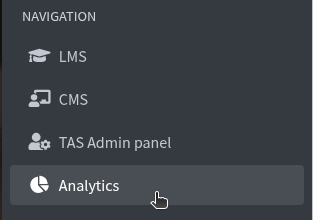
NAVIGATION
NAVIGATION is the second group in the Control Hub left menu. Each item opens another site in a new tab. Stay in Control Hub for users, courses, certificates, forms, rules, and badges.
NAVIGATION overview
navigation sidebar lms cms tas admin panel analytics zulip
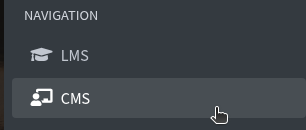
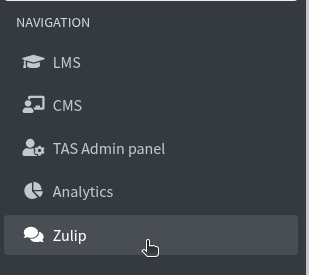
On the left, under NAVIGATION:
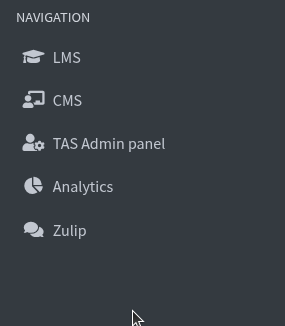
- LMS — the learning site (My Dashboard)
- CMS — Studio home, where you create courses
- TAS Admin panel — assignment templates (see the TAS Admin guide)
- Analytics — dashboards and charts (see the Analytics guide)
- Zulip — chat
LMS
lms my dashboard enrolled courses continue learning
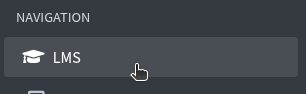
Click LMS. A new tab opens the learning site.
You land on My Dashboard — your own enrolled courses, the same layout learners use.
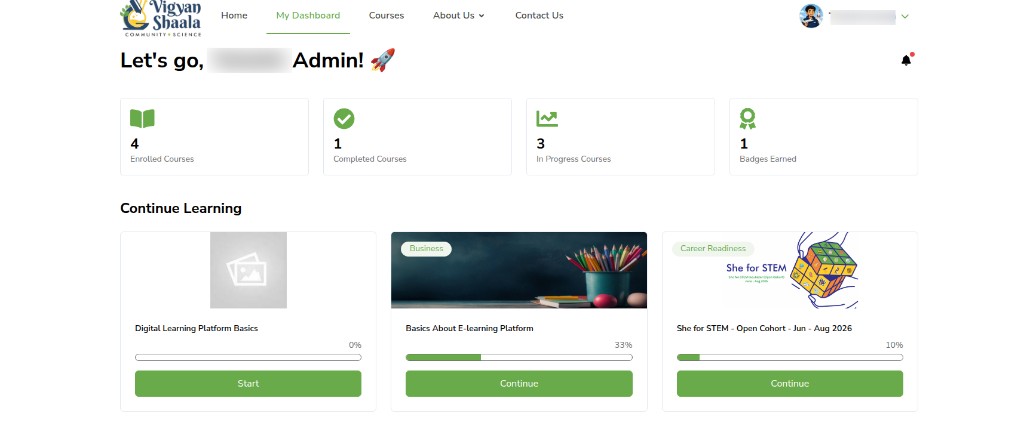
Use Home, My Dashboard, and Courses at the top. Cards show Enrolled Courses, Completed Courses, In Progress Courses, and Badges Earned. Under Continue Learning, click Start or Continue.
This is not Control Hub. To manage other users or courses, go back to the Control Hub tab.
CMS
cms studio home new course new library courses libraries taxonomies
Click CMS. A new tab opens Studio home.
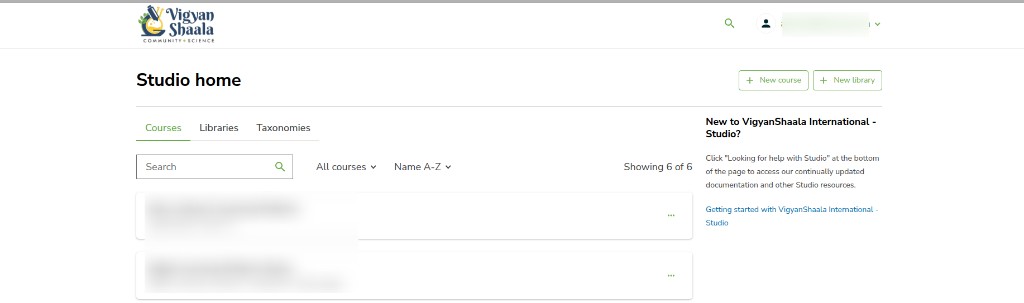
On Studio home:
- + New course — start a course
- + New library — start a library
- Tabs: Courses, Libraries, Taxonomies
Search, All courses, and Name A-Z filter the list. After you create a course in Studio, manage names and settings in Control Hub Course Management.
Zulip
zulip chat navigation
Click Zulip. Chat opens in a new tab.
Use it to message your team. Close the tab to return to Control Hub.
TAS Admin panel and Analytics
tas admin panel analytics new tab
TAS Admin panel and Analytics are also under NAVIGATION. They open in a new tab. Their full guides are not inside Control Hub:
- TAS Admin panel — types, rubrics, and templates
- Analytics — dashboards, charts, and reports