Rule Engine
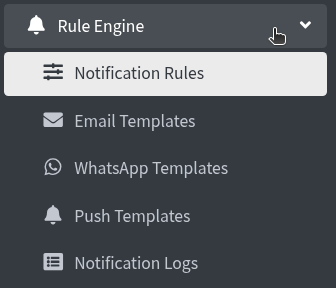
Rule Engine is in the left sidebar. A Notification Rule decides when a message goes out, who gets it, and which template to use. Templates are the actual Email, WhatsApp, or Push text. Notification Logs shows whether each send worked.
Rule Engine menu
rule engine notification rules email templates whatsapp push logs
Click Rule Engine. You see:
- Notification Rules — create and edit rules
- Email Templates — subject and body for email
- WhatsApp Templates — WhatsApp text (must be Approved before a rule can use it)
- Push Templates — title and body for a phone notification
- Notification Logs — Success, Failed, or Pending for each send
Notification Rules
notification rules new rule all kinds all status all channels search
Click Notification Rules. Page title: Notification Rules. Breadcrumb: Home / Rules.

If the list is empty: No rules configured yet.
The bar above the table is for finding rules. Change a filter and the list updates.
- All Kinds — Event Based (sends when something happens) or Schedule Based (sends for people stuck in a state, such as never activated)
- All Status — Active (can send) or Inactive (paused)
- All Channels — rules that use Email, WhatsApp, SMS, or Push
- Search… — type part of the rule name
- Newest First — also Oldest First, Name A–Z, Name Z–A
- 20 / page — how many rows to show (10, 20, 50, or 100)
Click + New Rule to add a rule.
Pencil icon — Edit. Trash icon — Delete.
Kind in the table is Event or Scheduled. Trigger / State is the event name or the schedule state. Active is Yes or No.
Create Notification Rule
create notification rule rule identity rule name rule kind rule active create rule
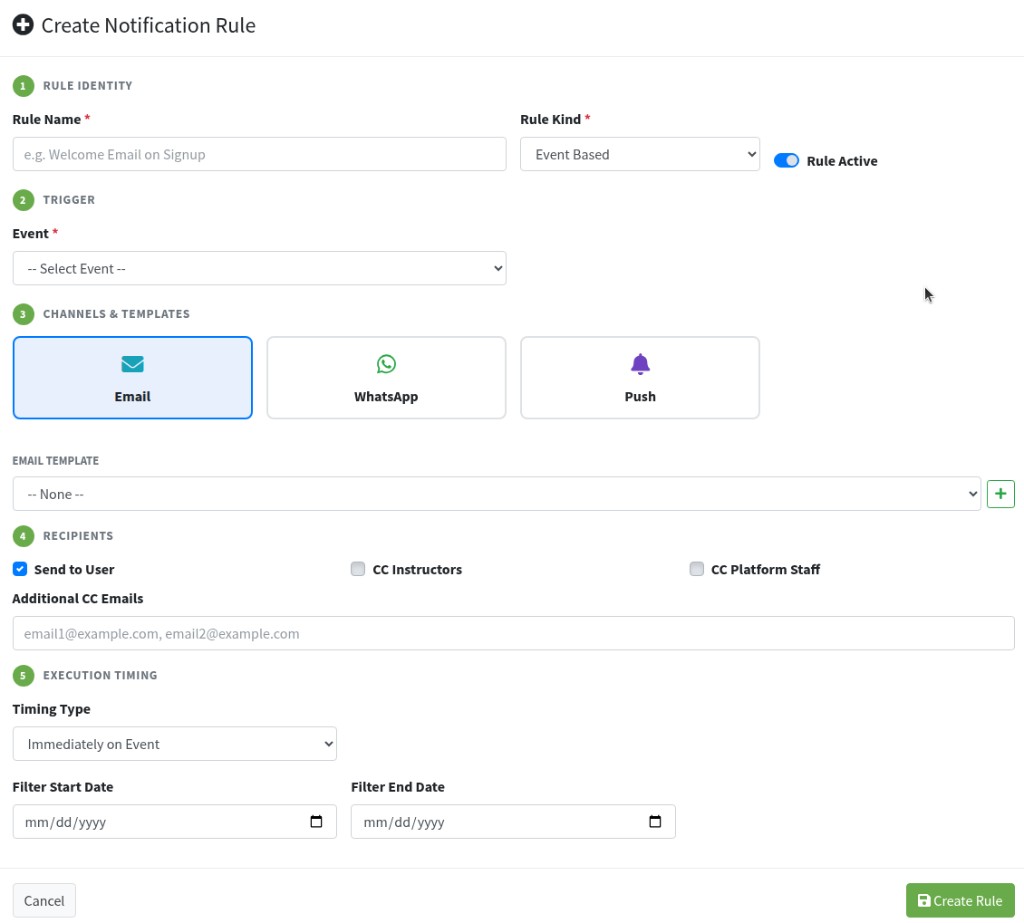
The box is Create Notification Rule. Fill the five steps, then Create Rule.
A saved template does not send by itself. In step 3 Channels & Templates, turn on Email, WhatsApp, and/or Push, then pick the template for each channel. See Channels & Templates.
1 Rule Identity
- Rule Name * — required. Must be unique. Placeholder: e.g. Welcome Email on Signup. Empty name: Rule name is required.
- Rule Kind * — Event Based or Schedule Based. This changes step 2.
- Rule Active — leave on so the rule can send. Turn off to pause without deleting.
Cancel or x closes without saving.
Rule Kind — Event Based
rule kind event based event select event
Choose Event Based when the message should go out because something just happened (signup, enrollment, a live class, and so on).
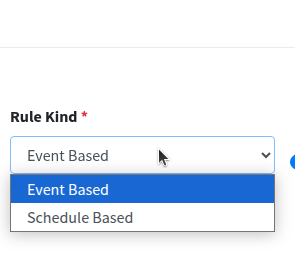
2 Trigger then shows Event *. Placeholder: -- Select Event --. If you skip it: Please select an event.
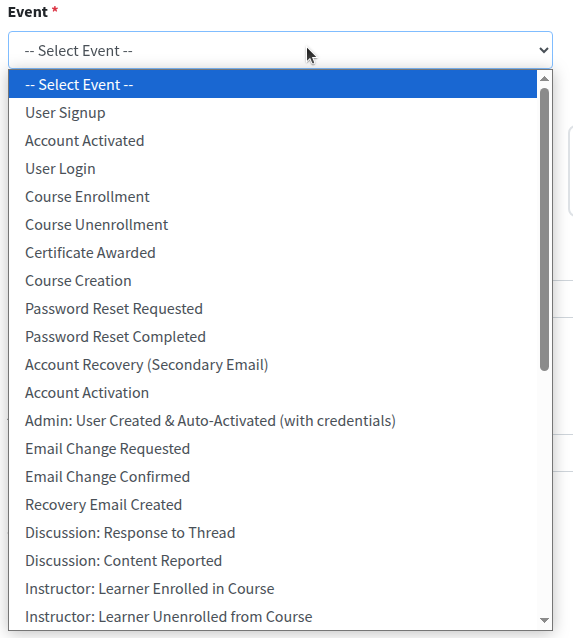
Pick the event that should start the send. Scroll the list — it includes signup and login, enrollment, certificates, password and email changes, discussion posts, instructor enroll actions, Zoom meetings, assignments, and course progress.
Under Execution Timing, Filter Start Date and Filter End Date limit the days this event rule may send. Leave both empty for no date limit.
Rule Kind — Schedule Based
rule kind schedule based schedule state
Choose Schedule Based to remind people who have not finished a step. The rule looks for that state, then sends on the timing you set.
2 Trigger then shows Schedule State *. Placeholder: -- Select State --. If you skip it: Please select a schedule state.
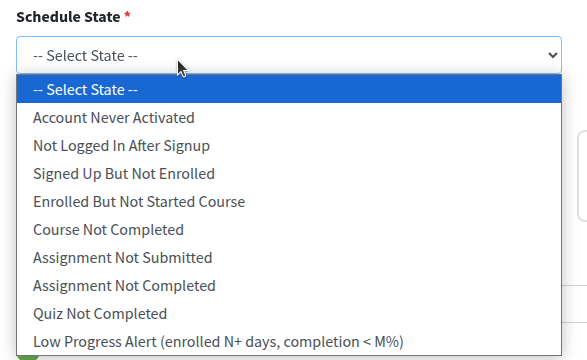
- Account Never Activated — signed up, account not activated
- Not Logged In After Signup — has an account, has not logged in
- Signed Up But Not Enrolled — no course yet
- Enrolled But Not Started Course — enrolled, no progress
- Course Not Completed — started, not finished
- Assignment Not Submitted
- Assignment Not Completed
- Quiz Not Completed
- Low Progress Alert (enrolled N+ days, completion < M%) — enrolled for a while, still below a %
Channels & Templates
channels templates email whatsapp push none plus create select connect template to rule
3 Channels & Templates — choose how the message is sent, then link a template for each channel you turn on. A template alone does not send anything. The rule must select the channel and the template, and Rule Active must stay on.
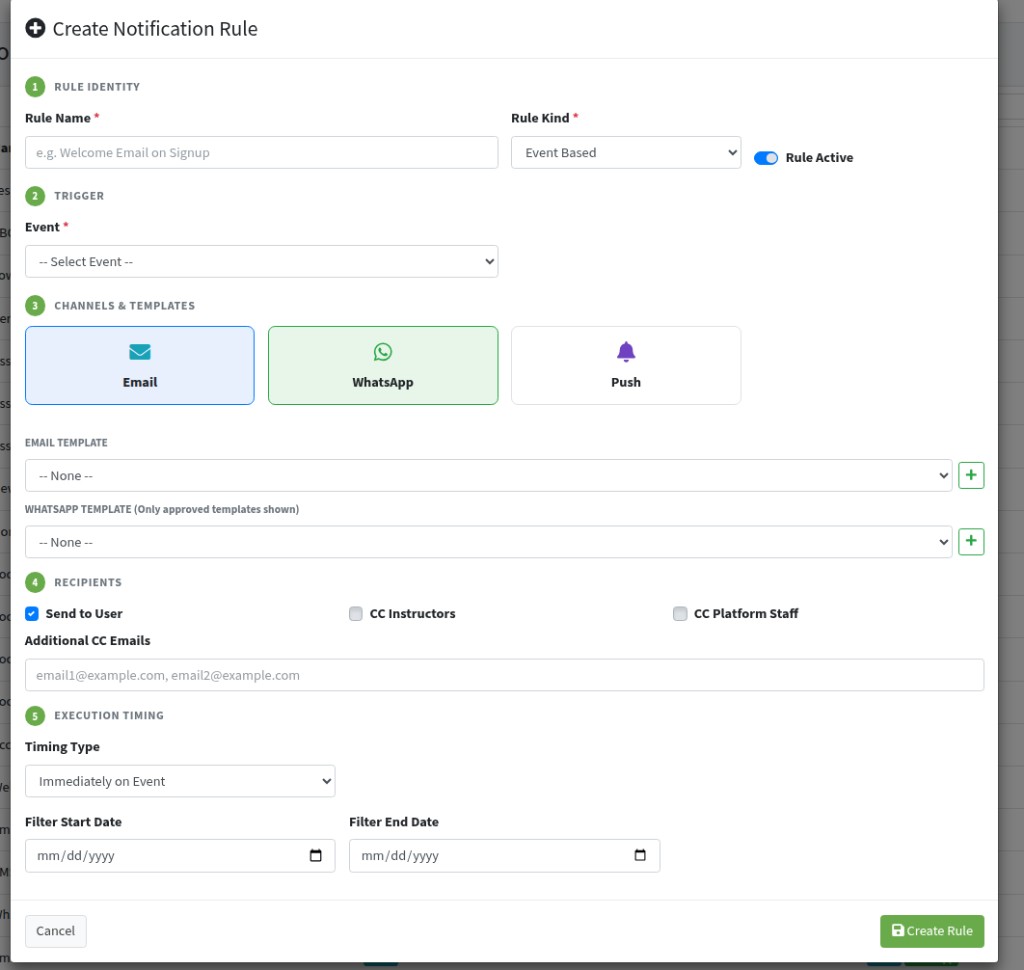
Select a channel
Click Email, WhatsApp, and/or Push. A selected channel shows a coloured border (blue / green / purple). You can turn on more than one channel on the same rule. Click again to turn a channel off.
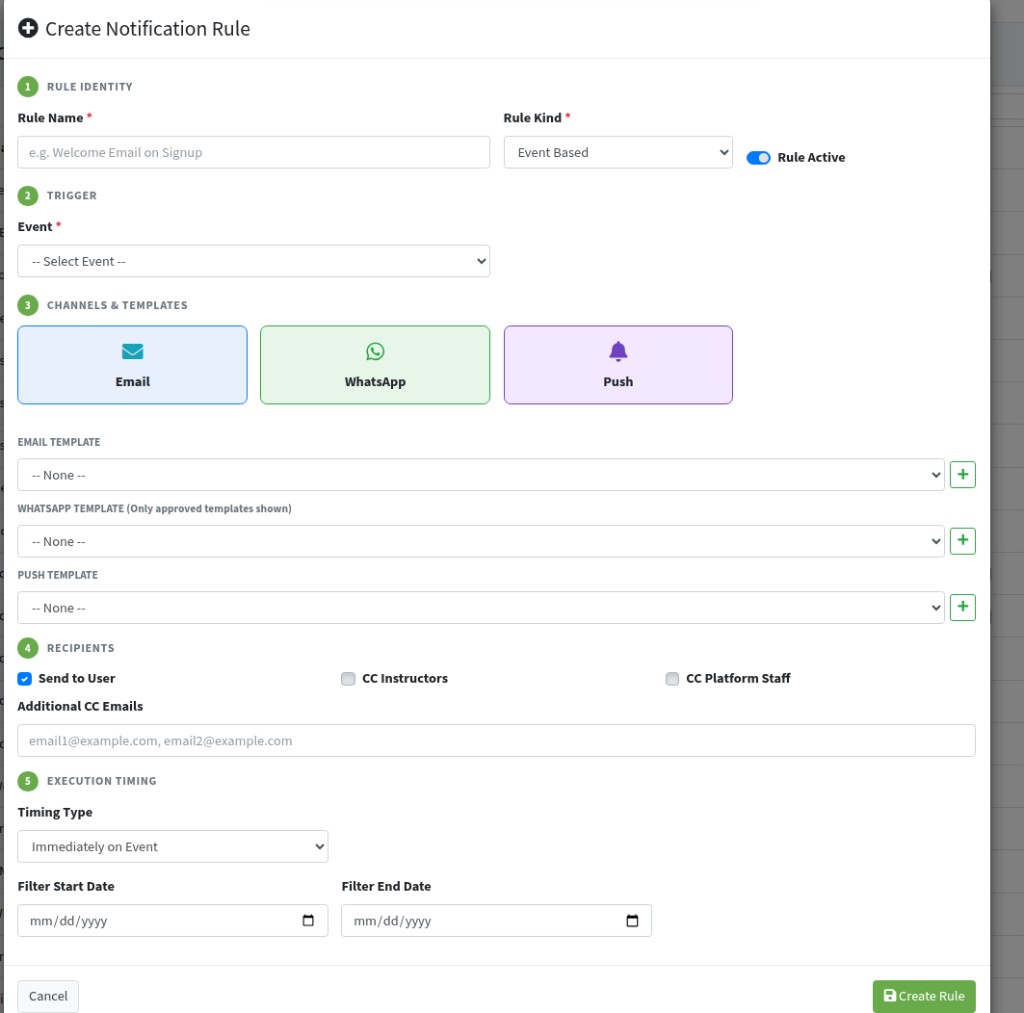
A template dropdown appears only for channels that are on:
EMAIL TEMPLATE
- Click Email so the channel is on.
- Open EMAIL TEMPLATE and pick a saved template, or leave -- None -- (no email will send on that channel).
- Or click the green + for Quick Create Email Template (name, subject, plain body). Create & Select saves it and selects it on this rule.
- For HTML body and a signature, create the template first under Email Templates, then pick it here.


WHATSAPP TEMPLATE (Only approved templates shown)
- Click WhatsApp so the channel is on.
- Open WHATSAPP TEMPLATE and pick an Approved template only. Pending templates do not appear in this list.
- Or click + to create one. It stays Pending Approval until the Glific UUID works — a pending template cannot be used on a rule yet.
- Create and approve templates under WhatsApp Templates, then return here to connect them.
PUSH TEMPLATE
- Click Push so the channel is on.
- Open PUSH TEMPLATE and pick a saved template, or -- None --.
- Or click + for Quick Create Push Template (name, title, body).
- Or create the template under Push Templates, then pick it here.
A rule with no channel selected will not send. After channels and templates are set, continue with Recipients and Execution Timing, then click Create Rule.
Recipients
recipients send to user cc instructors cc platform staff additional cc emails
4 Recipients — who gets the message.
- Send to User — the user the event is about (checked by default). Keep this on for welcome and reminder messages.
- CC Instructors — course instructors. Useful for enrollment and certificate events.
- CC Platform Staff — staff accounts on this site.
- Additional CC Emails — extra addresses, separated by commas. Placeholder: email1@example.com, email2@example.com
You can tick more than one. If Send to User is off and no CC is set, nobody is notified.
Execution Timing
execution timing timing type immediately after n days weekly filter start date
5 Execution Timing — when to send after the trigger.
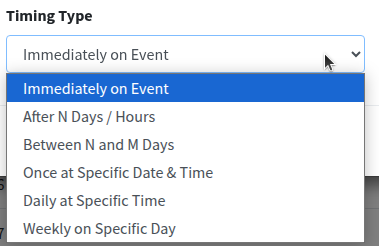
- Immediately on Event — send at once. Extra fields stay hidden.
- After N Days / Hours — Unit (Days or Hours) and After (for example 3). Send that long after the event or after the person entered the schedule state.
- Between N and M Days — After, Before, and Unit. Before must be greater than After. People in that window can get the message.
- Once at Specific Date & Time — Run At (date & time). Sends once, then stops.
- Daily at Specific Time — Time of Day. Runs every day at that time (used with schedule states).
- Weekly on Specific Day — Time of Day and Weekday (Monday … Sunday, or -- Any --).
For Event Based, Filter Start Date and Filter End Date (mm/dd/yyyy) are the days the rule is allowed to fire.
Click Create Rule.
Edit and delete a rule
edit rule save changes delete rule
Pencil icon — Edit. The box is Edit Rule (Loading rule data..., then the same five steps). Click Save Changes.
Trash icon — Delete. Delete Rule asks Delete rule (name)? and All associated conditions and notification logs will also be removed. Click Delete, or Cancel. The template itself is not deleted.
Email Templates
email templates new email template create html body plain text signature
Click Email Templates. Breadcrumb: Home / Email Templates.

Search… finds a template by name. Newest First and 20 / page work like the rules list.
Pencil icon — Edit. Trash icon — Delete. Delete Email Template says Templates used by active rules cannot be deleted. Open those rules, pick another template (or -- None --), save, then delete.
Click + New Email Template. The box is Create Email Template.
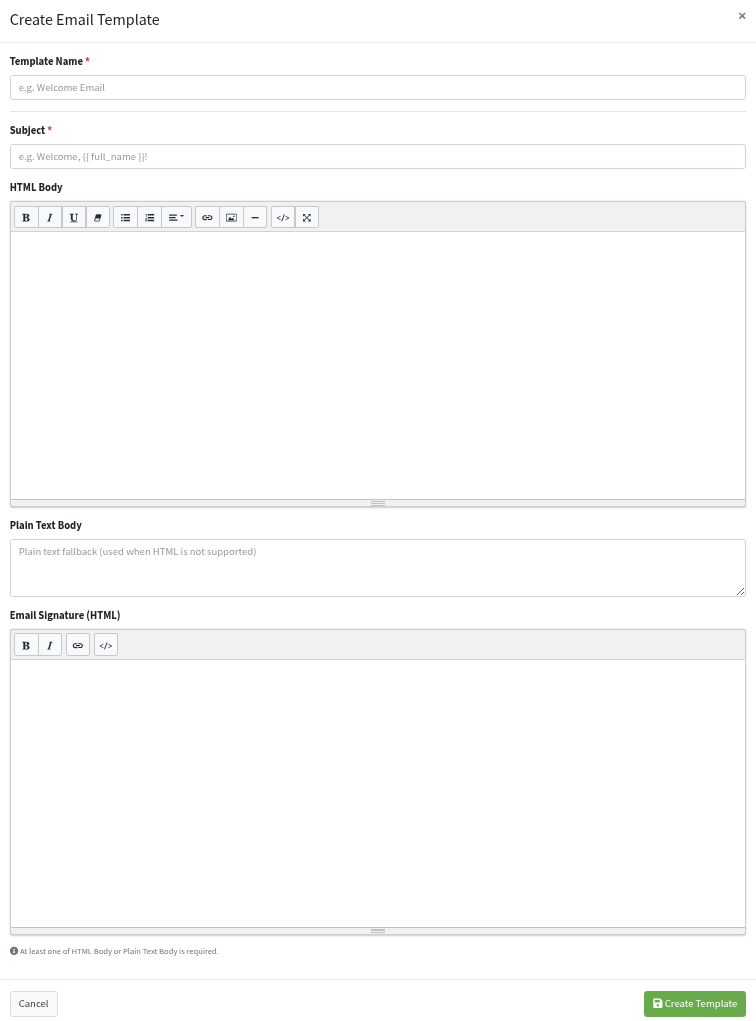
- Template Name * — placeholder e.g. Welcome Email
- Subject * — placeholder e.g. Welcome, {{ full_name }}! Tags like
{{ full_name }}are replaced with the user’s name when the email is sent - HTML Body — formatted email (bold, lists, links, image)
- Plain Text Body — used when HTML cannot be shown. Placeholder: Plain text fallback (used when HTML is not supported)
- Email Signature (HTML) — footer under the body
At least one of HTML Body or Plain Text Body is required.
Click Create Template.
Next: connect this template to a rule
A template alone does not send. If you have not created a notification rule yet, open Create Notification Rule, turn on Email, pick this template under EMAIL TEMPLATE in Channels & Templates, finish Recipients and Timing, then click Create Rule with Rule Active on.
WhatsApp Templates
whatsapp templates all approval pending approved glific uuid
Click WhatsApp Templates. Breadcrumb: Home / WhatsApp Templates.

All Approval shows Pending Approval or Approved. Only Approved templates appear in a rule’s WhatsApp list.
Pencil icon — Edit. Trash icon — Delete. Templates in use by rules cannot be deleted.
Click + New WhatsApp Template. The box is Create WhatsApp Template.
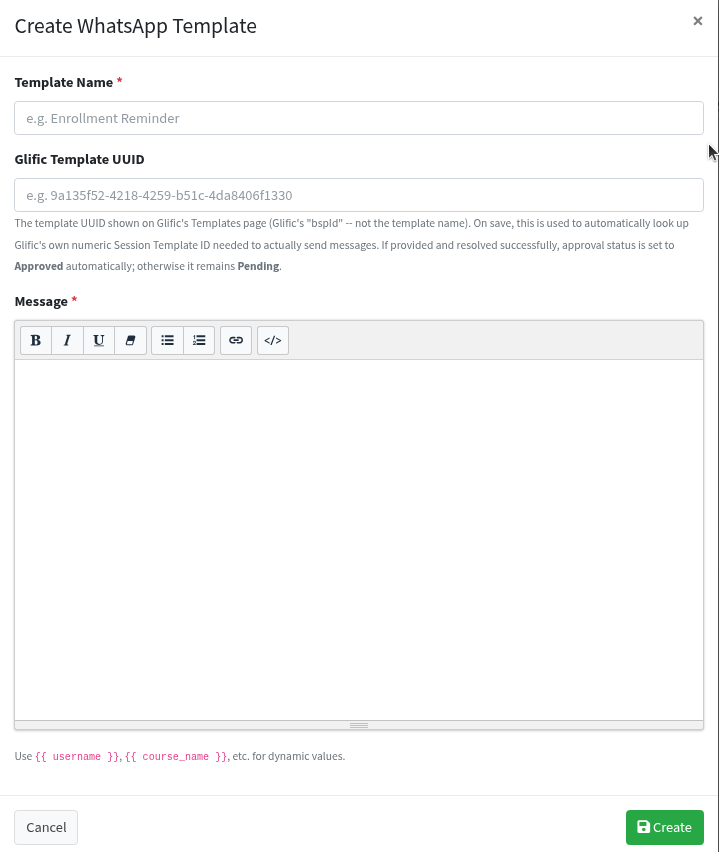
- Template Name * — placeholder e.g. Enrollment Reminder
- Glific Template UUID — the UUID from Glific’s Templates page (bspId), not the template name. If it is found, Approval becomes Approved. If not, it stays Pending and the rule cannot use it yet
- Message * — use
{{ username }},{{ course_name }}, and similar tags. They are filled when the message is sent
Click Create.
Next: connect this template to a rule
A WhatsApp template alone does not send. Wait until Approval is Approved. If you have not created a notification rule yet, open Create Notification Rule, turn on WhatsApp, pick this template under WHATSAPP TEMPLATE in Channels & Templates, finish Recipients and Timing, then click Create Rule with Rule Active on.
Push Templates
push notification templates create title body click action
Click Push Templates. Page title: Push Notification Templates. Breadcrumb: Home / Push Templates.

Search…, sort, and 20 / page work like the other lists. Pencil icon — Edit. Trash icon — Delete. Templates in use by rules cannot be deleted.
Click + New Push Template. The box is Create Push Template.
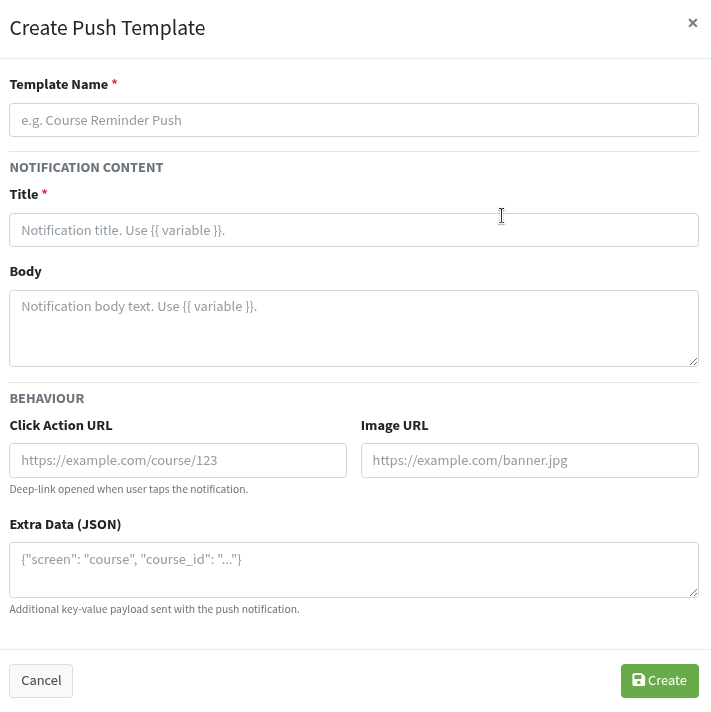
- Template Name * — placeholder e.g. Course Reminder Push
NOTIFICATION CONTENT
- Title * — short line on the phone. Placeholder: Notification title. Use {{ variable }}.
- Body — longer text. Placeholder: Notification body text. Use {{ variable }}.
BEHAVIOUR
- Click Action URL — page opened when the user taps the notification
- Image URL — optional picture
- Extra Data (JSON) — extra data for the app, for example
{"screen": "course", "course_id": "..."}
Click Create.
Next: connect this template to a rule
A push template alone does not send. If you have not created a notification rule yet, open Create Notification Rule, turn on Push, pick this template under PUSH TEMPLATE in Channels & Templates, finish Recipients and Timing, then click Create Rule with Rule Active on.
Notification Logs
notification logs all channels all statuses all rules success failed
Click Notification Logs. Breadcrumb: Home / Notification Logs. This page is a history. You do not create rows here.

Filters:
- All Channels — Email, WhatsApp, SMS, or Push
- All Statuses — Success, Failed, or Pending
- All Rules — one rule name, to see only that rule’s sends
- Search… — user, recipient, or rule name
- Sort and 20 / page — same idea as the other lists
Status Success means the send went out. Failed did not. Hover the error icon to read why. Error is — when there was no error.
If the list is empty: No notification logs found.