Studio
Studio is where you create courses, build the course outline, manage libraries of reusable content, and manage taxonomies (tag lists). Sign in with your admin account, then open Studio from your name at the top right. It opens in a new tab.
How to reach Studio
how to reach studio my dashboard user menu studio home courses libraries search
Sign in with your admin account. After login you land on My Dashboard — the same learner home. Studio is not a separate login.
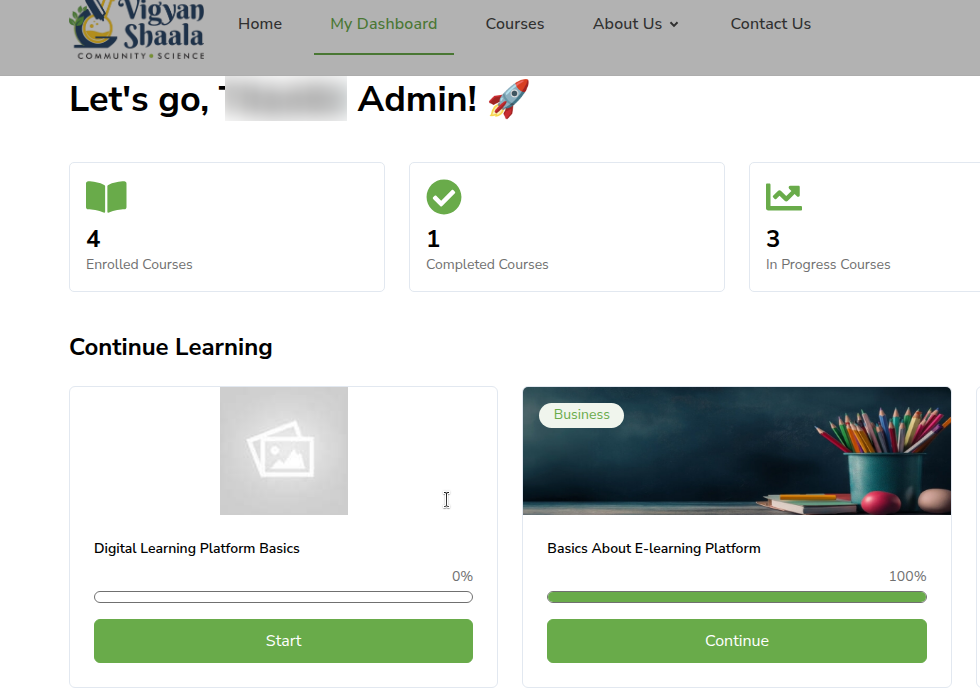
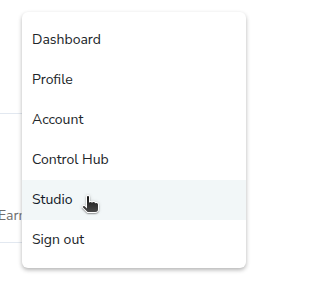
Click your name or photo at the top right. In the list, click Studio.
The same menu also has Dashboard, Profile, Account, Control Hub, and Sign out. Use Studio to write course content. Use Control Hub to manage users, enrollments, and course names on the site.
You go to Studio home.
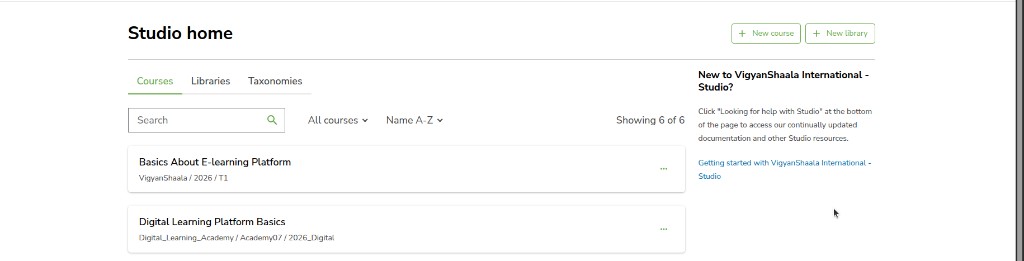
Studio home is the list of courses you can edit. At the top right:
- + New course — start a course
- + New library — start a library of reusable units
Tabs under the title:
- Courses — every course you can open
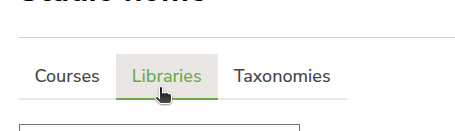
- Libraries — reusable content collections
- Taxonomies — tag lists you can apply to content
On Courses, use search to find a course by name. All courses narrows the list. Name A-Z sorts it. The count (for example Showing 6 of 6) is how many courses match.
Each row is one course: the title, then the organisation, course number, and run (for example Digital_Learning_Academy / Academy07 / 2026_Digital). Click the course title to open Course outline. The three-dot menu on the right is extra actions for that course.
Click Libraries when you need a library instead of a course. See How to create a library and How to explore a library. Click Taxonomies to manage tags. See Taxonomies.
How to create a course
how to create a course new course course name organization course number course run create cancel
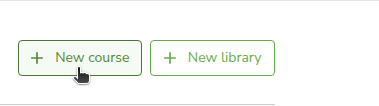
On Studio home, click + New course.
The page title is Create a new course. Fill in all four fields. Three of them become part of the course URL, so choose them carefully.
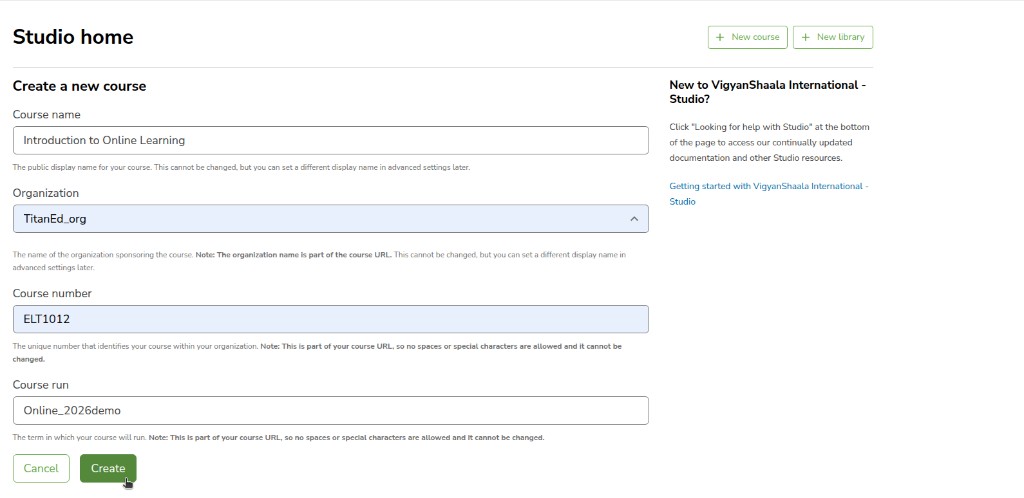
Course name
The public display name for your course. This cannot be changed, but you can set a different display name in advanced settings later.
Type the title learners should see (placeholder e.g. Introduction to Computer Science).
Organization
The name of the organization sponsoring the course. Note: The organization name is part of the course URL. This cannot be changed, but you can set a different display name in advanced settings later.
Pick the organisation from the list (placeholder e.g. UniversityX or OrganizationX).
Course number
The unique number that identifies your course within your organization. Note: This is part of your course URL, so no spaces or special characters are allowed and it cannot be changed.
Use letters and numbers only, with no spaces (placeholder e.g. CS101).
Course run
The term in which your course will run. Note: This is part of your course URL, so no spaces or special characters are allowed and it cannot be changed.
Use a term code such as a year and intake (placeholder e.g. 2014_T1). No spaces.
Cancel closes the form without creating a course.
When the four fields are filled, click Create. The button shows Creating with a spinner. Wait until it finishes. Do not close the tab.
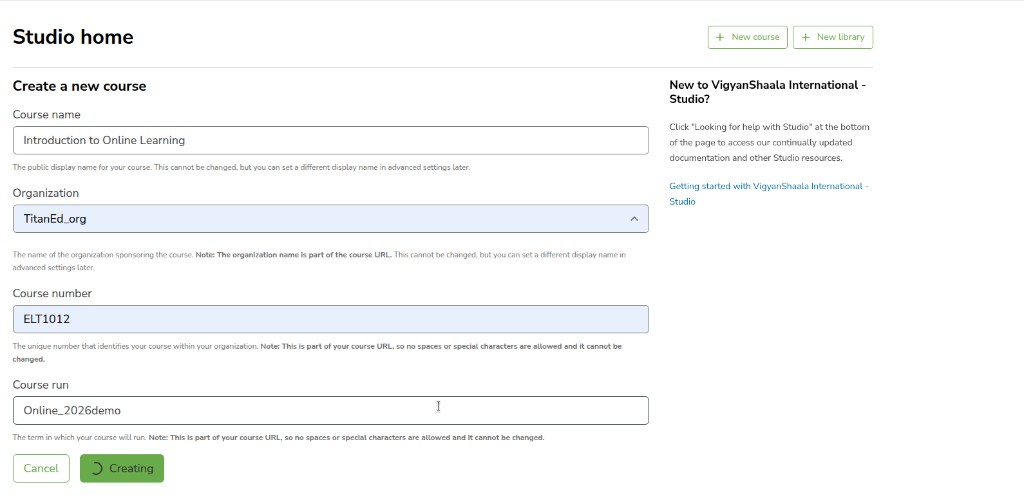
When it is done, you land on Course outline for the new course. After that, set the display name, category, and certificate in Control Hub Course Management.
Course outline
course outline new section view live start date pacing type checklists course tags
Course outline is the map of the course: sections, then subsections, then units. Learners see this same order. After you click Create, the outline is empty until you add a section.
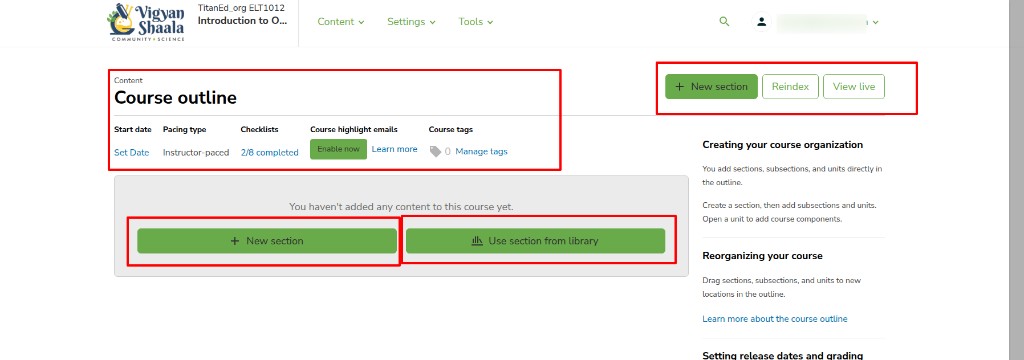
The course name is next to the logo at the top. Menus: Content, Settings, and Tools.
Under Course outline:
- Start date — when the course opens for learners. Click Set Date if it is not set yet
- Pacing type — Instructor-paced means you set dates. Self-paced lets learners move at their own speed
- Checklists — setup progress for this course
- Course highlight emails — optional emails about new sections. Click Enable now if you want them
- Course tags — tags from Taxonomies. Click Manage tags to add them
On the right: + New section, Reindex, and View live. Reindex and View live stay unavailable until there is content to publish.
Until you add a section, the outline says You haven't added any content to this course yet.
- + New section — add the first section
- Use section from library — pull in a section you already saved in a library
The right-hand help text is Creating your course organization. Add a section, then subsections and units inside it. Open a unit to add text, video, problems, and other components. Drag items to reorder.
Click + New section to start building. See How to create a section, How to create a subsection, and How to create a unit. Adding Template Based Assignment is in the TAS Admin panel guide.
On the Course outline or a Unit page, click Analytics at the top to open a sidebar of engagement and performance charts next to the content. Details: In-Context Analytics in Studio.
How to create a section
how to create a section new section pencil icon rename collapse expand section highlights unscheduled configure publish duplicate delete release date hide from learners
On Course outline, click + New section (top right, or in the empty outline). A card named Section appears.

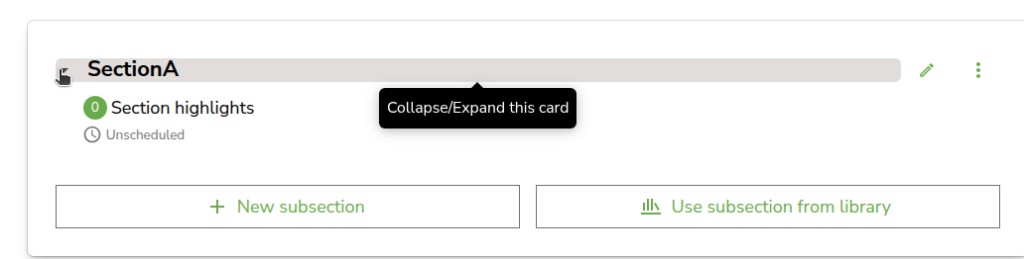
The arrow on the left expands or collapses the card. Hover the header to see Collapse/Expand this card.
0 Section highlights is how many highlight emails this section has. Unscheduled means no release date is set yet.
Click the pencil icon. The tooltip is Rename.

Type the name you need (for example SectionA). Click outside the box to save.

You can also click Use section from library to add a section you already saved in a library. See How to create a library and How to explore a library.
After the section is there, add a subsection. See How to create a subsection.
Three-dot menu
Click the three-dot menu on the section.
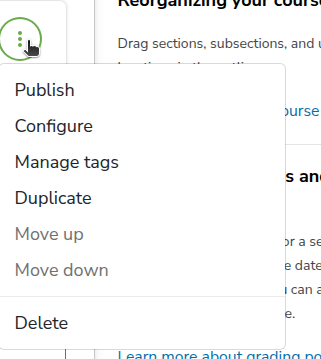
- Publish — make new or changed content available to learners (after the release date)
- Configure — open settings
- Manage tags — tags from Taxonomies
- Duplicate — copy it just below, named Duplicate of …
- Move up / Move down — grey when you cannot move it
- Delete — removes it. You cannot get it back. Confirm if asked
You can also drag the card to a new place in the outline.
Configure
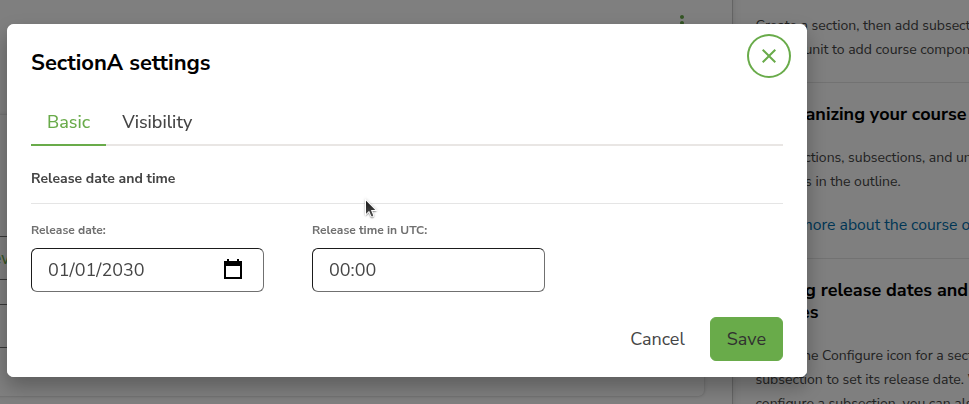
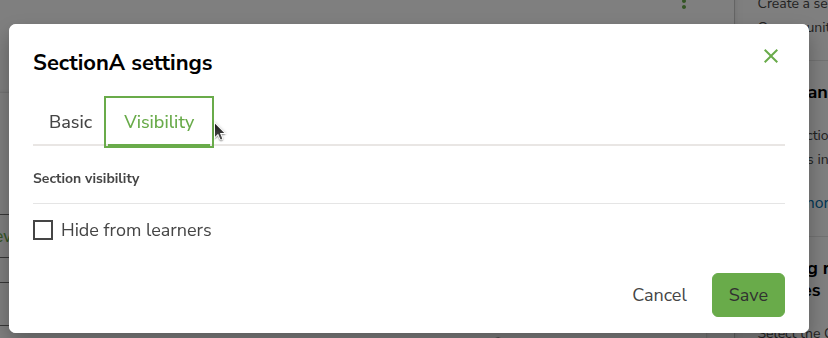
Click Configure. The box is SectionA settings (the name matches the section). Tabs: Basic and Visibility. Cancel or the X closes without saving. Save keeps the changes.
Basic is Release date and time. Release date (calendar) and Release time in UTC. The default is often 01/01/2030 and 00:00. Change these so learners can see the section.
Visibility is Section visibility. Hide from learners hides the whole section, even if it is published. Leave it unchecked if learners should see it after the release date.
Publish and schedule
Set Release date and time in Configure, then click Publish on the three-dot menu. If it stays Unscheduled, learners will not see this section in the course. Leave Hide from learners unchecked. Do not hide graded assignments after they have been released.
How to create a subsection
how to create a subsection new subsection use subsection from library pencil icon rename configure grading due date visibility timed exam
Expand a section. You get two buttons:
- + New subsection — start a new subsection
- Use subsection from library — add a subsection you already saved in a library
Click + New subsection. A card appears with a default name. Click the pencil icon to Rename (for example SubsectionB). Click outside the box to save.
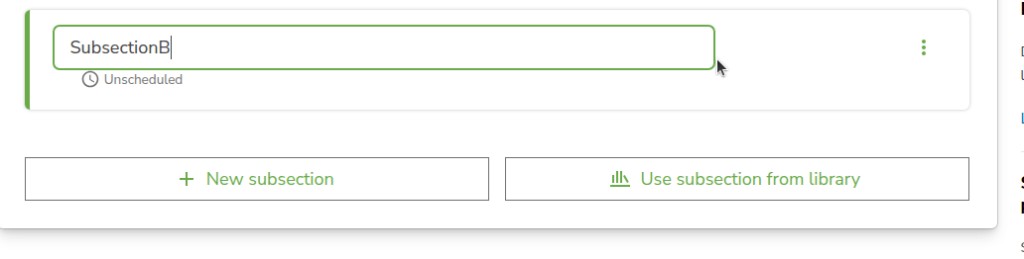
Use subsection from library pulls in a subsection from a library. See How to create a library and How to explore a library.
After the subsection is there, add a unit. See How to create a unit.
The three-dot menu on a subsection is the same as on a section: Publish, Configure, Manage tags, Duplicate, Move up, Move down, and Delete.
Configure
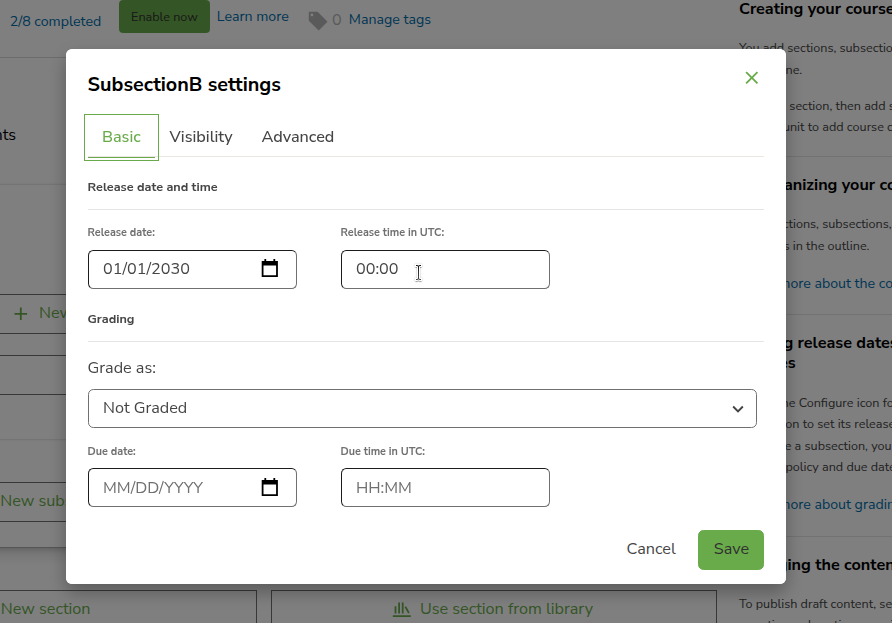
Click Configure. The box is SubsectionB settings. Tabs: Basic, Visibility, and Advanced. Cancel or the X closes without saving. Save keeps the changes.
Basic has Release date and time. Grading is Grade as (for example Not Graded, or an assignment type), Due date, and Due time in UTC.
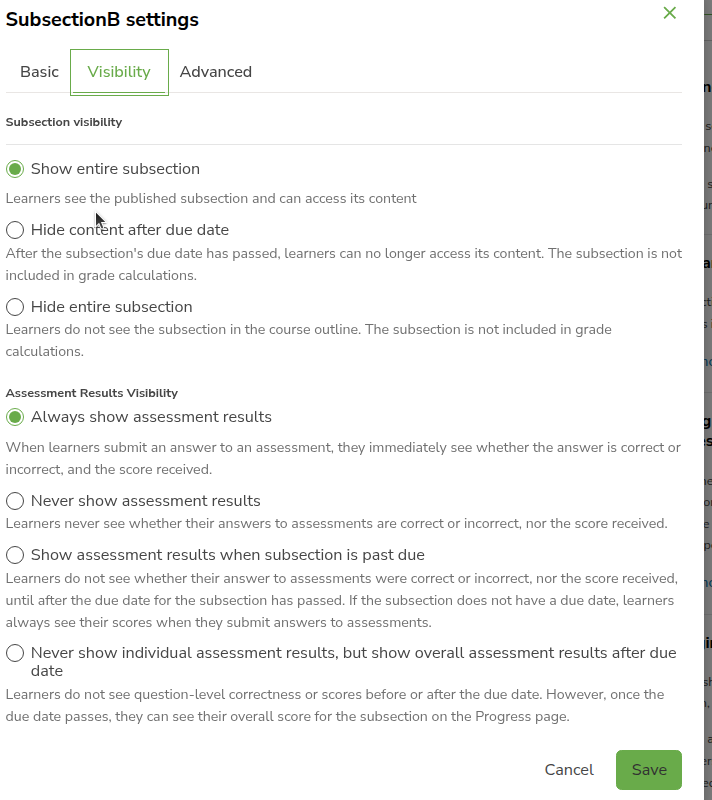
Visibility has Subsection visibility and Assessment Results Visibility. Pick one option in each list. The text under each option says what learners see.
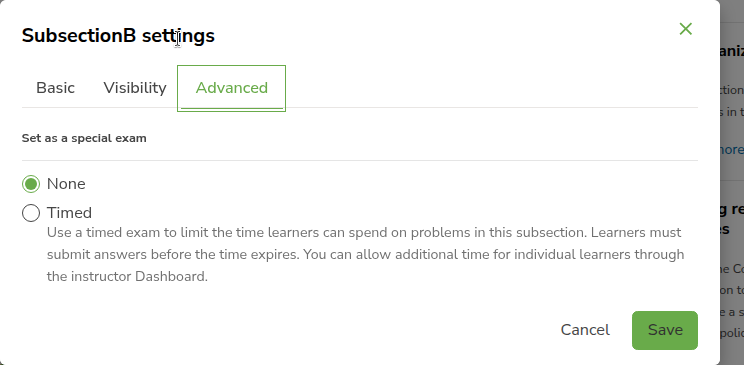
Advanced is Set as a special exam. None is the usual setting. Timed limits how long learners can spend on problems in this subsection. They must submit before the time ends. You can give extra time to one learner from Special Exams on Instructor Dashboard.
Publish and schedule
Set Release date and time in Configure, then click Publish on the three-dot menu. If it stays Unscheduled, learners will not see this subsection in the course. Leave Hide from learners unchecked. Do not hide graded assignments after they have been released.
How to create a unit
how to create a unit new unit use unit from library paste unit clipboard add a new component text video problem advanced
Expand a subsection. You get:
- + New unit — start a new unit
- Use unit from library — add a unit you already saved in a library
- Paste unit — paste a unit you copied
- What's in my clipboard? — see what you copied
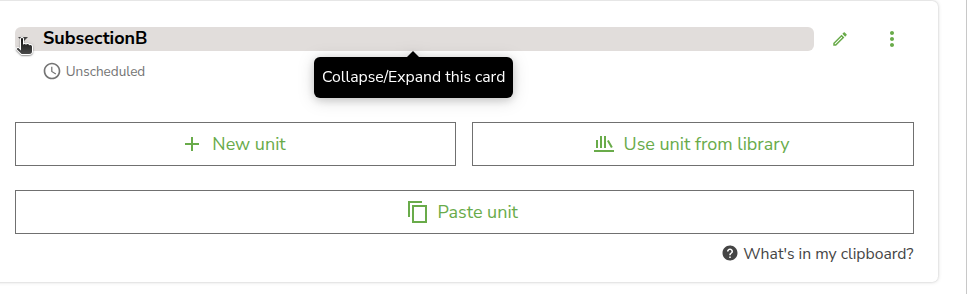
Click + New unit. The unit page opens.
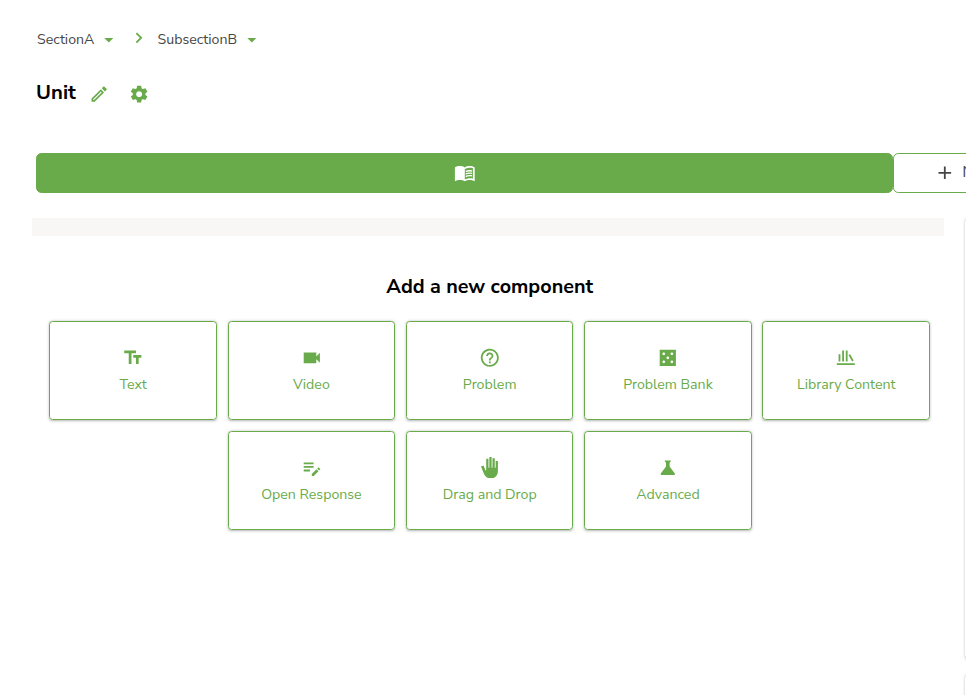
Breadcrumb: SectionA > SubsectionB. The title is Unit. Click the pencil icon to rename. Click the gear icon for unit settings (including Hide from learners).
Under Add a new component:
- Text
- Video
- Problem
- Problem Bank
- Library Content
- Open Response
- Drag and Drop
- Advanced
Video uses a video you already uploaded. See How to upload Video.
Template Based Assignment is under Advanced. See the TAS Admin panel guide. You can also add PDF, Google Document, Quick Quiz Maker, Staff Graded Assignment, Zoom Live Class, and Provide Feedback.
Use unit from library pulls in a unit from a library. See How to create a library and How to explore a library.
The three-dot menu on a unit in the outline is the same as on a section: Publish, Configure, Manage tags, Duplicate, Move up, Move down, and Delete.
Publish and schedule
On the right: RELEASE may say Unscheduled. WILL BE VISIBLE TO is Staff and learners. Leave Hide from learners unchecked. Click Publish. If it stays Unscheduled or Draft (never published), learners will not see this unit in the course. Do not hide graded assignments after they have been released.
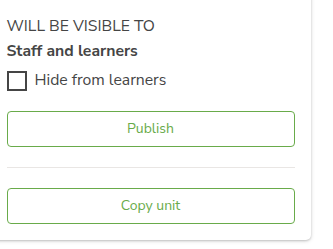
Copy unit copies this unit so you can paste it in another subsection. Paste unit on that subsection adds the copy.
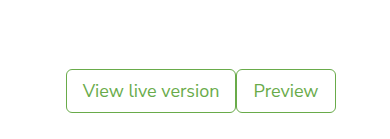
View live version opens the published unit the way learners see it. Preview shows your current edits before they are published.
Unit tags
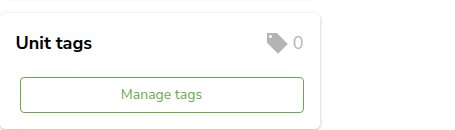
On the right, Unit tags shows how many tags this unit has (for example 0). Click Manage tags.
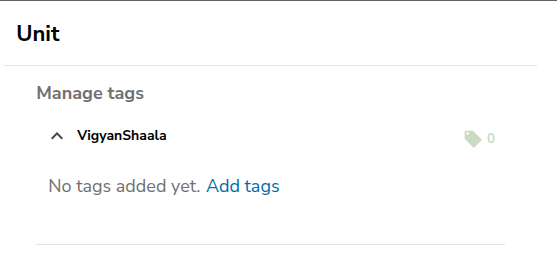
The page is Manage tags. Open a taxonomy (for example VigyanShaala). If none are set, it says No tags added yet. Click Add tags.
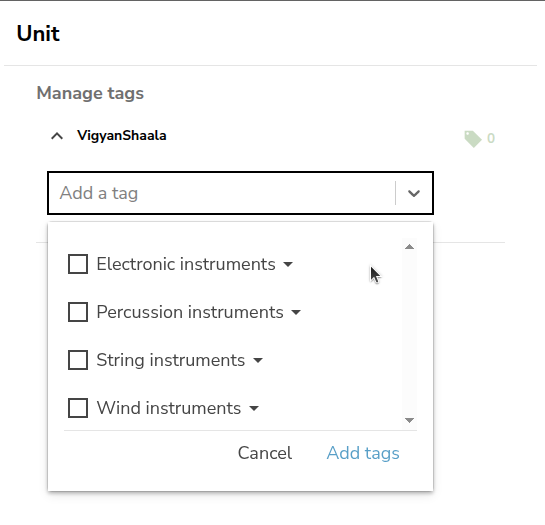
Add a tag lists tags from Taxonomies. Tick the tags you need, then click Add tags. Cancel closes the list.
Click Save or the tags will not stay on the unit. Cancel closes without saving.

Schedule & details
schedule and details settings course start date time enrollment certificate display course card image instructors course introduction video save
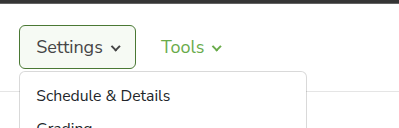
At the top, click Settings, then Schedule & Details. This is where you set course dates and times.
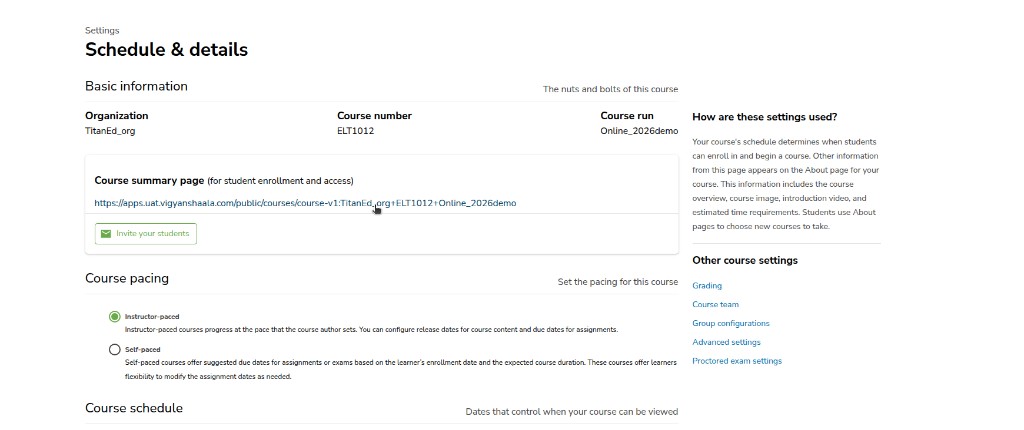
Basic information is Organization, Course number, and Course run. You cannot change these here. Course summary page is the enroll link for learners. Invite your students opens an email.
Course pacing: Instructor-paced (you set release and due dates) or Self-paced (learners move with suggested dates).
Course schedule — dates that control when the course can be viewed:
- Course start date / Course start time — first day the course begins
- Course end date / Course end time — last day the course is active
- Enrollment start date / Enrollment start time — first day learners can enroll
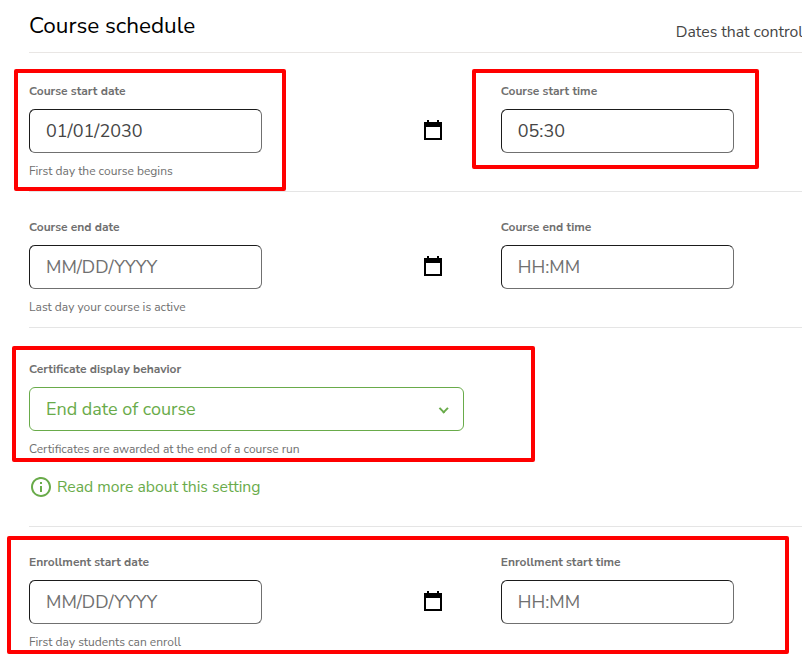
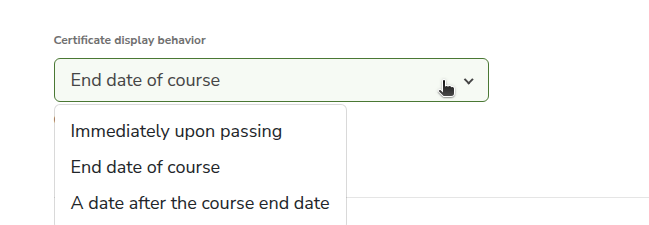
Certificate display behavior is when learners can see a certificate:
- Immediately upon passing
- End date of course
- A date after the course end date
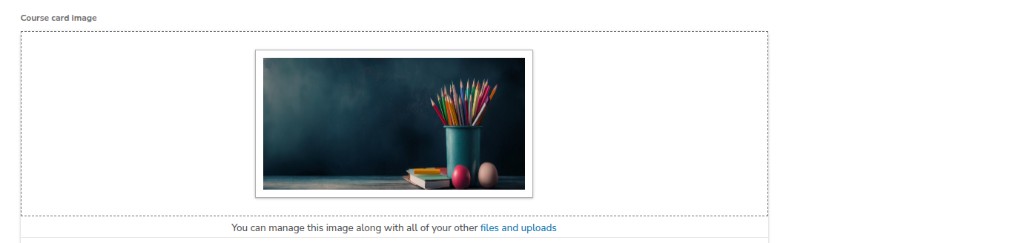
Course card image is the picture on the course card. You can manage it with files and uploads.
Course Introduction Video is on this same page. Paste your YouTube video ID (placeholder your YouTube video's ID). The preview plays here. Delete Current Video removes it.
Instructors — add Name, Title, Organization, and Biography. Drag a photo (JPEG or PNG, 200x200px) or paste Instructor photo URL. Delete removes that instructor.
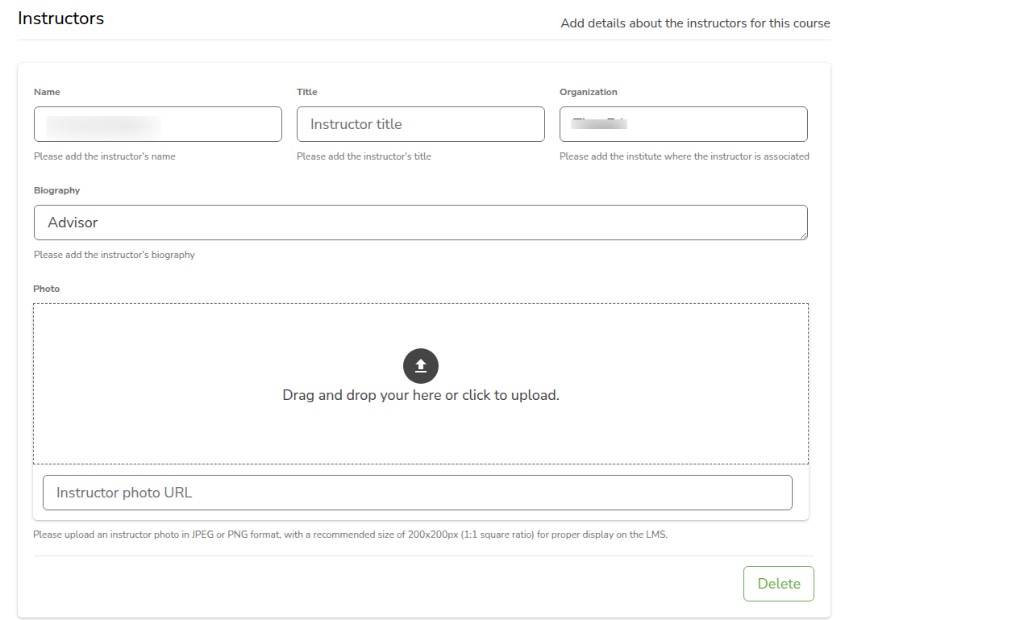
Click Save or the dates, video, and details will not stay.
Course team and Group configurations
course team add user email staff admin group configurations content groups cohorts add your first content group
Settings has two pages for people on the course: Course Team (who can edit) and Group Configurations (who sees extra content).
You must be Admin on the course to add people. The person you add must already have an account, and you must use that same email.
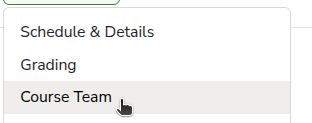
At the top, click Settings, then Course Team.
The box is Add a user to your course's team. Type User's email address. Click Add user. Cancel closes without adding.
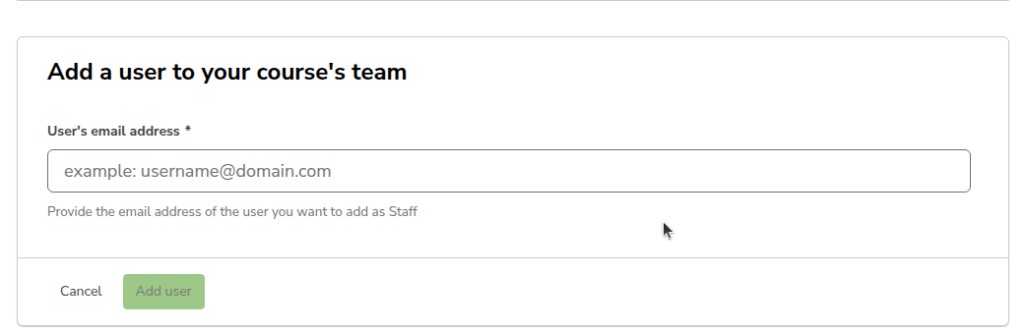
They join as Staff. Staff can edit the course. Only Admin can add or remove other team members. You can later give someone Admin so they can add people too.
At the top, click Settings, then Group Configurations.
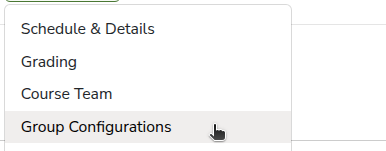
The page is Group configurations. Content groups let you show some course content only to certain learner groups (cohorts). Each content group can be linked to one or more cohorts.
If there are none yet, the page says You have not created any content groups yet. Click + Add your first content group. If you already have groups, click New content group.
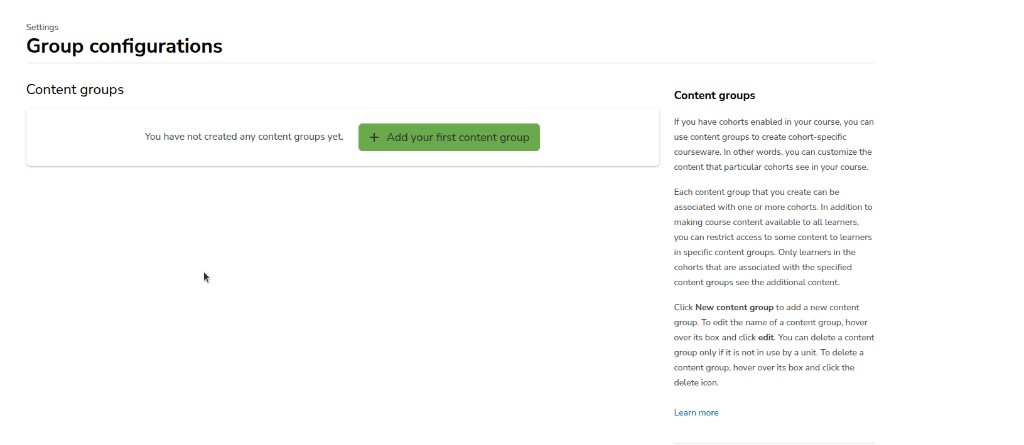
Type a name, then create the group. Hover a group to edit the name or delete it. You can delete a content group only if it is not in use by a unit.
After a content group exists, set who can see a unit or component (for example Manage Access). Learners not in a linked cohort do not see that extra content.
Advanced settings
advanced settings advanced module list save changes json quotation marks extra course options
At the top, click Settings, then Advanced Settings. It is in the same menu as Schedule & details, Course Team, and Group Configurations.
This page is extra course options. A change here can override what you set on other pages. Only change a setting if you know what it does.
If a value is text, put double quotation marks around it, for example "My course". Do not use single quotation marks.
Advanced Module List lists extra tools for this course (the keys that unlock items under Advanced when you add a component). Keep the list inside [ ]. Put each key in double quotation marks. Separate keys with a comma. To unlock Provide Feedback, add "feedback" — see How to add Provide Feedback.
Click Save Changes. If the text is not valid, it will not save.
Course updates and handouts
course updates handouts content new update post edit handouts pencil icon lms updates tab handouts tab
At the top, click Content, then Course Updates.
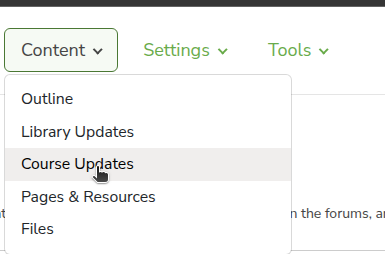
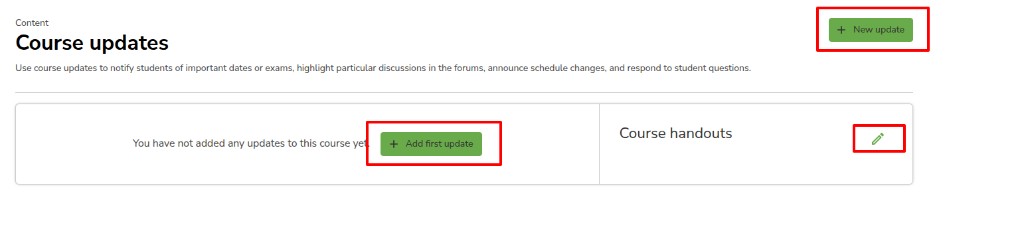
The page is Course updates. Use updates for important dates, exams, schedule changes, and answers to learner questions.
If there are no updates yet, the page says You have not added any updates to this course yet. Click + Add first update or + New update.
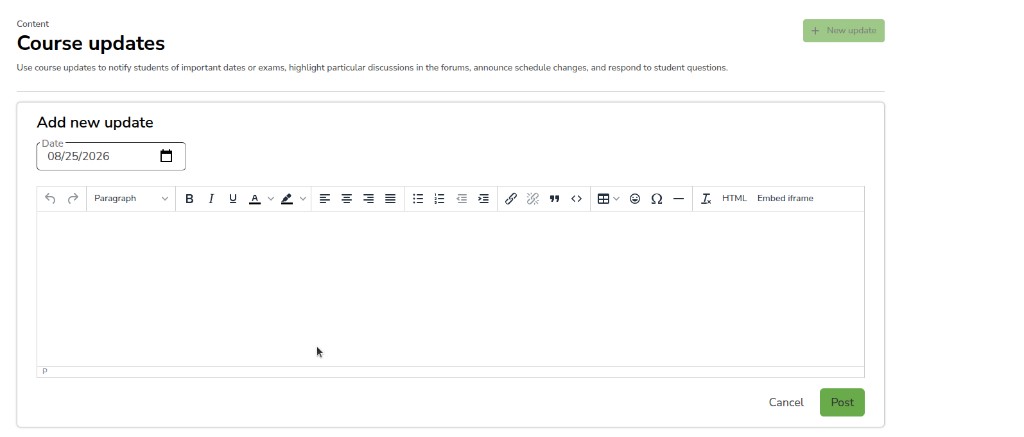
The form is Add new update. Set Date. Type the message. Click Post. Cancel closes without posting.
After you post, the update shows with the date. Click the pencil icon to edit it. Click the trash icon to delete it.
Course handouts is on the right of the same page. Click the pencil icon next to Course handouts.
The box is Edit handouts. Type or paste the handout text. Click Save. Cancel closes without saving.
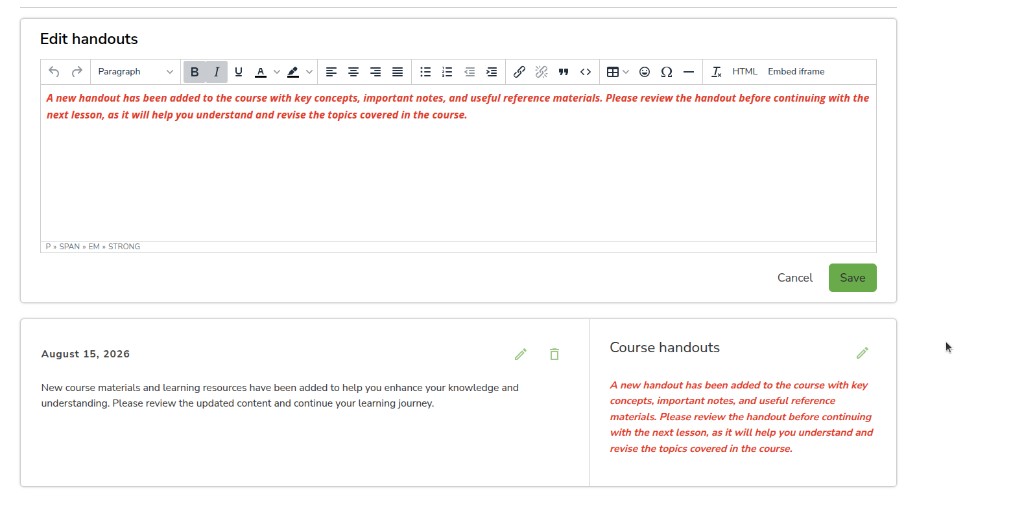
Learners see this in the course:
- Updates tab — the posts you add here
- Handouts tab — the handout text you save here


How to upload files
how to upload files content files add files search sort and filter actions download delete
Upload images, documents, and other files here so you can use them in the course.
At the top, click Content, then Files.
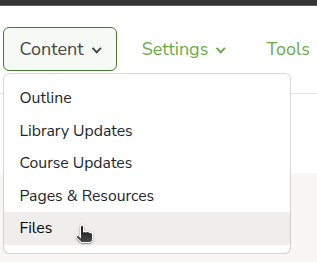
The page is Files. Use Search file name to find a file. Click + Add files to upload from your computer.
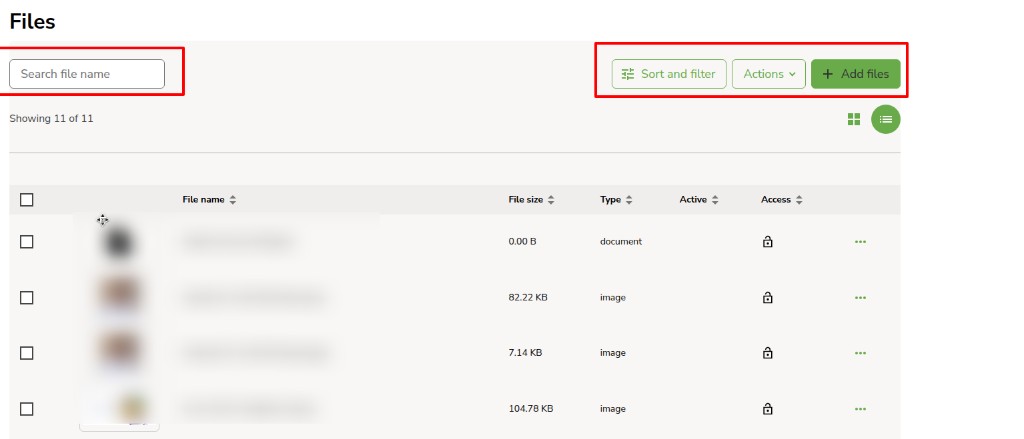
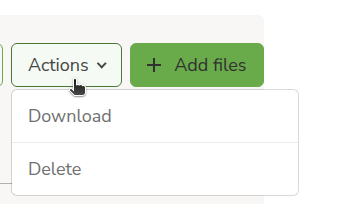
Each row is one file. Tick the files you want, then click Actions.
- Download
- Delete
Sort and filter changes the list. Pick a Sort by option and tick Filter by checkboxes. Clear all removes the filters. Click Apply. Cancel or the X closes without changing the list.
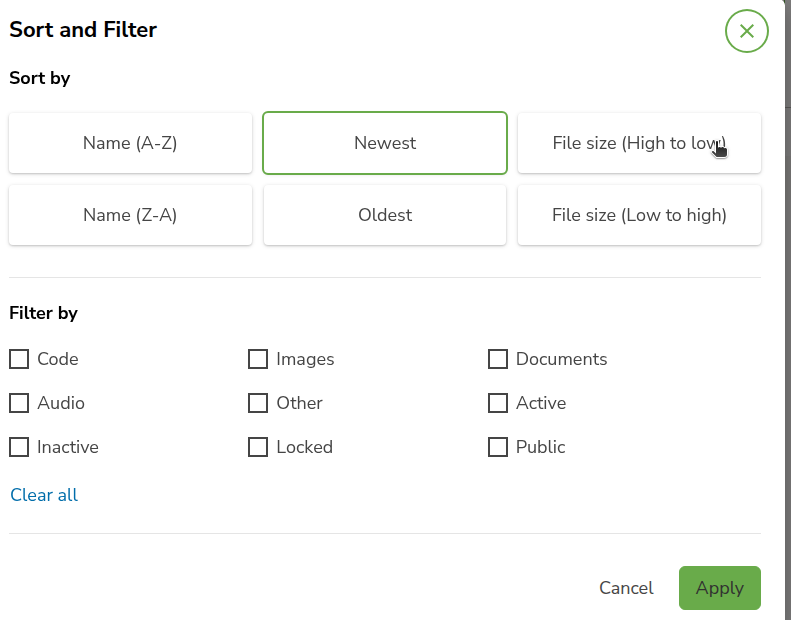
After a file is uploaded, copy its link if you need it in a component (for example How to add PDF PDF URL).
Import and export course
import export course tools tar.gz course xml replace backup export course content
Use Tools to copy a whole course as a .tar.gz file, or to replace this course with one of those files.
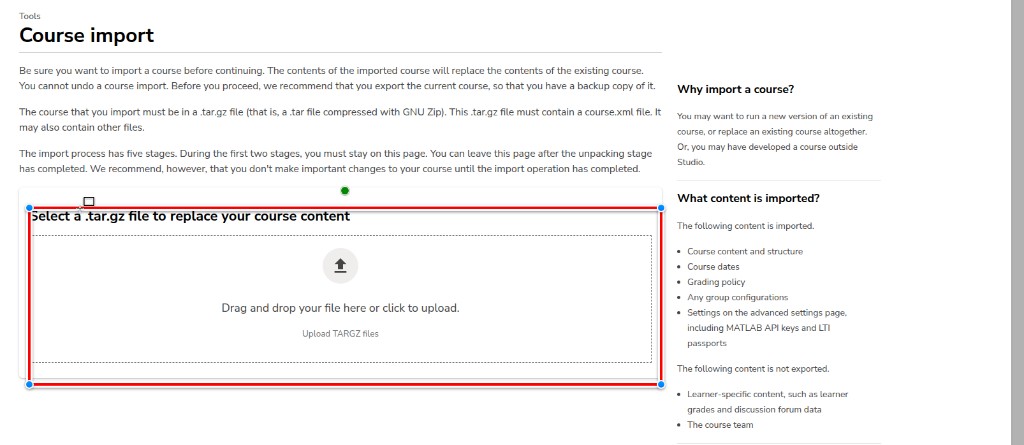
Import replaces everything in this course. You cannot undo it. Export first if you need a backup. Stay on the page for the first two of the five stages. Do not edit the course until import finishes.
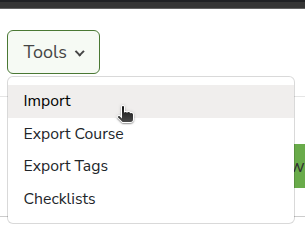
At the top, click Tools, then Import.
The page is Course import. The file must be .tar.gz and must contain course.xml. Drag and drop the file, or click to upload.
Import includes course content, dates, grading, group configurations, and Advanced settings. It does not include learner data or the course team. Add the team again after import.
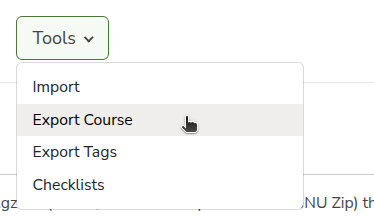
At the top, click Tools, then Export Course.
The page is Course export. Click Export course content. The file is .tar.gz. You can import it later. Exported files can include keys from Advanced settings — share them only with people you trust.
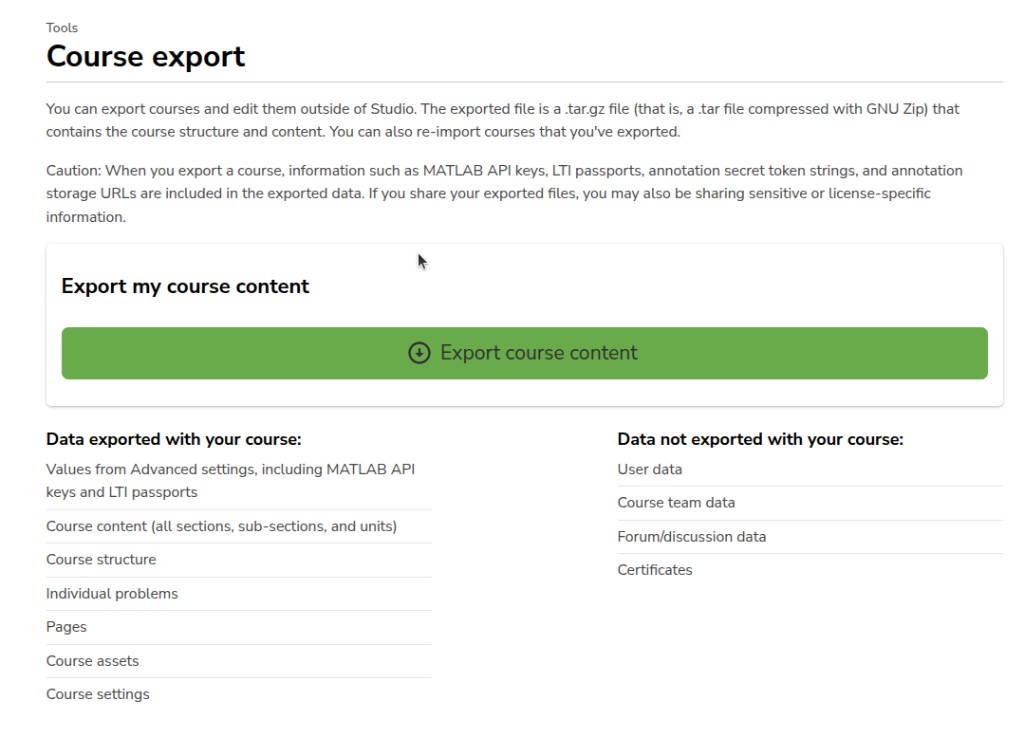
Export includes course content, structure, problems, pages, files, settings, and Advanced settings. It does not include user data, course team, discussions, or certificates.
Export tags
export tags csv name type id taxonomies tools course tags
This downloads the taxonomies tags on the course as a CSV file (not a .tar.gz course export).
At the top, click Tools, then Export Tags.
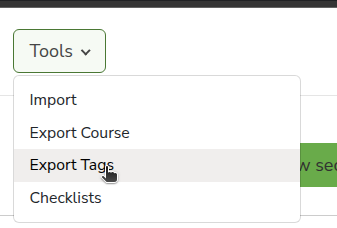
Wait for Course tags exported successfully. The file is named after the course, for example Digital Learning Platform Basics.csv.
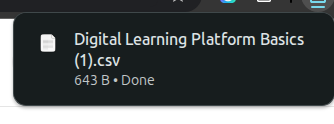
The first columns are Name, Type, and ID. Extra columns are your taxonomies.

Checklists
checklists launch checklist best practices automatically verified mark as complete update
Checklists is a launch list for this course. It does not publish the course by itself.
At the top, click Tools, then Checklists.
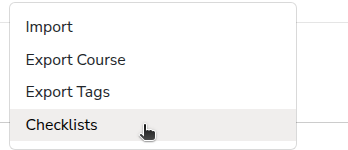
The page is Checklists. Breadcrumb: Tools.
Launch Checklist shows how many of the 18 items are done (for example 4/18 completed). A green check is done. An empty circle is not done.
Items with Automatically verified are checked from the course. You cannot tick them by hand. Click Update to open the related page (for example Schedule & details, the course outline, or Course updates).
Items with Mark as complete are for you to confirm. Tick the box when that work is done. Untick it if you need to do it again.
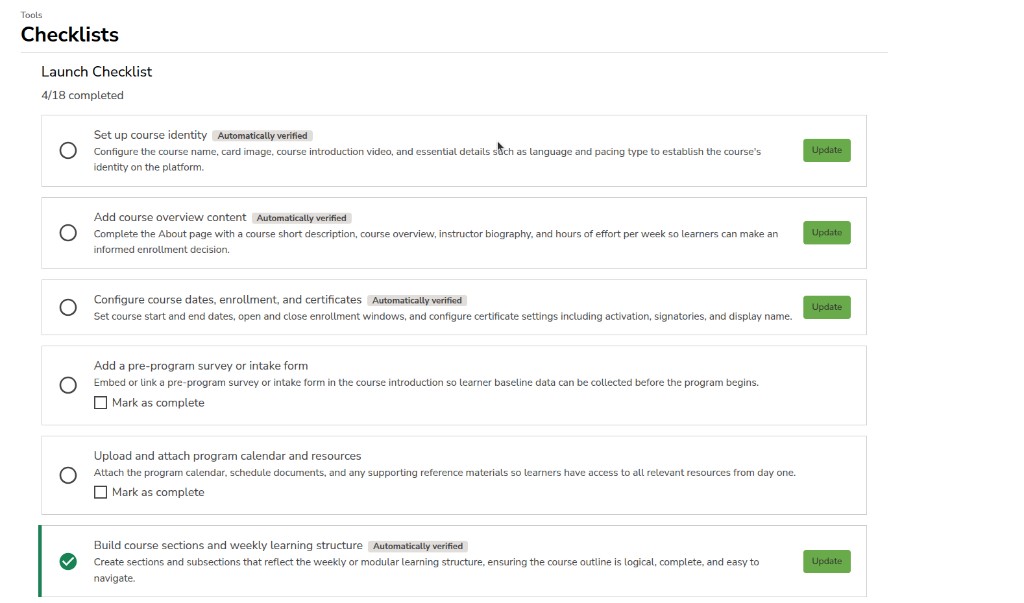
Automatically verified (click Update):
- Set up course identity
- Add course overview content
- Configure course dates, enrollment, and certificates
- Build course sections and weekly learning structure
- Add live class links and session details
- Upload pre-recorded videos and learning resources
- Add quizzes, assignments, and grading settings
- Configure assignment deadlines and submission flow
- Publish all sections, units, and components
- Verify certificate eligibility and completion criteria
- Add a welcome message
Mark as complete (you tick):
- Add a pre-program survey or intake form
- Upload and attach program calendar and resources
- Add a feedback form or post-program survey
- Verify navigation flow and content order
- Preview and validate all content in learner view
- Test the complete student journey
- Perform final QA check
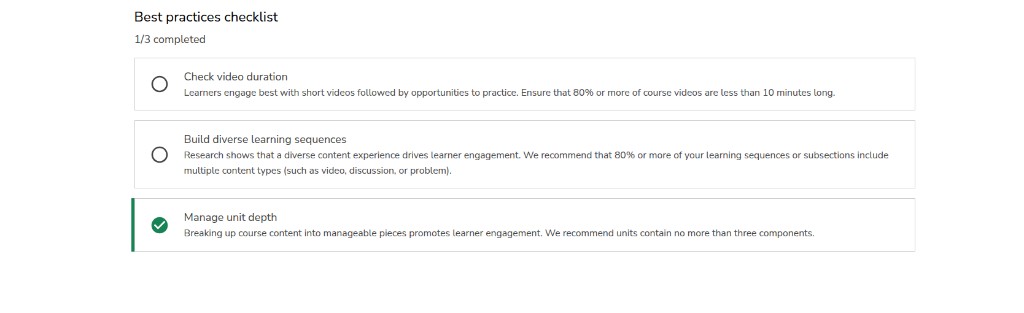
Best practices checklist is below Launch Checklist (for example 1/3 completed). These are quality checks, not launch steps. They are verified from the course:
- Check video duration — most videos shorter than 10 minutes
- Build diverse learning sequences — mix content types in subsections
- Manage unit depth — about three components per unit
If the course is self-paced, Set weekly highlights can also show here.
How to add PDF
how to add pdf advanced component select pencil icon display name pdf url download save publish draft learners
Open a unit. Under Add a new component, click Advanced.
The box is Add advanced component. Select PDF.
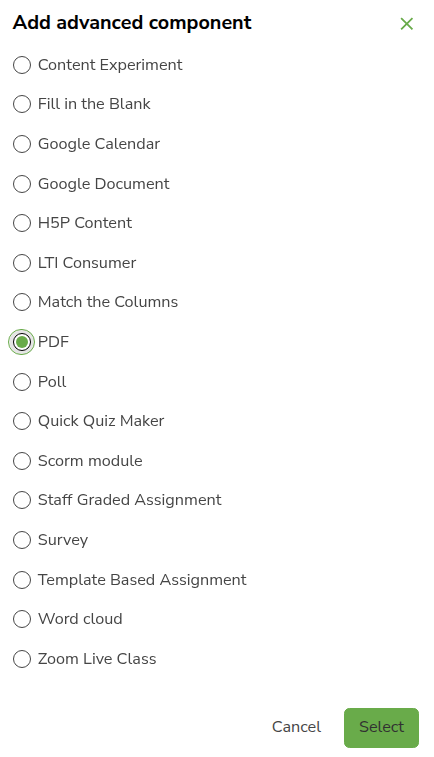
Click Select. Cancel or the X closes without adding it.

The PDF block is on the unit. Click the pencil icon to edit.

The box is Editing: PDF.
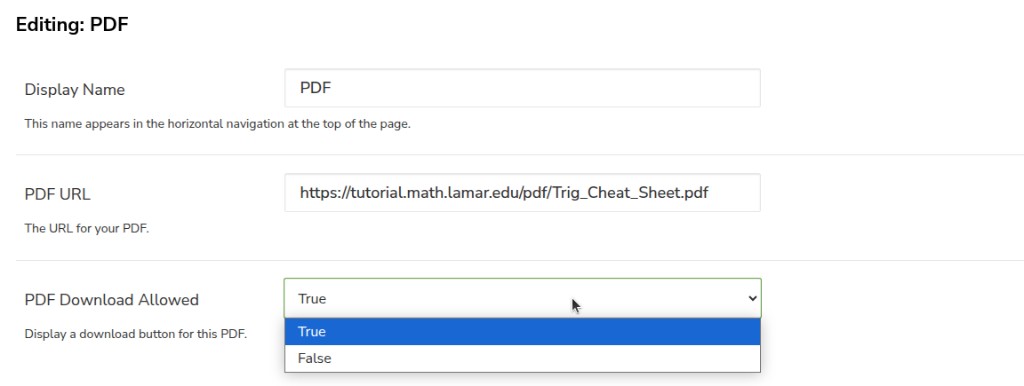
- Display Name — shown in the bar at the top of the page. Default PDF
- PDF URL — the URL of your PDF file
- PDF Download Allowed — True shows a download button. False hides it
Scroll for:
- Source document button text — default Default : Download the source document
- Source document URL — optional. A link to the source file of your PDF, for example the PowerPoint used to make it
Click Save. Cancel closes without saving.

The PDF shows in the unit. Learners also see Download the PDF if download is allowed.
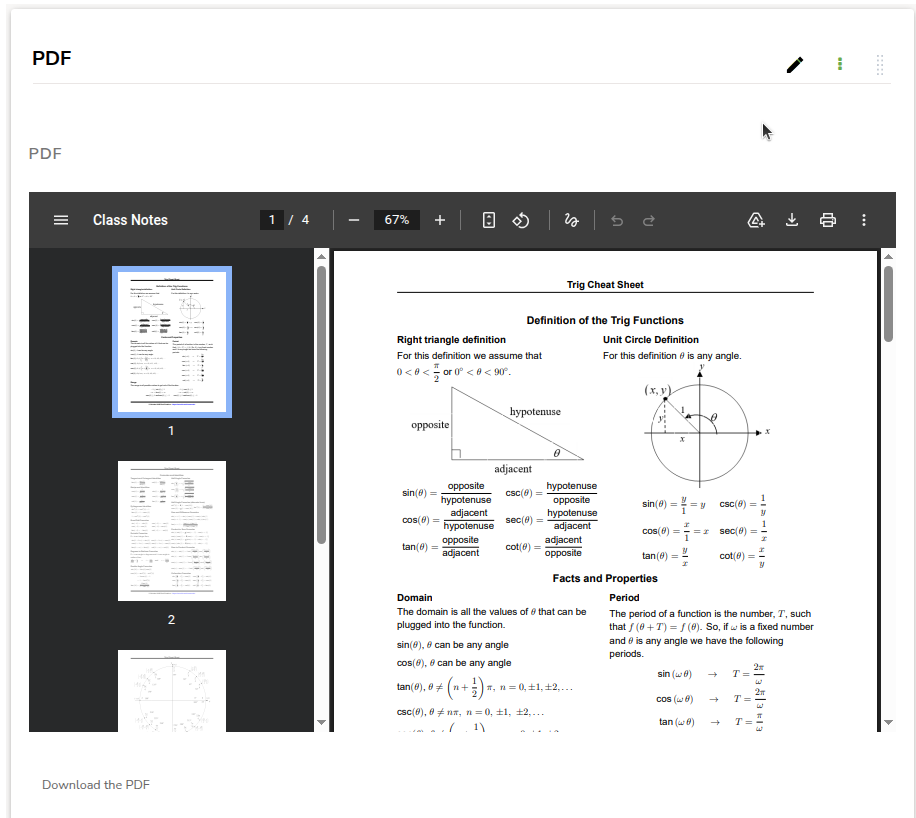
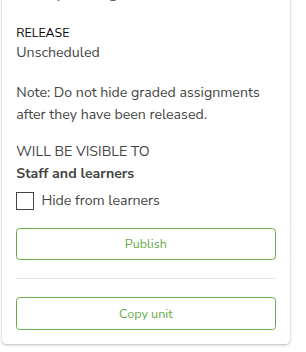
On the right, RELEASE may say Unscheduled. Click Publish. If the unit stays Unscheduled or Draft (never published), learners will not see the PDF in the course. Leave Hide from learners unchecked. Do not hide graded assignments after they have been released.
Actions
On the component, click the three-dot Actions menu: Manage Access, Move, Manage tags, Copy to Clipboard, Duplicate, or Delete. Delete this component? is permanent and cannot be undone.
How to add Google Document
how to add google document advanced component embed code publish to the web save iframe
Open a unit. Under Add a new component, click Advanced.
The box is Add advanced component. Select Google Document.
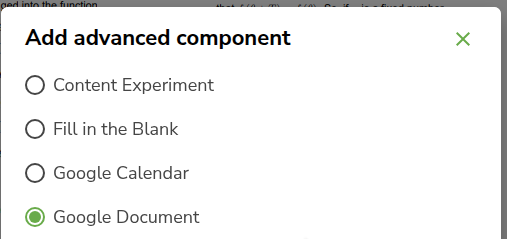
Click Select.
The Google Document block is on the unit. Click the pencil icon to edit.

The box is Editing: Google Document.
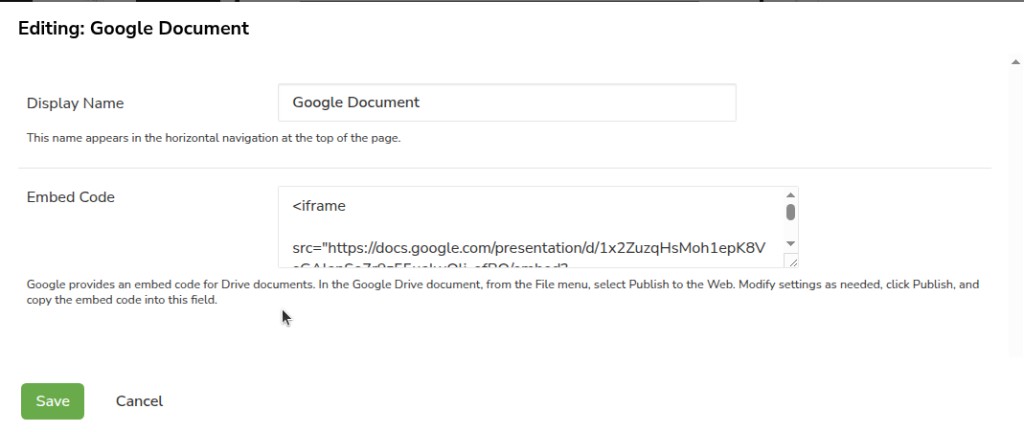
- Display Name — shown in the bar at the top of the page. Default Google Document
- Embed Code — paste the embed code from Google Drive
In the Google Drive file, open the File menu, then Publish to the Web. Set what you need, click Publish, and copy the embed code into Embed Code.
Click Save. Cancel closes without saving.
The document (or slides) shows in the unit.
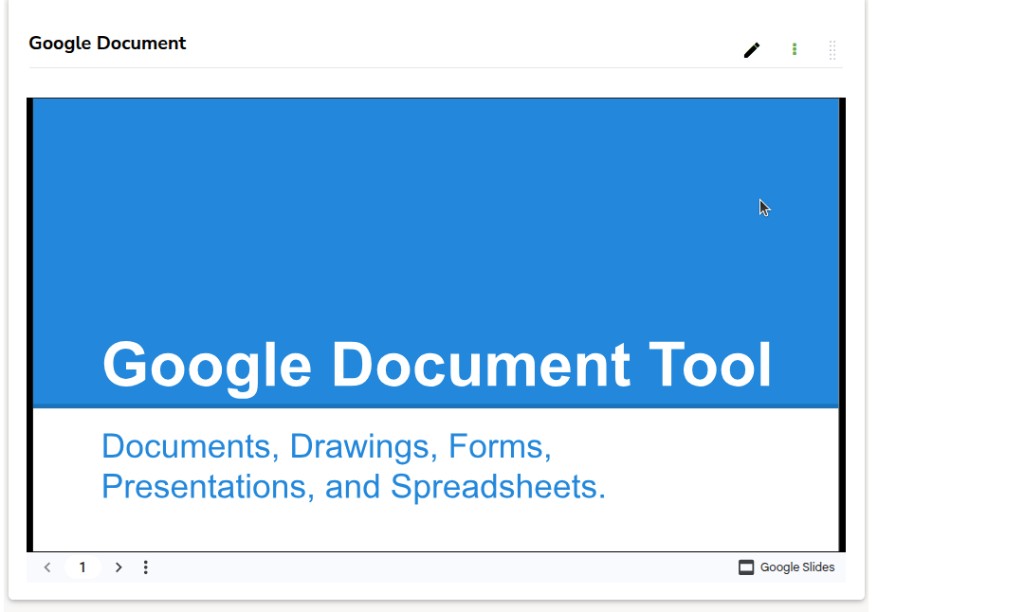
On the right, RELEASE may say Unscheduled. Click Publish. If the unit stays Unscheduled or Draft (never published), learners will not see it in the course. Leave Hide from learners unchecked. Do not hide graded assignments after they have been released.
Actions
On the component, click the three-dot Actions menu: Manage Access, Move, Manage tags, Copy to Clipboard, Duplicate, or Delete. Delete this component? is permanent and cannot be undone.
How to add Quick Quiz Maker
how to add quick quiz maker display name download template xlsx upload question file question grouping create individual questions combine all questions show advanced settings scoring points attempts unlimited attempts show answer show reset option randomization time between attempts save publish
Quick Quiz Maker lets you add many questions at once from an Excel file. Open a unit. Under Add a new component, click Advanced.
The box is Add advanced component. Select Quick Quiz Maker.
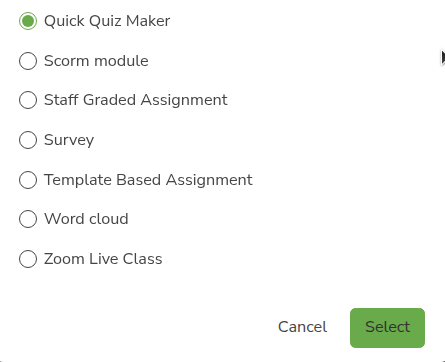
Click Select.
The Quick Quiz Maker block is on the unit. Click the pencil icon to edit.

The box is Editing: Quick Quiz Maker.
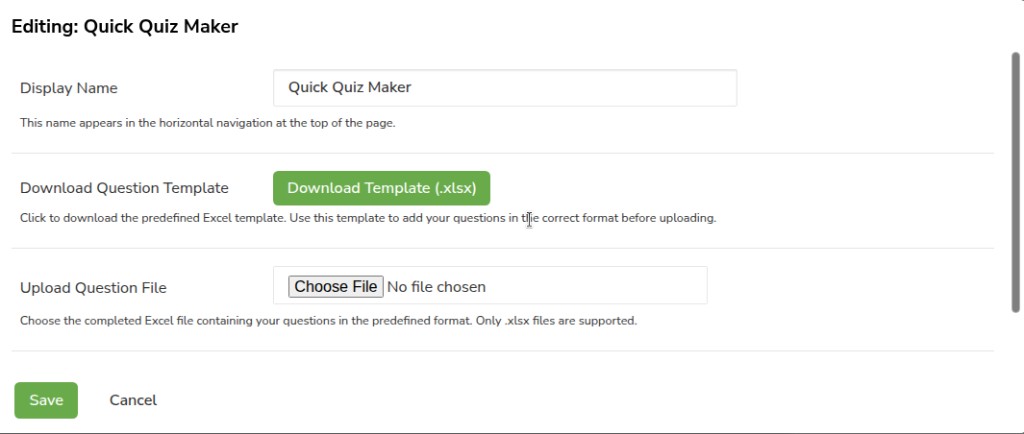
Display Name
Default Quick Quiz Maker. This name appears in the horizontal navigation at the top of the page.
Download Question Template
Click Download Template (.xlsx). Use this template to add your questions in the correct format before uploading.
The first row must include: Question, Question type, Problem Weight, Max Attempts, Show Reset Button, Correct Answer, and Option columns as needed.
Question type in the file: mcq, checkbox, dropdown, numerical_input, or text_input. For Show Reset Button, use yes if the learner should get a reset button.
Upload Question File
Click Choose File and pick the completed .xlsx file. Only .xlsx files are supported. If the file is not .xlsx, you see: Invalid file type. Please upload a valid .xlsx file.
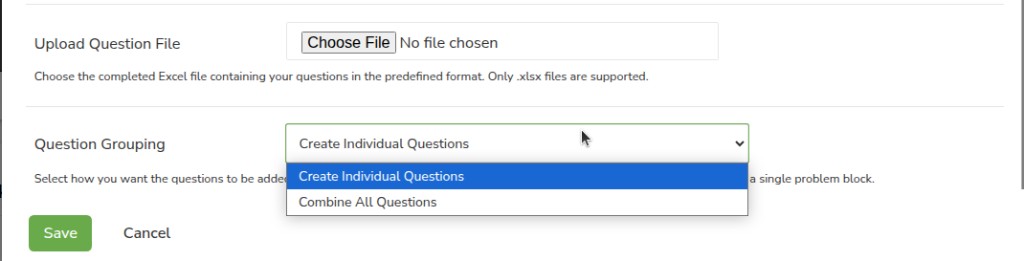
Question Grouping
- Create Individual Questions — each question becomes its own problem on the unit
- Combine All Questions — all questions go into one problem named All Questions
Click Save. Cancel closes without saving. After a successful save, the questions appear on the unit. Quick Quiz Maker itself is not shown to learners — they see the questions you uploaded.
Problem settings (after Save)
Open a question on the unit (click the pencil icon on that problem). At the bottom of the editor, click Show advanced settings.
Use these settings to control points, attempts, answers, and related options for that problem. Values from your Excel file (for example Problem Weight and Max Attempts) may already fill some fields — you can change them here before you publish.
Scoring
Scoring sets how many points the problem is worth and how many times a learner may submit an answer.
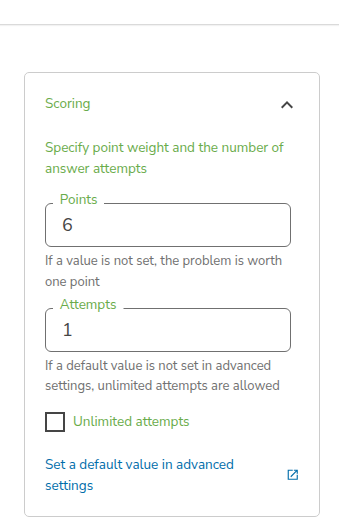
- Points — how much this problem counts toward the grade. If empty, the problem is worth 1 point.
- Attempts — how many times the learner may submit an answer. Example: 1 means one try only.
- Unlimited attempts — tick this if learners may try as many times as they need. When this is on, the Attempts number does not limit them.
- If Attempts is empty and no course default is set, unlimited attempts are allowed.
- Set a default value in advanced settings — opens the course Advanced Settings page in a new tab, where you can set a default for all problems in this course. Close that tab when you are done and return to the problem editor.
Show answer and Show reset option
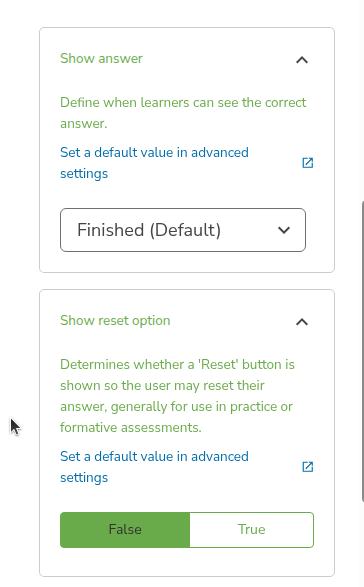
- Show answer — when learners may see the correct answer. The dropdown lists options such as Finished (Default) (after they finish / use their attempts). Choose what fits your quiz.
- Show reset option — True shows a Reset button so learners can clear their answer (useful for practice). False hides Reset (common for graded quizzes).
Randomization and Time between attempts
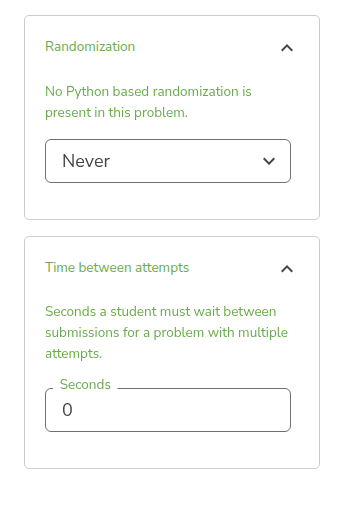
- Randomization — how often problem values change for the learner. For most Quick Quiz Maker questions, leave this as Never unless you built Python-based randomization into the problem.
- Time between attempts — seconds the learner must wait before submitting again when multiple attempts are allowed. Use 0 for no wait.
Click Save on the problem editor when these settings are set. Repeat for each problem if you used Create Individual Questions.
Publish
On the right, RELEASE may say Unscheduled. Click Publish. If the unit stays Unscheduled or Draft (never published), learners will not see the questions in the course. Leave Hide from learners unchecked. Do not hide graded assignments after they have been released.
Actions
On the component, click the three-dot Actions menu: Manage Access, Move, Manage tags, Copy to Clipboard, Duplicate, or Delete. Delete this component? is permanent and cannot be undone.
How to add Staff Graded Assignment
how to add staff graded assignment advanced component maximum score problem weight show answer solution upload your assignment publish unscheduled
Open a unit. Under Add a new component, click Advanced.
The box is Add advanced component. Select Staff Graded Assignment.
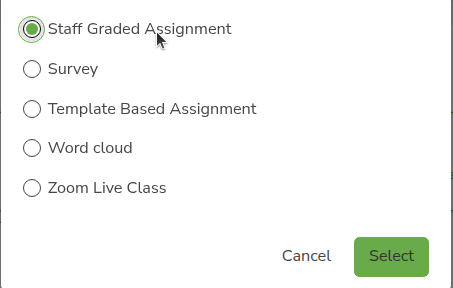
Click Select.
The Staff Graded Assignment block is on the unit. Click the pencil icon to edit.

The box is Editing: Staff Graded Assignment.
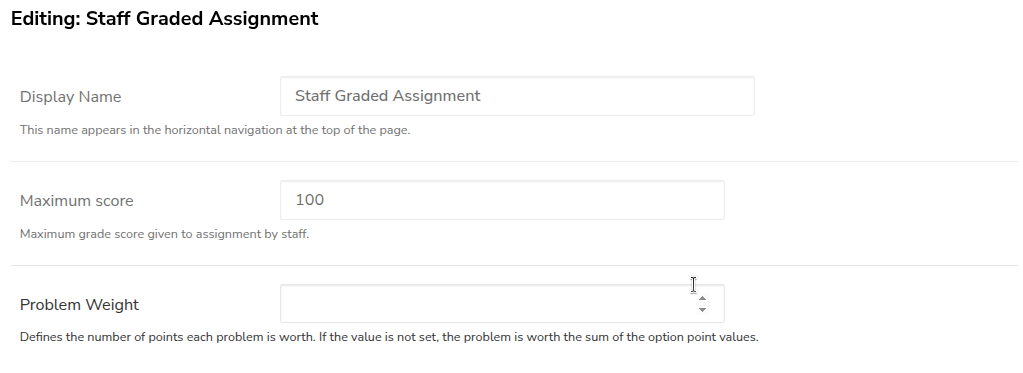
- Display Name — shown in the bar at the top of the page. Default Staff Graded Assignment
- Maximum score — default 100. This is the maximum grade staff can give
- Problem Weight — how many points this assignment is worth. If you leave it empty, the weight is the sum of the option point values
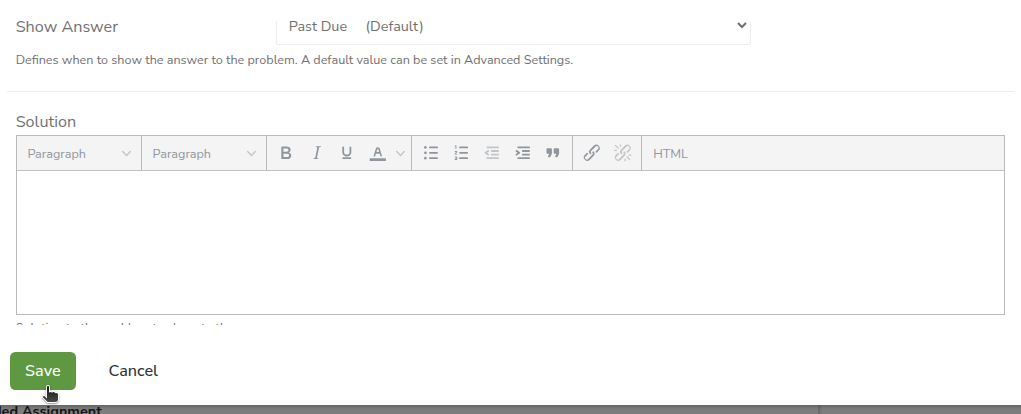
Scroll for Show Answer and Solution.
- Show Answer — when learners see the answer. Default Past Due (Default)
- Solution — optional text (and formatting) for the solution
Click Save. Cancel closes without saving.
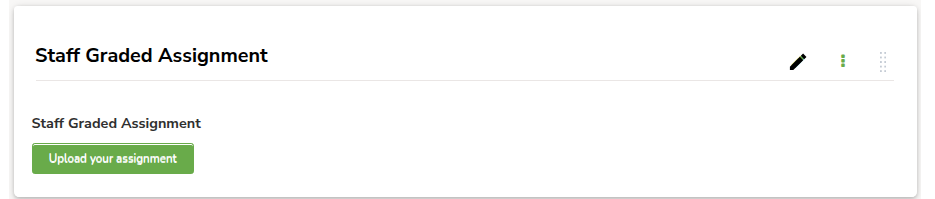
Learners see Upload your assignment to send their file for staff to grade.
On the right, RELEASE may say Unscheduled. Click Publish. If the unit stays Unscheduled or Draft (never published), learners will not see the assignment in the course. Leave Hide from learners unchecked. Do not hide graded assignments after they have been released.
Actions
On the component, click the three-dot Actions menu: Manage Access, Move, Manage tags, Copy to Clipboard, Duplicate, or Delete. Delete this component? is permanent and cannot be undone.
How to add Zoom Live Class
how to add zoom live class schedule meeting topic agenda duration external attendees alternative hosts save meeting actions delete
Open a unit. Under Add a new component, click Advanced.
The box is Add advanced component. Select Zoom Live Class.
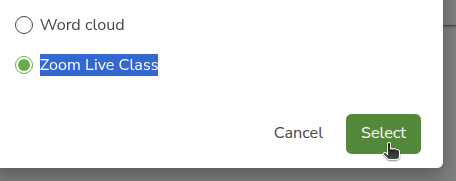
Click Select.
The Zoom Live Class block is on the unit. Click the pencil icon to edit.

The box is Editing: Zoom Live Class. The form title is Schedule Live Class.
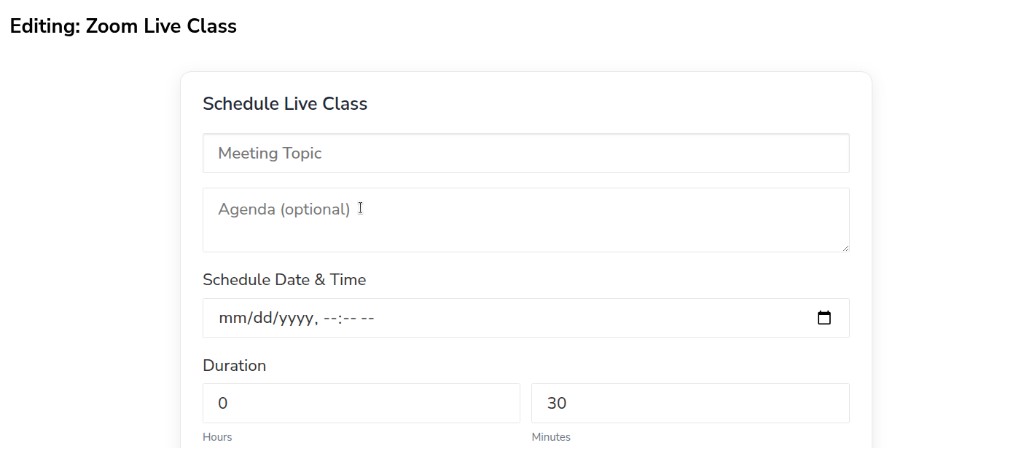
- Meeting Topic — name of the live class
- Agenda (optional)
- Schedule Date & Time — use the calendar
- Duration — Hours (default 0) and Minutes (default 30)
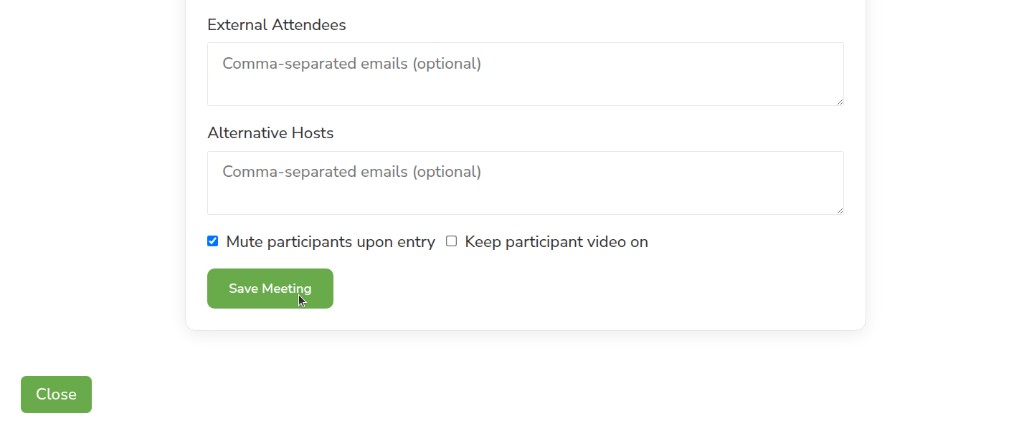
- External Attendees — comma-separated emails (optional)
- Alternative Hosts — comma-separated emails (optional)
- Mute participants upon entry — on by default
- Keep participant video on — off by default
Click Save Meeting. Close leaves the editor.
On the right, RELEASE may say Unscheduled. Click Publish. If the unit stays Unscheduled or Draft (never published), learners will not see the live class in the course. Leave Hide from learners unchecked. Do not hide graded assignments after they have been released.
Actions
On the component, hover the three-dot menu to see Actions.
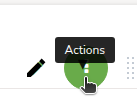
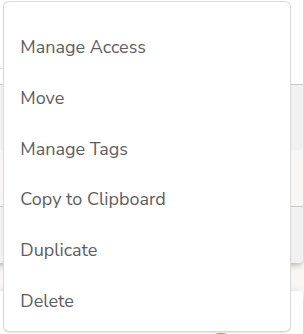
Click Actions:
- Manage Access
- Move
- Manage tags
- Copy to Clipboard
- Duplicate
- Delete
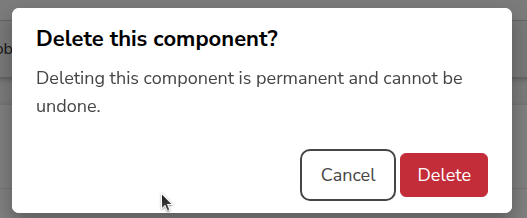
If you click Delete, the box is Delete this component? Deleting this component is permanent and cannot be undone. Click Cancel or Delete.
The same Actions menu is on PDF, Google Document, Quick Quiz Maker, Staff Graded Assignment, and the other components on a unit.
How to add Provide Feedback
how to add provide feedback advanced settings advanced module list feedback save changes advanced component select validation error incorrectly formatted json
Provide Feedback is an advanced component. First enable it for the course in Advanced Settings, then add it on a unit.
Enable Provide Feedback in Advanced Settings
Open the course in Studio. At the top, click Settings, then Advanced Settings.
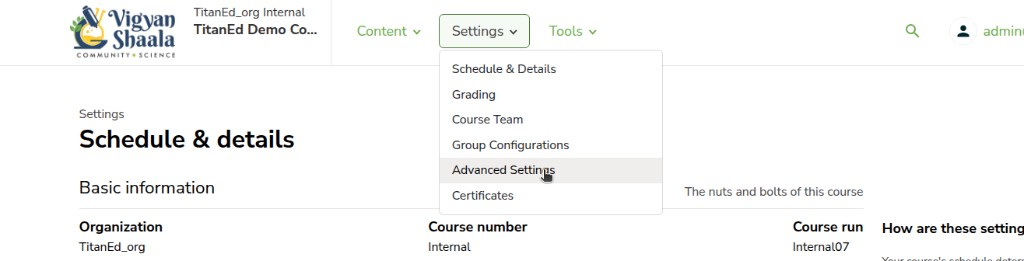
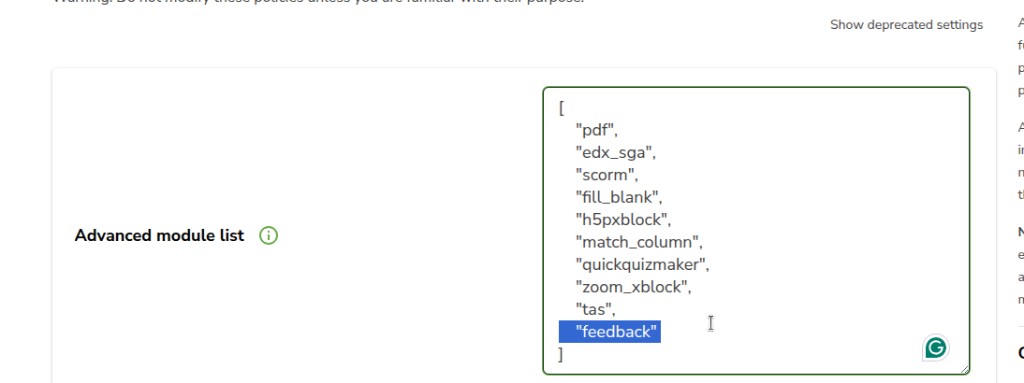
Find Advanced Module List. This list unlocks tools under Advanced when you add a component on a unit. Keep the list inside [ ]. Put each key in double quotation marks. Separate keys with a comma.
Add "feedback" as the last item in the list. Put a comma after the previous item. Do not put a comma after "feedback".
Example (your course may already have other keys — keep those and add "feedback" at the end):
[
    "pdf",
    "edx_sga",
    "scorm",
    "fill_blank",
    "h5pxblock",
    "match_column",
    "quickquizmaker",
    "zoom_xblock",
    "tas",
    "feedback"
]
A banner appears: You've made some changes. Click Save changes. Click Cancel only if you want to discard the edit.

When it works, you see: Your policy changes have been saved.

If the text is not valid (missing quotes or commas), you see Validation error while saving with Advanced module list: and Incorrectly formatted JSON. Click Change manually to fix the list, or Undo changes to go back.
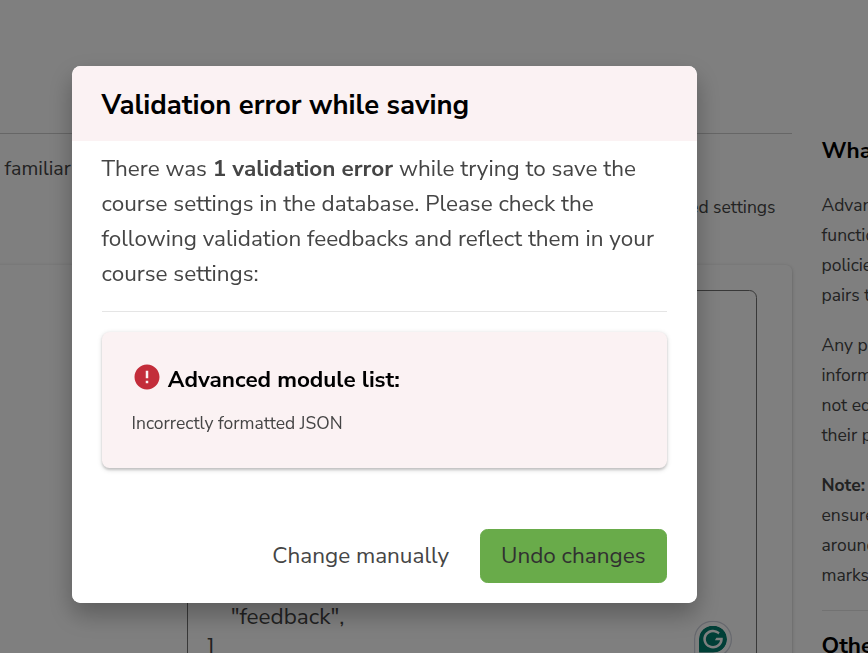
Fix the formatting and save again.
Add Provide Feedback on a unit
Open a unit. Under Add a new component, click Advanced.
The box is Add advanced component. Select Provide Feedback.
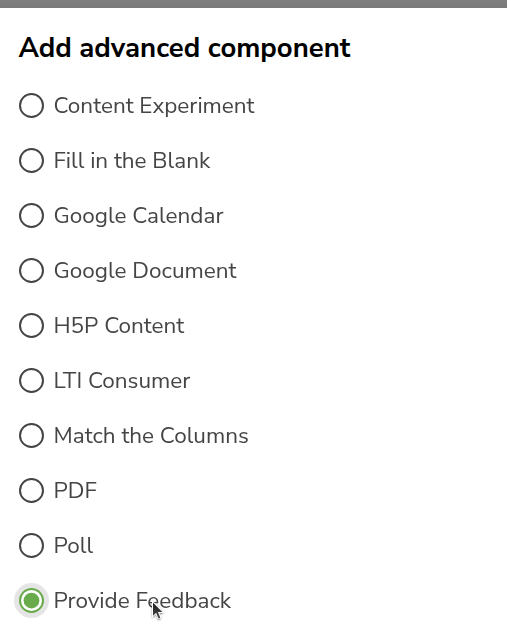
Click Select. The Provide Feedback block appears on the unit. Click the pencil icon to edit it if needed.
On the right, RELEASE may say Unscheduled. Click Publish. If the unit stays Unscheduled or Draft (never published), learners will not see it. Leave Hide from learners unchecked.
Actions
On the component, click the three-dot Actions menu: Manage Access, Move, Manage tags, Copy to Clipboard, Duplicate, or Delete. Delete this component? is permanent and cannot be undone.
How to upload Video
how to upload video content videos add videos upload ready copy video id outline add new component paste video id save publish supported formats mp4 ogg webm hosting s3 youtube vimeo brightcove google drive sharepoint best practices 500 mb
Upload the video file in Studio first, wait until status is Ready, copy the video ID, then add a Video component on a unit and paste that ID.
Before you start, make sure you have:
- Access to Studio and permission to edit the course
- The video file on your computer
- A stable internet connection (large files take longer)
Open Studio and the course
Open Studio. Sign in with your admin or instructor account.
On Studio home, find the course and click the course title. You land on Course outline.
Open the Videos page
In the course header, click Content, then Videos.
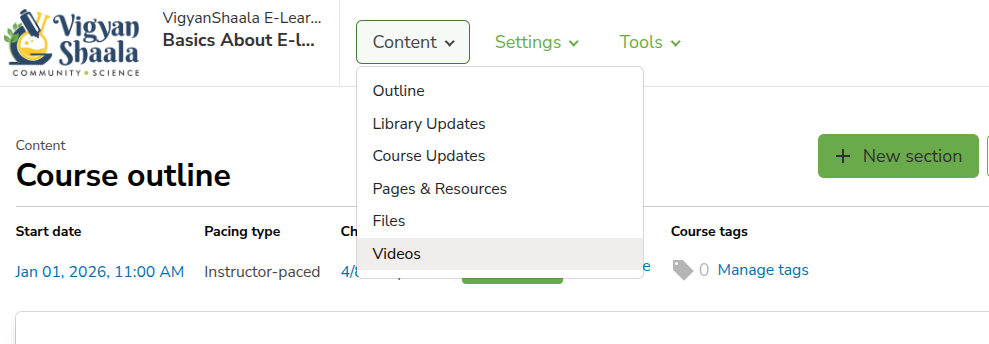
On Videos you can:
- See videos already uploaded
- Upload new videos
- Check upload and processing status
Upload a new video
Click + Add videos.
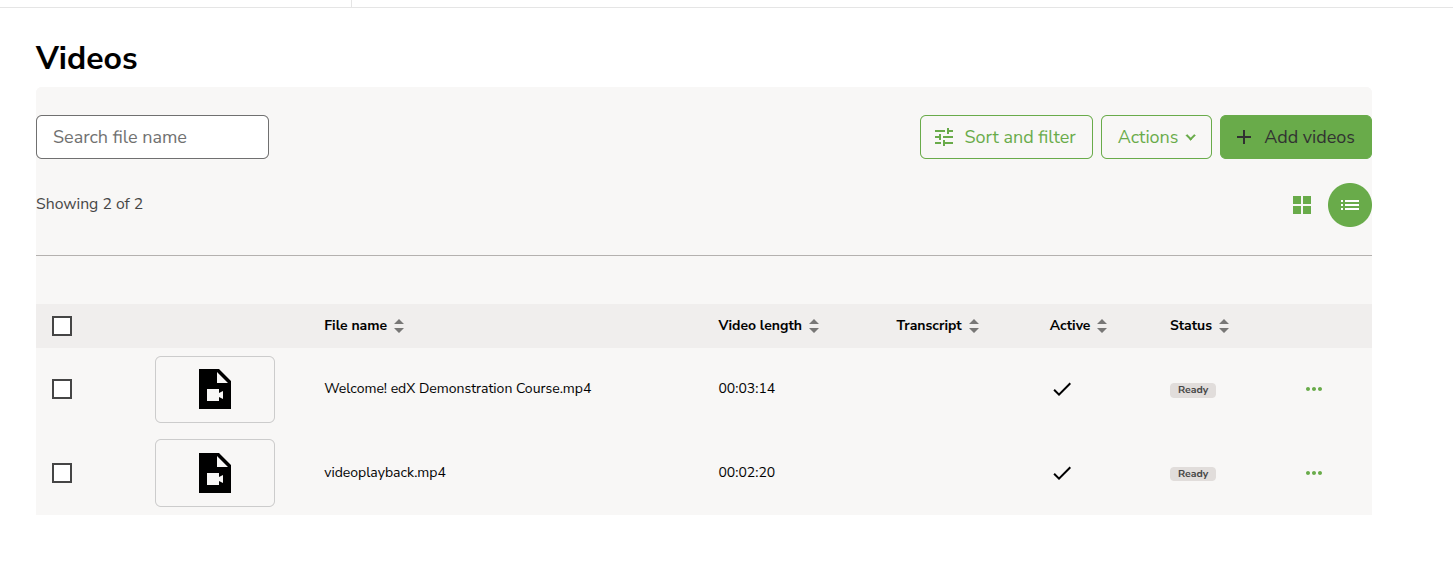
Select the video file from your computer. Upload starts automatically.
While the file uploads, you see Upload in progress.
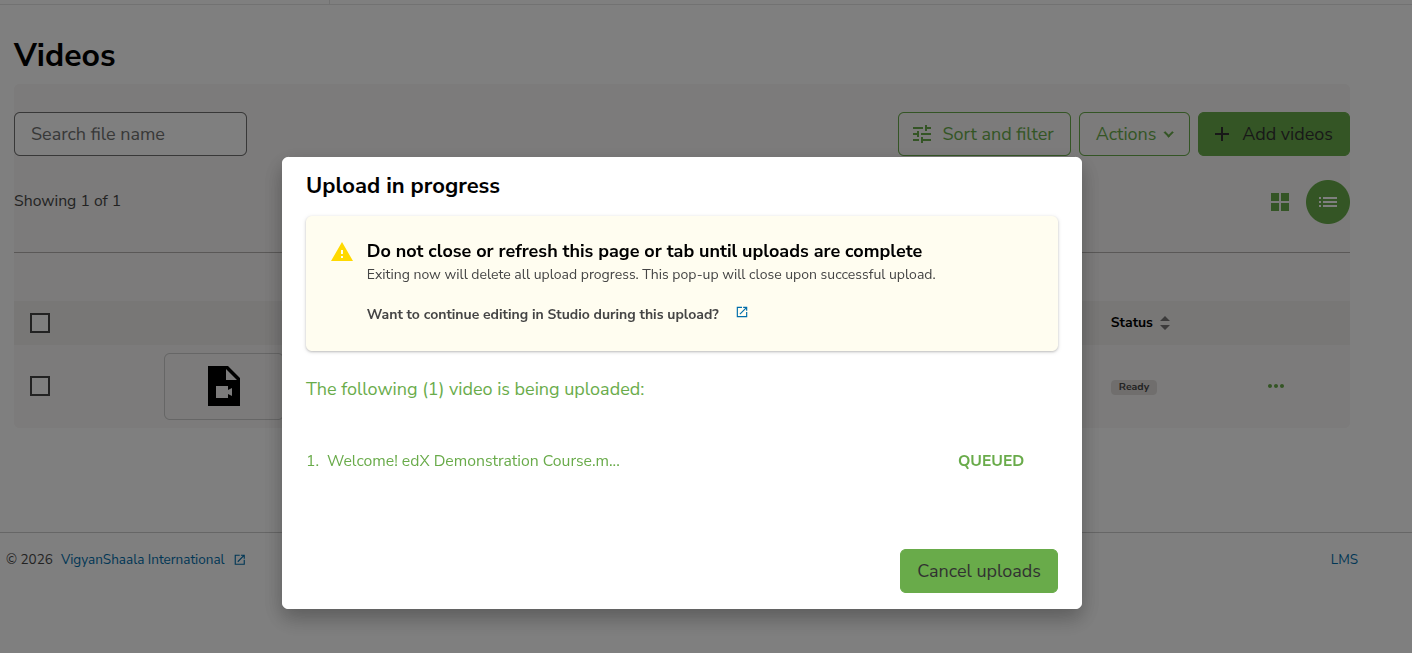
Do not close or refresh the page or tab until the upload finishes. Exiting now deletes upload progress. For large files, keep a stable connection and wait.
Verify the video is Ready
When upload finishes, the video appears in the list. You see the file name, video length, and Status.
Before you add the video to a unit, wait until Status is Ready. Do not add it to the course while status is still processing or queued.
Copy the video ID
When status is Ready:
- Click the three-dot menu (...) on that video row
- Click Copy video ID
- The ID is copied to your clipboard
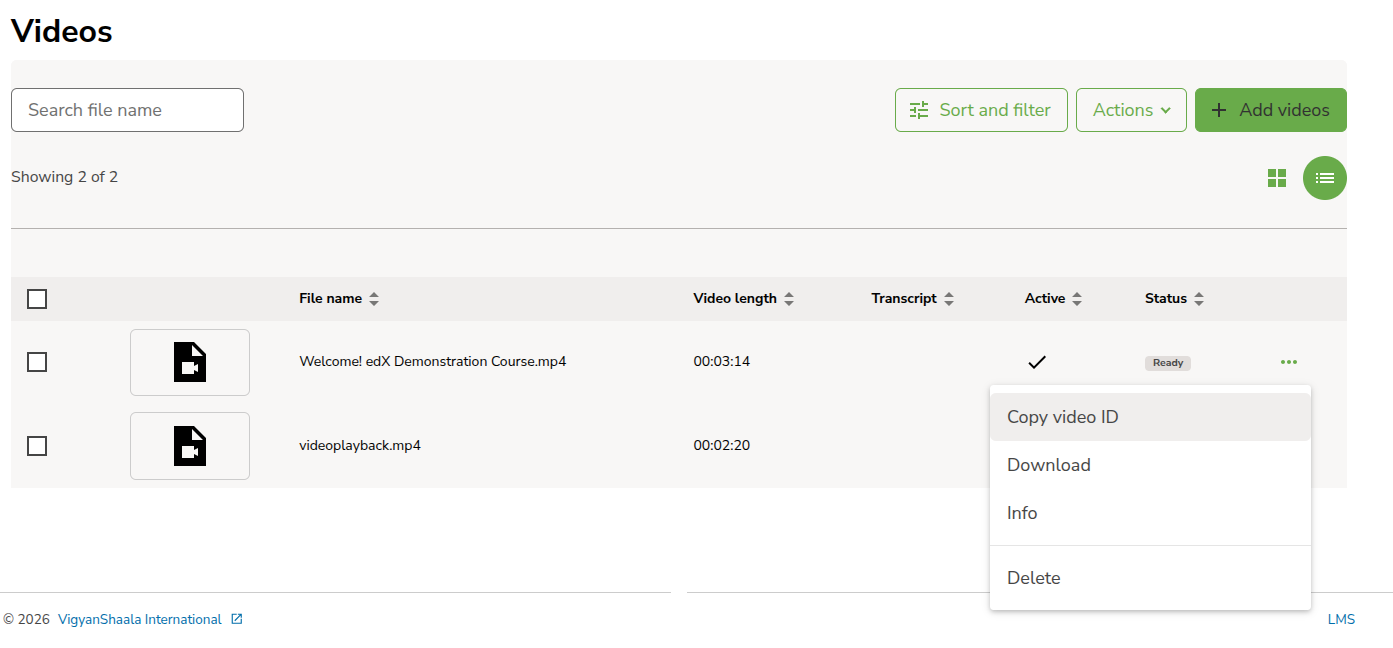
You need this ID when you add the Video component.
Add the Video component to a unit
In the course header, click Content, then Outline (or open Course outline).
Open an existing unit, or create a new one.
Under Add a new component, click Video.
In the Video box, paste the ID into Video ID.
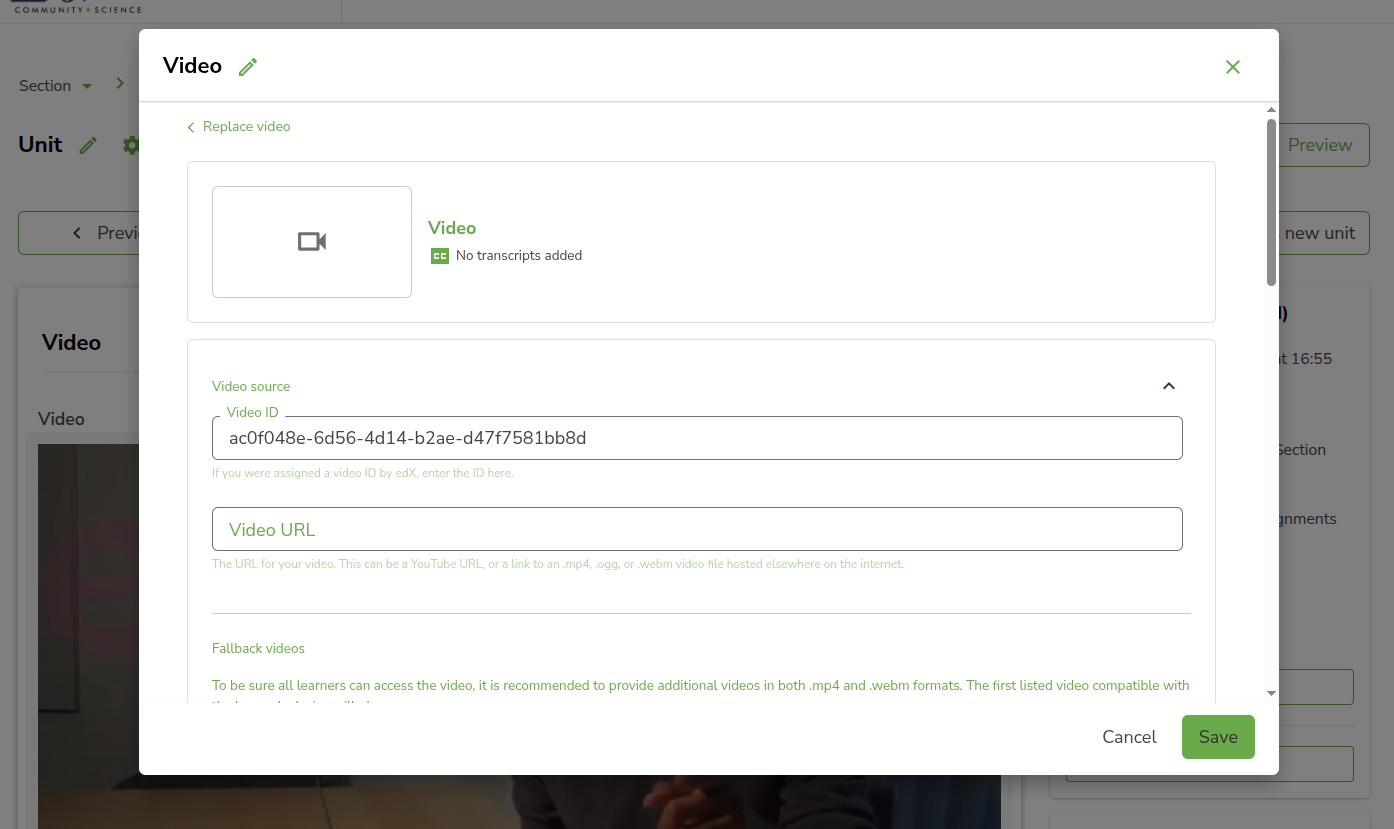
Click Save. Cancel or the X closes without saving.
The video block appears on the unit. Open it and check that the video plays.
Supported formats
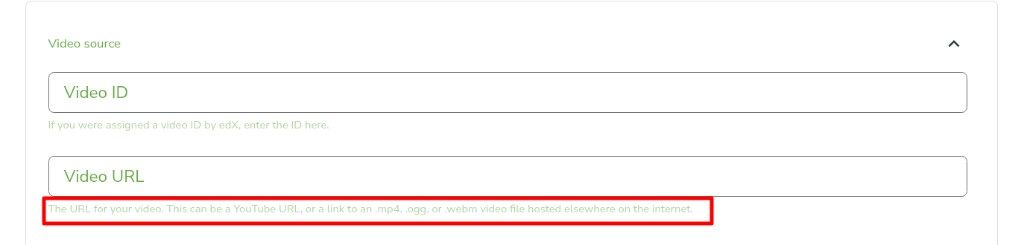
In the Video box, under Video source, you can use:
- Video ID — the ID you copied after upload (see above)
- Video URL — a YouTube URL, or a direct link to an .mp4, .ogg, or .webm video file hosted elsewhere on the internet
Video hosting requirements
Videos you upload with Content → Videos are hosted on the platform’s S3 storage.
- YouTube — if the video is already on YouTube, you can paste the YouTube URL in Video URL. You do not need to upload the file again.
- Other hosts (for example Vimeo, Brightcove, Google Drive, Microsoft SharePoint) — download the video to your computer first, then upload it here with Content → Videos. Do not paste only a Drive or SharePoint share link into Video URL; use a direct .mp4, .ogg, or .webm file URL, or upload via Videos and paste the Video ID.
Video settings and best practices
- Recommended file size is less than 500 MB
- Prefer .mp4 format
- If the file is larger than that, split it into two (or more) shorter videos and upload each one separately
Publish
On the right, RELEASE may say Unscheduled. Click Publish. Learners see the video only after the unit is published. Leave Hide from learners unchecked.
Quick path
Studio → course → Content → Videos → + Add videos → wait for Ready → Copy video ID → Outline → unit → Video → paste ID → Save → Publish
Actions
On the component, click the three-dot Actions menu: Manage Access, Move, Manage tags, Copy to Clipboard, Duplicate, or Delete. Delete this component? is permanent and cannot be undone.
Taxonomies
taxonomies all taxonomies import upload csv json download template 100mb
A taxonomy is a tag list. You use those tags on courses and content so people can find the right material. On Studio home, click Taxonomies.
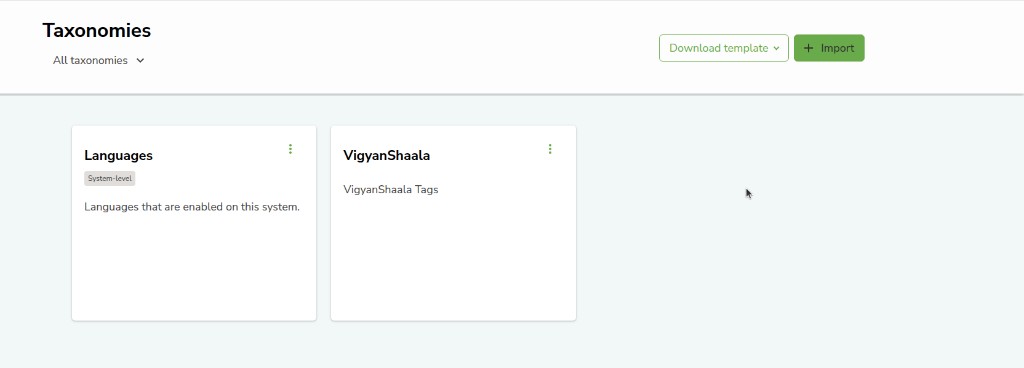
Each card is one taxonomy. System-level means it is built in for the whole site (for example Languages). Other cards are yours to edit (for example VigyanShaala). The three-dot menu on a card is extra actions for that taxonomy.
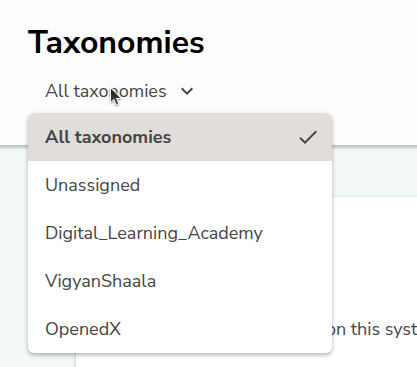
All taxonomies filters the list. Open it to show every taxonomy, only Unassigned, or one organisation.
You add or change a taxonomy by uploading a file. You cannot type the whole tree in the page.
Download template
Click Download template, then CSV template or JSON template.
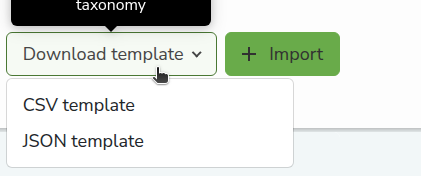
Open the CSV in a spreadsheet, or the JSON in a text editor. Fill in the rows, then save. Use the template so the columns match what Studio expects.
+ Import
Click + Import. The box is Upload file.
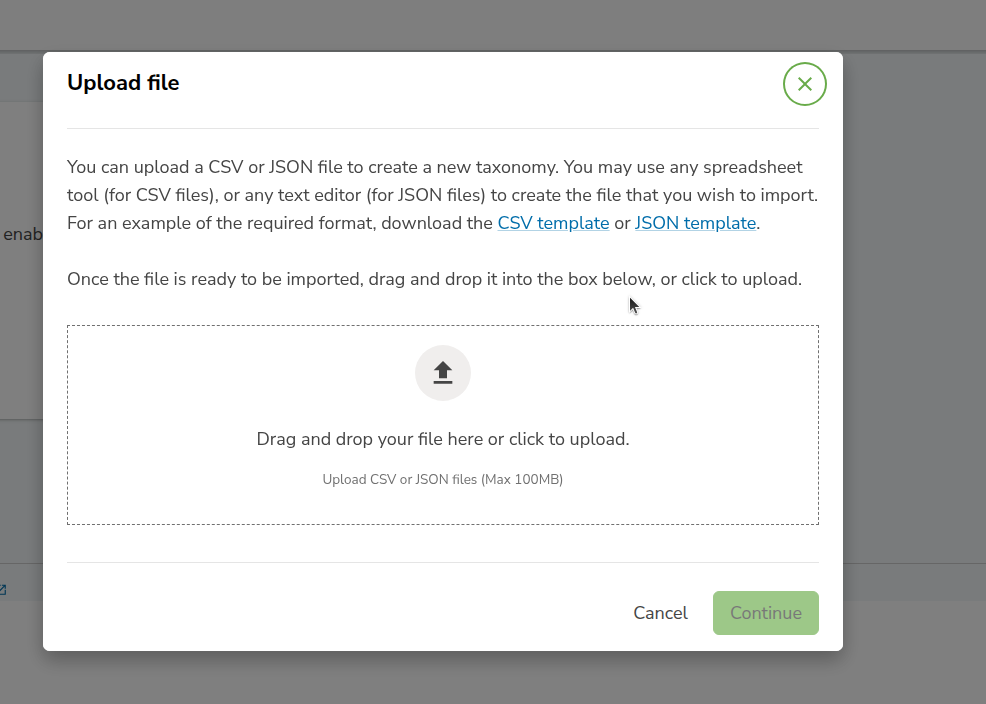
You can upload a CSV or JSON file to create a new taxonomy. You may use any spreadsheet tool (for CSV files), or any text editor (for JSON files) to create the file that you wish to import.
Need the layout again? Click CSV template or JSON template in this box.
When the file is ready, drag it into the dashed area, or click the area to choose a file. Upload CSV or JSON files (Max 100MB).
Cancel closes the box. Continue stays unavailable until a file is in the box. After you add a file, click Continue, then follow the name and description prompts. Wait until the import finishes. The new taxonomy appears as a card.
How to create a library
how to create a library new library library name organization library id create from archive zip
A library is a store of reusable content. You write a video, problem, or unit once, then add it to many courses. When you publish a change in the library, courses can pick up the new version.
On Studio home, click + New library. You can also open the Libraries tab first, then click + New library.
The page title is Create new library.
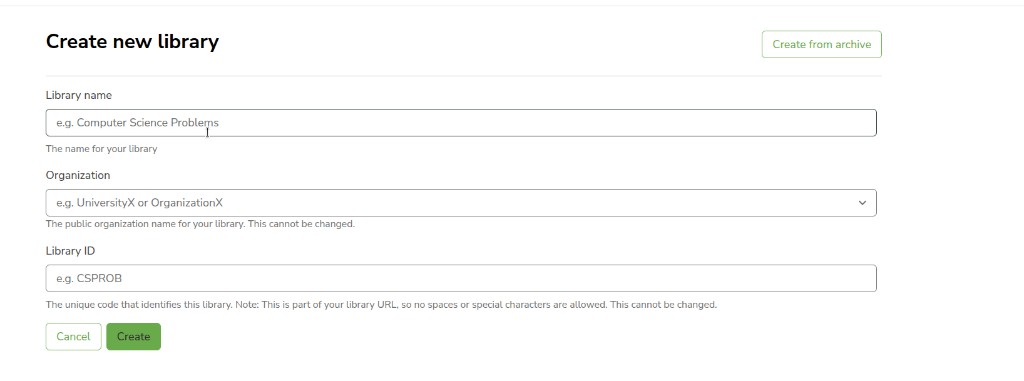
Fill in all three fields. Organization and Library ID become part of the library URL, so they cannot be changed later. Keep Library name, Organization, and Library ID short — together they must stay within 65 characters.
Library name
The name for your library. Placeholder e.g. Computer Science Problems. Pick a name the team will recognise.
Organization
The public organization name for your library. This cannot be changed. Placeholder e.g. UniversityX or OrganizationX.
Library ID
The unique code that identifies this library. Note: This is part of your library URL, so no spaces or special characters are allowed. This cannot be changed. Placeholder e.g. CSPROB.
Cancel closes the form. Click Create when the fields are filled. You become Library Admin on the new library. Then you can add components. See How to explore a library.
Create from archive
To start from a backup file instead of a blank library, click Create from archive.

Drag a ZIP file into the box, or click to upload. Upload ZIP files (Max 5GB). Then fill in Library name, Organization, and Library ID, and click Create.
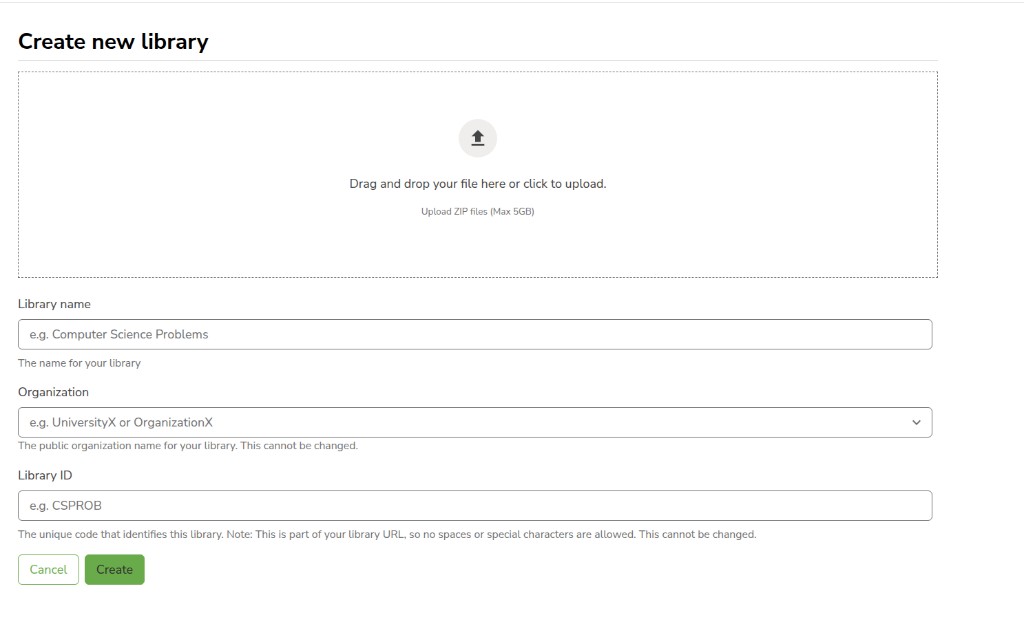
A backup does not include edit history or team access. Anyone who has the file can see the content. You restore it as a new library on this site or another site.
How to explore a library
explore library search filter tags type publish status recently modified library info new add content
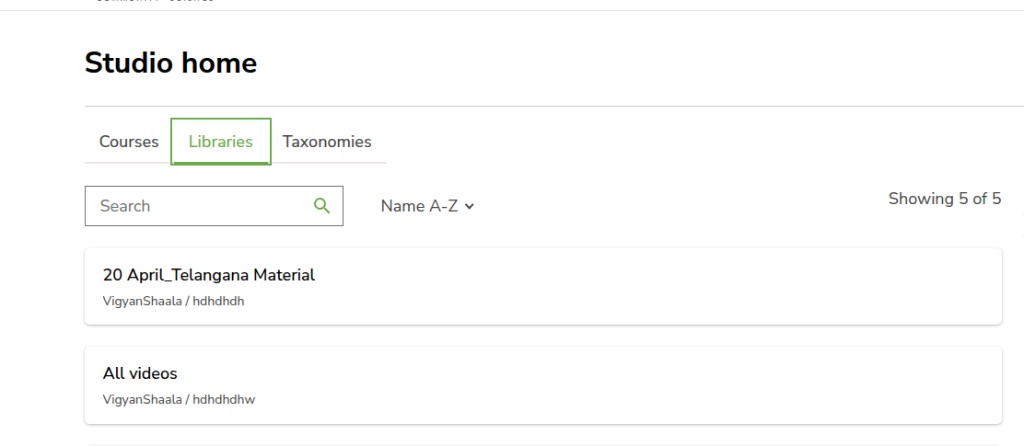
On Studio home, click Libraries. Search by name. Name A-Z sorts the list. The count (for example Showing 5 of 5) is how many libraries match.
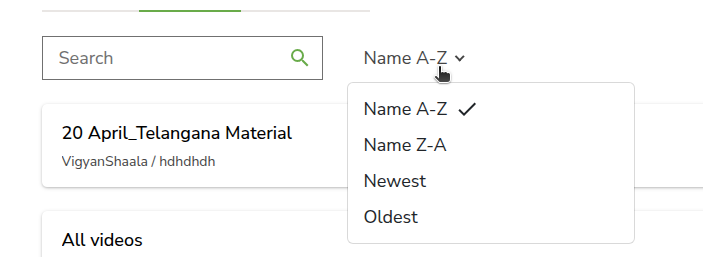
Click Name A-Z to change the order: Name A-Z, Name Z-A, Newest, or Oldest.
Click a library card to open it (for example 20 April_Telangana Material).
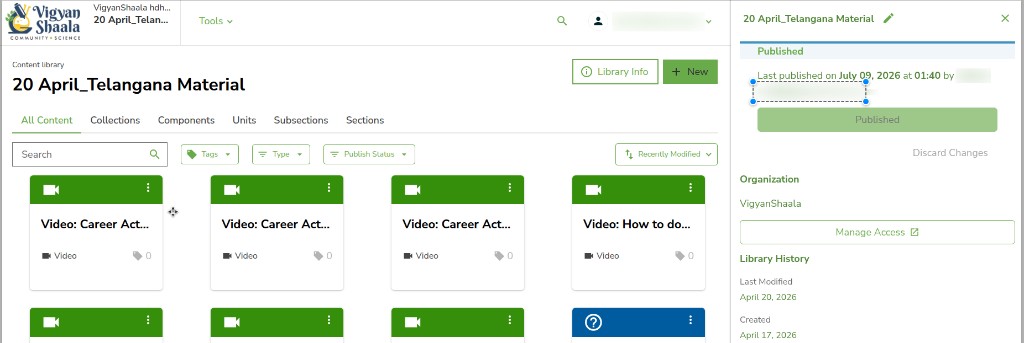
This is the library home. Tabs split the content:
- All Content — everything
- Collections — groups of items
- Components — single blocks (video, problem, text)
- Units, Subsections, Sections — the same layers you use in a course
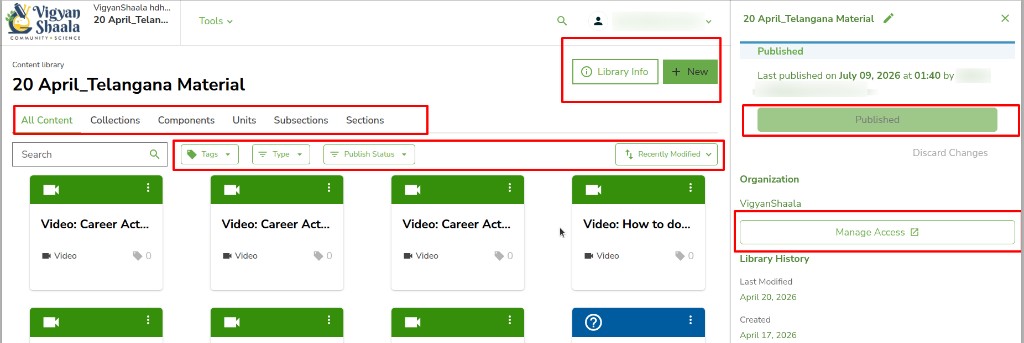
Library Info opens the right-hand panel. + New adds content.
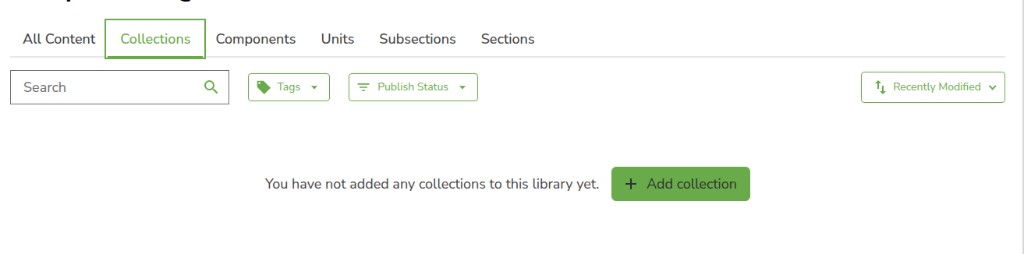
Collections
If none exist yet: You have not added any collections to this library yet. Click + Add collection.
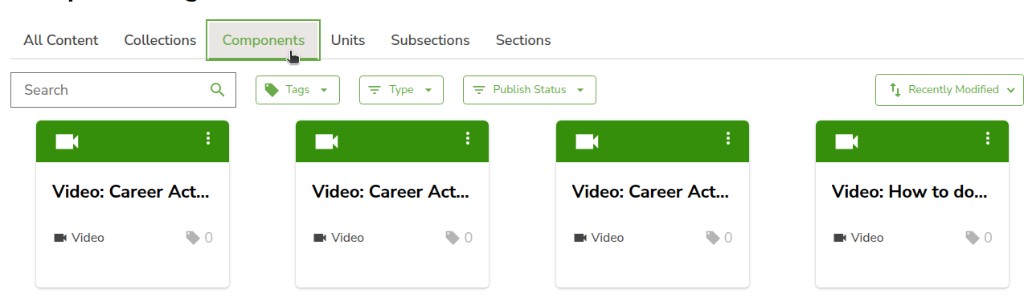
Components
Cards show the title, type (for example Video), tag count, and a three-dot menu.
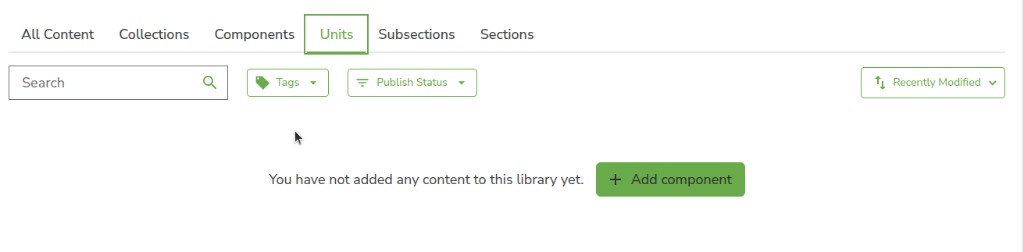
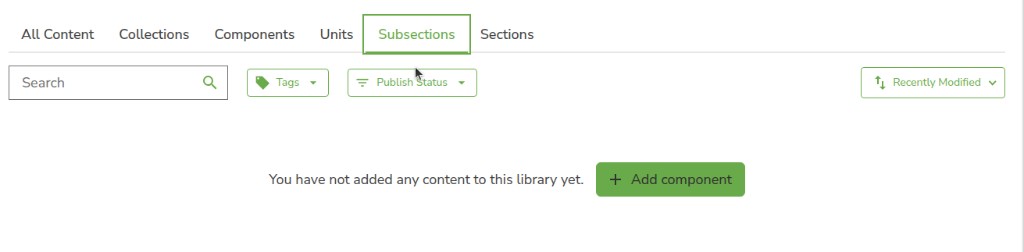
Units, Subsections, and Sections
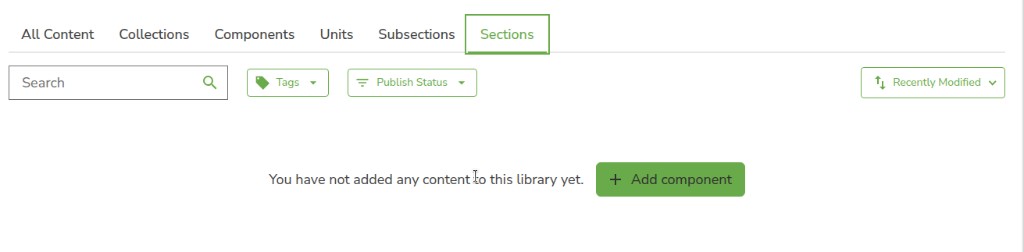
If that layer is empty: You have not added any content to this library yet. Click + Add component.
+ New
Click + New.
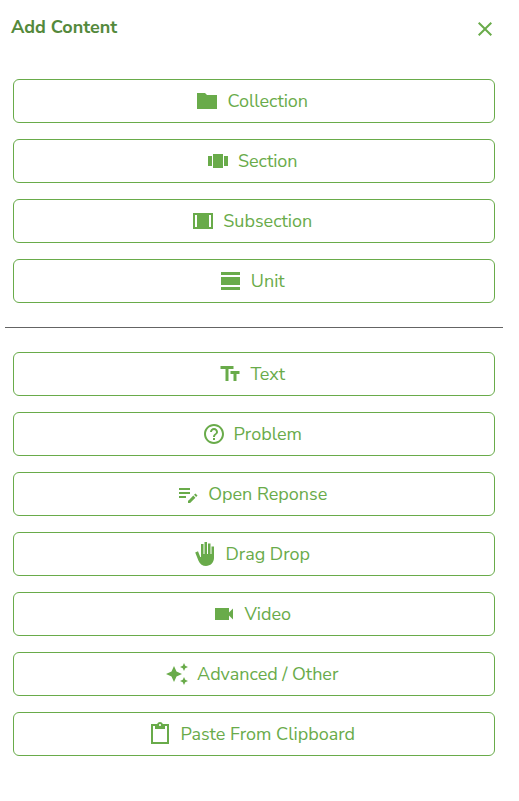
The box is Add Content. Close it with X.
Top group (structure): Collection, Section, Subsection, Unit.
Bottom group (blocks): Text, Problem, Open Response, Drag Drop, Video, Advanced / Other, Paste From Clipboard.
Library Info
Click Library Info.
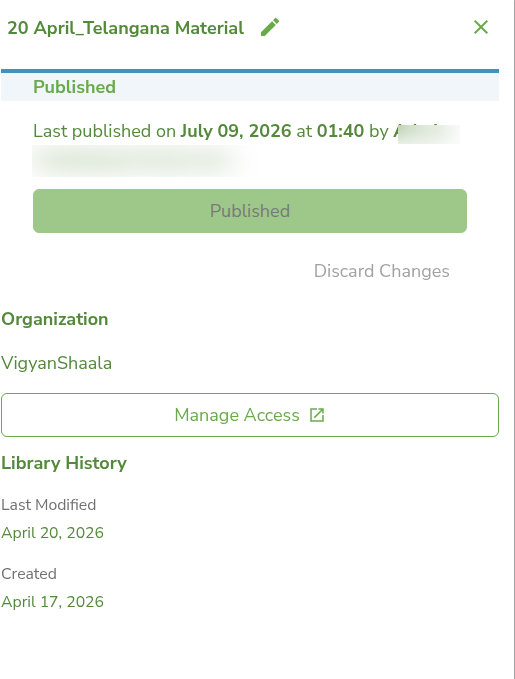
The panel shows the library name (pencil icon to rename), Published status, last published date, Organization, Manage Access, and Library History (Last Modified and Created). Discard Changes is available only when there are unpublished edits. Click Manage Access to open Library Team Management.
Search and filters
On the library home, type in Search. Then use:
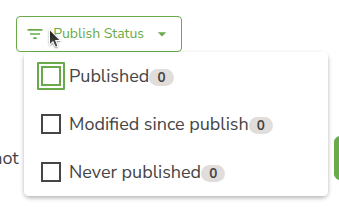
Publish Status — Published, Modified since publish, Never published. Each option shows a count.
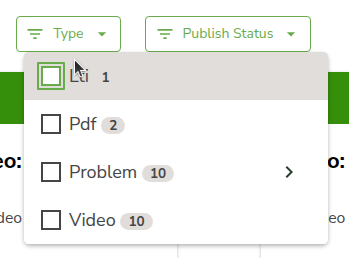
Type — for example Lti, Pdf, Problem, Video. Problem can open a further list of problem kinds.
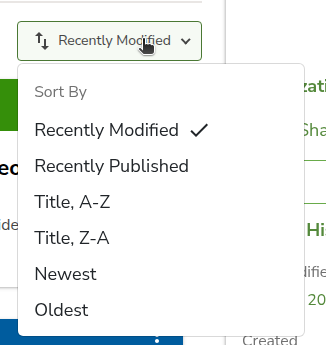
Recently Modified opens Sort By: Recently Modified, Recently Published, Title, A-Z, Title, Z-A, Newest, Oldest.
Tags filters by taxonomy tags you assigned.
Library Team Management
library team management manage access add new team member add new role library admin author contributor user permissions allow public read
Library access is separate from course access. A change here applies only to this library.
From Library Info, click Manage Access. Breadcrumb: Manage Access / Library Team Management. The library ID is under the title (for example lib:VigyanShaala:hdhdhdh).
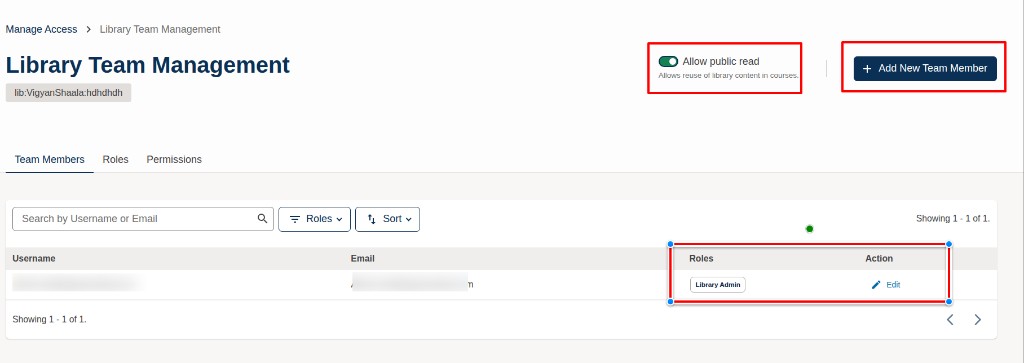
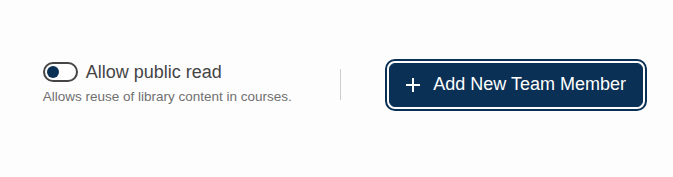
Allow public read lets other course authors reuse this library in courses. Turn it on when the library should be shared.
Tabs: Team Members, Roles, Permissions. Only a Library Admin (or a site admin) can add people or change roles.
Team Members
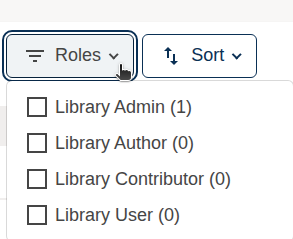
Search by Username or Email finds a person. Roles filters the table: Library Admin, Library Author, Library Contributor, Library User.
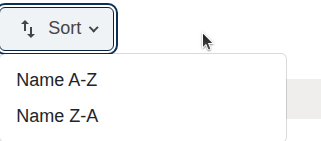
Sort orders the table Name A-Z or Name Z-A.
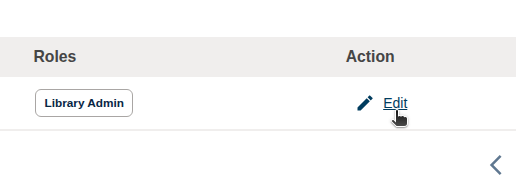
The table columns are Username, Email, Roles, and Action. Click Edit (pencil icon) to change that person’s role.
+ Add New Team Member
Click + Add New Team Member. The box says: Add new members to this library's team and assign them a role to define their permissions.
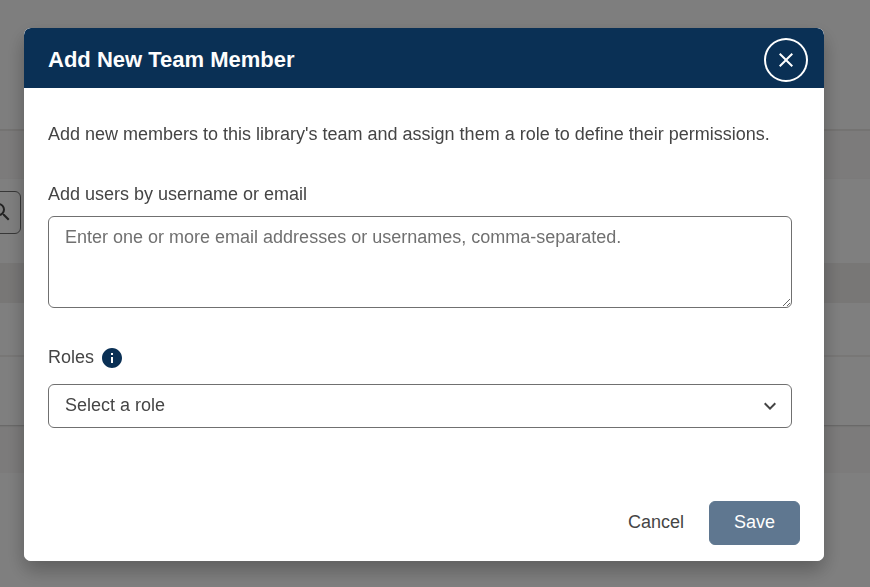
Add users by username or email — enter one or more email addresses or usernames, comma-separated. They must already have an account.
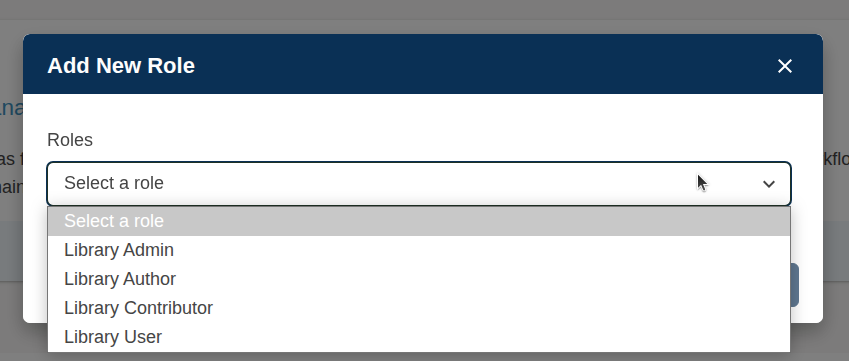
Roles — click Select a role, then Library Admin, Library Author, Library Contributor, or Library User.
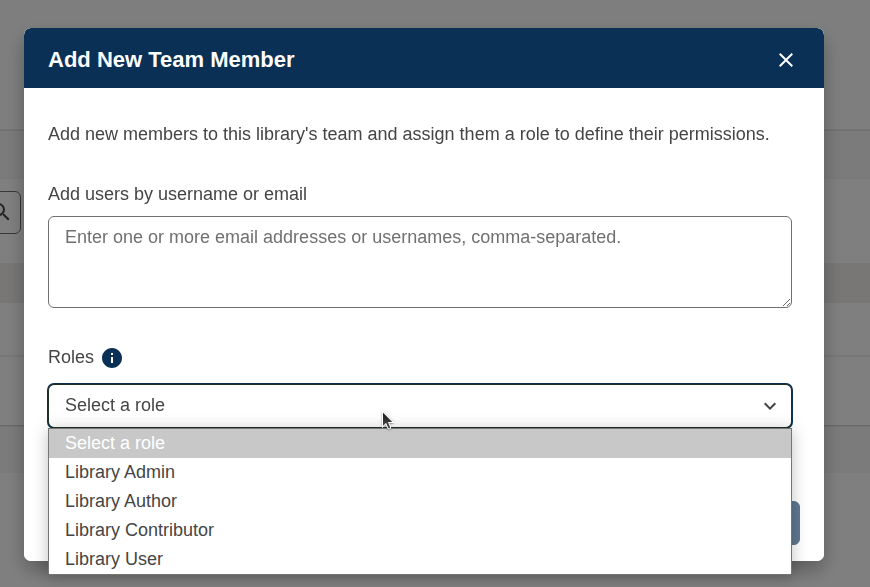
Click Save. Cancel closes without adding anyone. After save, they appear in the table.
+ Add New Role (after Edit)
On the person’s page, click + Add New Role. Under Roles, pick the extra role, then save.
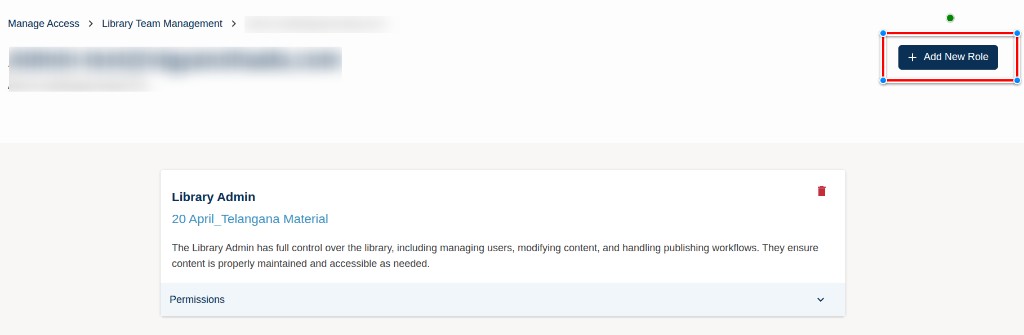
A role card (for example Library Admin) summarises what that role can do. The trash icon removes that role. If you remove their last role, they lose access to this library.
Roles tab
Click Roles to read all four roles at once.
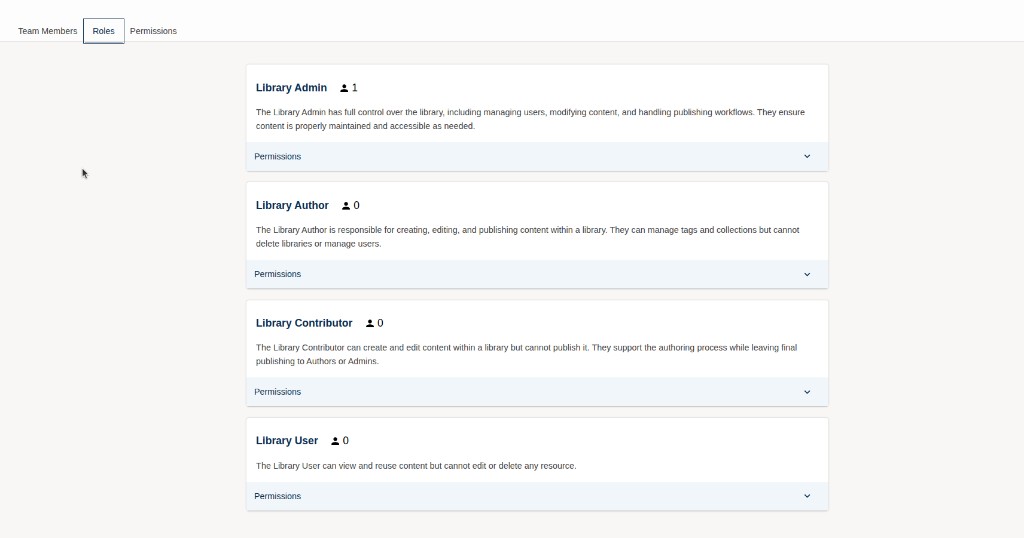
- Library Admin — full control: users, content, and publishing
- Library Author — create, edit, and publish; manage tags and collections; cannot delete the library or manage users
- Library Contributor — create and edit; cannot publish
- Library User — view and reuse; cannot edit or delete
Open Permissions on a card to see the detailed list.
Permissions tab
Click Permissions for the full grid. A check means that role can do the action. An X means it cannot.
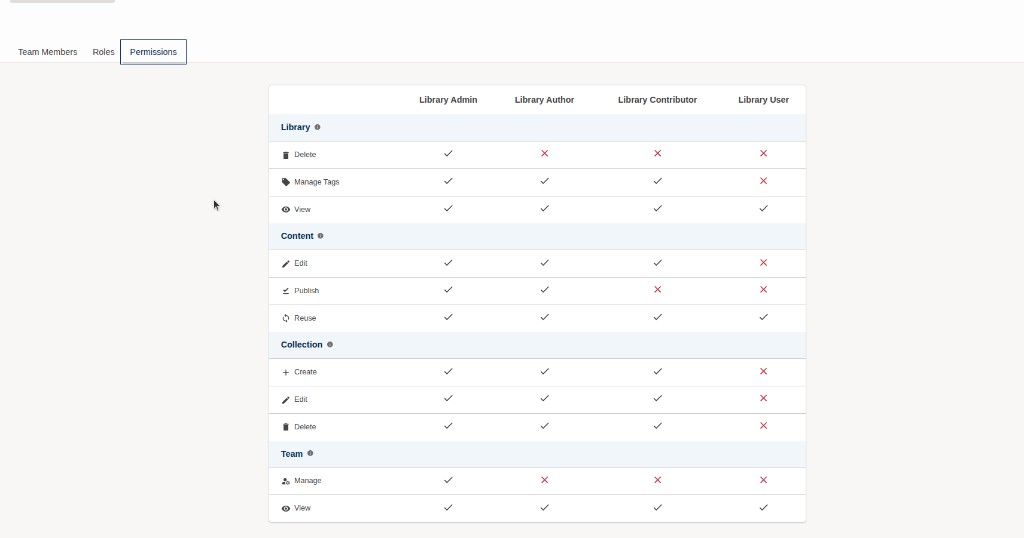
In short: only Library Admin can Delete the library and Manage the team. Admin and Author can Publish. Admin, Author, and Contributor can Edit content and manage collections. Every role can View and Reuse.
Library Backup
library backup tools back up to local archive download library backup
Use a backup to keep a copy on your computer, or to create the same library on another site.
On the library home, click Tools, then Back up to local archive.
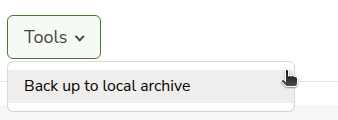
The page title is Library Backup.
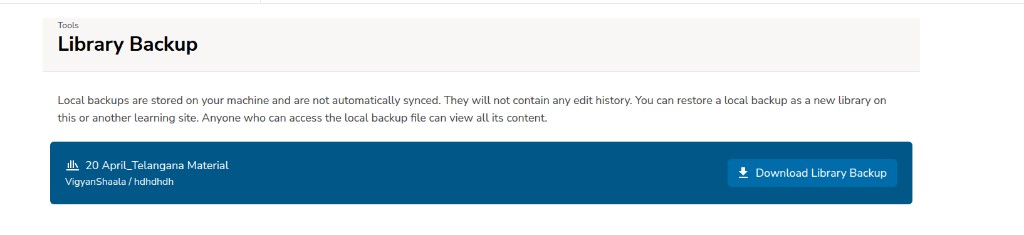
Local backups are stored on your machine and are not automatically synced. They will not contain any edit history. You can restore a local backup as a new library on this or another learning site. Anyone who can access the local backup file can view all its content.
Click Download Library Backup on the library banner. To restore, use Create from archive on How to create a library.