TAS Admin panel
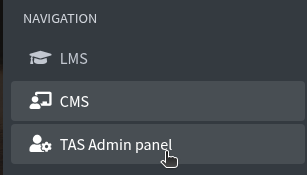
TAS Admin panel is where you make assignment templates: the type, the rubric, the image, and the fields learners fill in. Open it from Control Hub NAVIGATION. It opens in a new tab. After a template is ready, add it to a course in Studio as a Template Based Assignment.
How to reach TAS Admin panel
how to reach tas admin panel overview templates manage types new type
In Control Hub, under NAVIGATION, click TAS Admin panel. It opens in a new tab.
The first page is Templates. The count (for example 16 of 16 templates) is under the title.
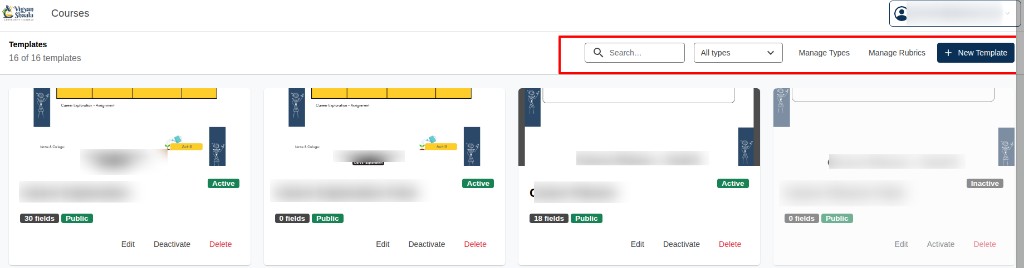
At the top right:
- Search... — find a template by name
- All types — show every type, or pick one type
- Manage Types — add or edit types
- Manage Rubrics — add or edit rubrics
- + New Template — start a new template
Each card shows a thumbnail, Active or Inactive, how many fields, and Public. On the card: Edit, Deactivate or Activate, and Delete.
On Templates, click Manage Types. You see Existing Types.

Each type shows Active, its slug, a pencil icon to edit, and a red X icon to delete.
Click New Type. Breadcrumb: Templates / Template Types.
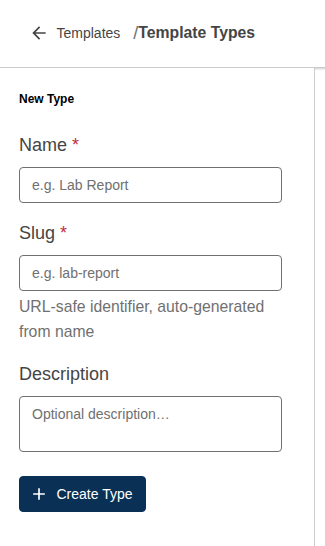
Fill in:
- Name * — required. Placeholder e.g. Lab Report
- Slug * — required. Placeholder e.g. lab-report. The hint is URL-safe identifier, auto-generated from name. You can edit it if you need to.
- Description — optional. Placeholder Optional description…
Click + Create Type. The new type appears under Existing Types and in All types on Templates.
Manage Rubrics
manage rubrics new rubric categories add category criteria label points category total feedback create rubric
Click Manage Rubrics, then New Rubric.
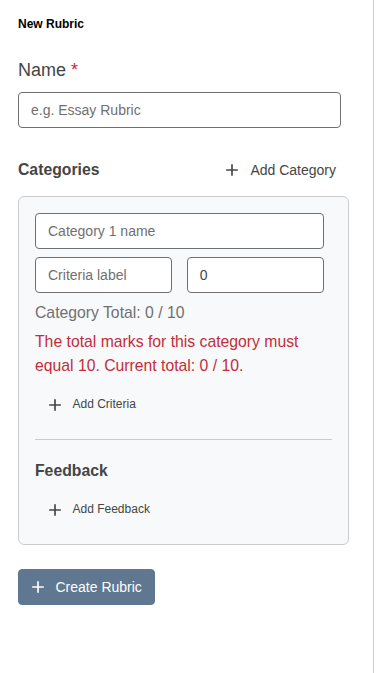
Name * is required. Placeholder e.g. Essay Rubric.
Under Categories, click + Add Category. Type the category name (placeholder Category 1 name).
For each criterion: Criteria label and points (the small box, often 0 to start). The line Category Total: 0 / 10 must reach 10. If it does not, you see: The total marks for this category must equal 10. Current total: 0 / 10.
Click + Add Criteria to add another row. Under Feedback, click + Add Feedback.
Click + Create Rubric when the totals are correct.
New Template
new template name description type image thumbnail fields add label font size max chars position create zoom
On Templates, click + New Template. Breadcrumb: Templates / New Template.
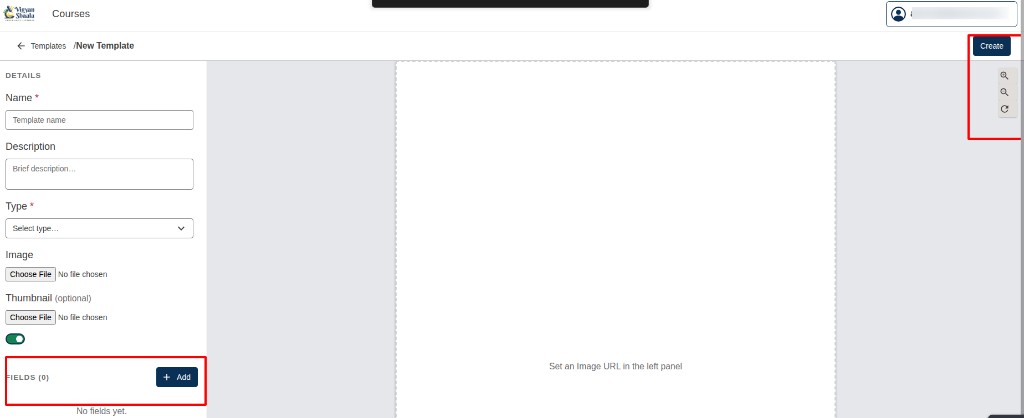
On the left, DETAILS:
- Name * — required. Placeholder Template name
- Description — optional. Placeholder Brief description...
- Type * — required. Choose a type from Manage Types
- Image — Choose File for the main picture
- Thumbnail (optional) — Choose File for a small preview
- The green toggle turns the template on
The centre is the preview. Until you pick an image it says Set an Image URL in the left panel.
Create saves the template. Use the zoom-in, zoom-out, and reset icons to move around the preview.
Under FIELDS (0), click + Add. The count becomes FIELDS (1). Until you add one, it says No fields yet.
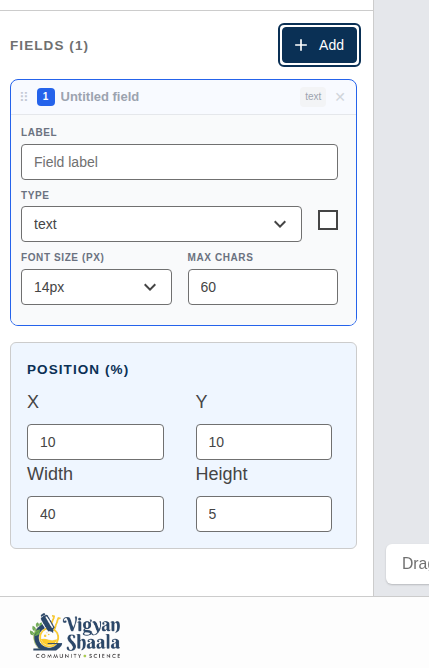
The field starts as Untitled field, type text. Set:
- LABEL — placeholder Field label
- TYPE — for example text
- FONT SIZE (PX) — for example 14px
- MAX CHARS — for example 60
POSITION (%) places the box on the image:
- X and Y — where it starts
- Width and Height — how large it is
Click + Add again for another field. The x icon removes that field. Drag the handle to reorder. Click Create when you are done.
How to create Template Based Assignment from Studio
how to create template based assignment from studio home new section subsection unit advanced select
Open Studio home. Click the course you want to add the assignment to.
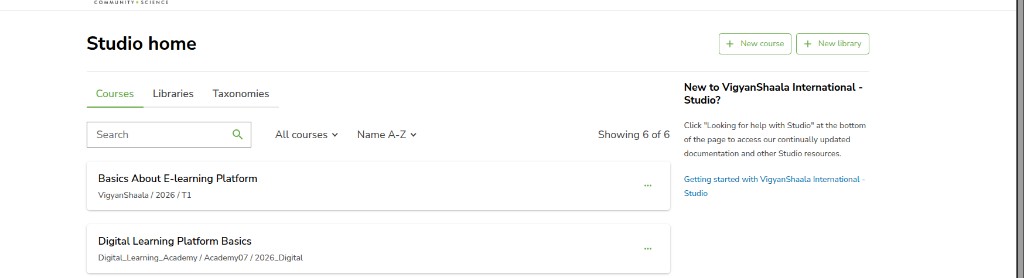
You land on Course outline. Click + New section.

In that section, click + New subsection. You can rename the section and the subsection with the pencil icon next to the name.
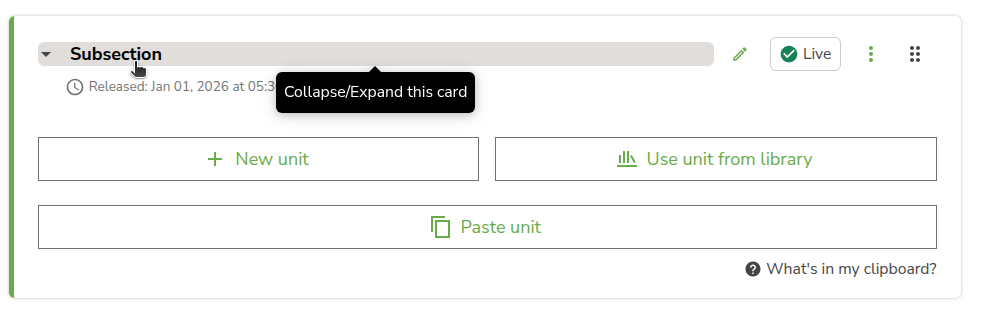
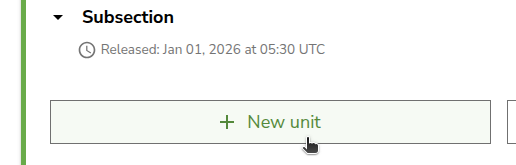
In the subsection, click + New unit.
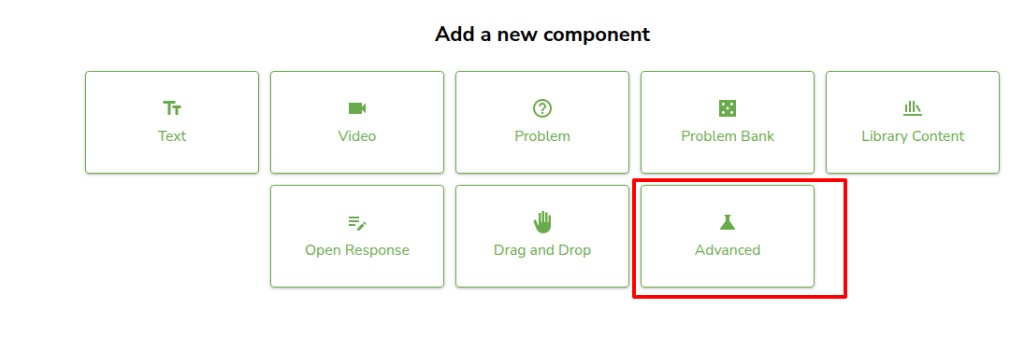
The unit opens. Under Add a new component, you see the component list. Click Advanced.
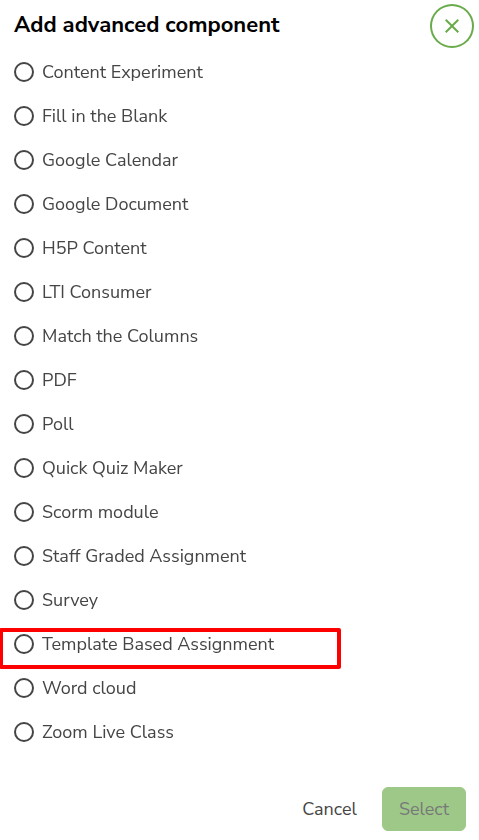
The Add advanced component box opens. Select Template Based Assignment.
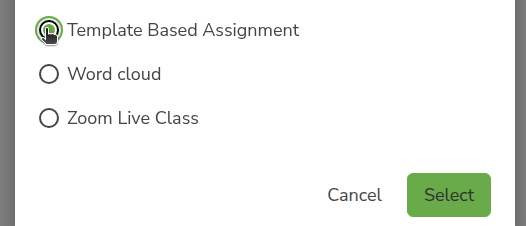
Click Select.
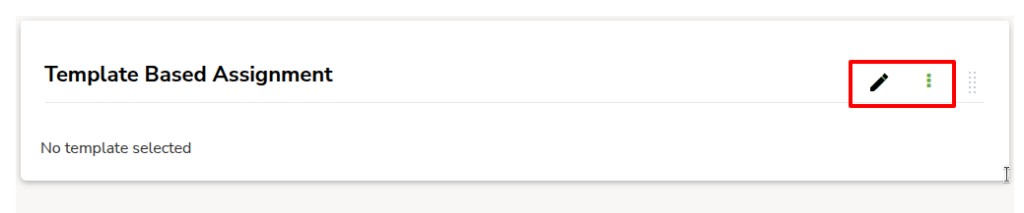
The Template Based Assignment block is on the unit. It says No template selected until you edit it. See How to edit Template Based Assignment.
On the component, click the three-dot Actions menu: Manage Access, Move, Manage tags, Copy to Clipboard, Duplicate, or Delete. Delete this component? is permanent and cannot be undone. Click Publish on the unit or learners will not see the assignment in the course.
How to edit Template Based Assignment
edit template based assignment pencil icon display name template type template rubric student instructions save
On the Template Based Assignment block, click the pencil icon.
The Editing: Template Based Assignment box opens.
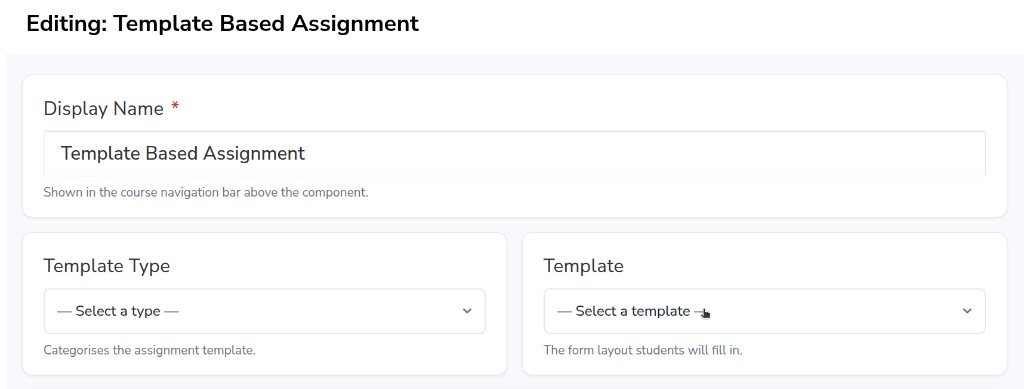
Display Name * is required. It is shown in the course navigation bar above the component.
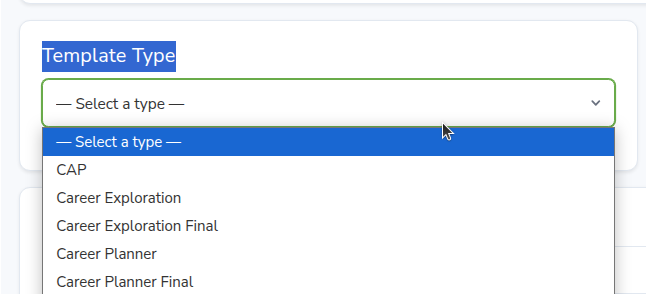
Click Template Type and pick a type. This categorises the assignment template.
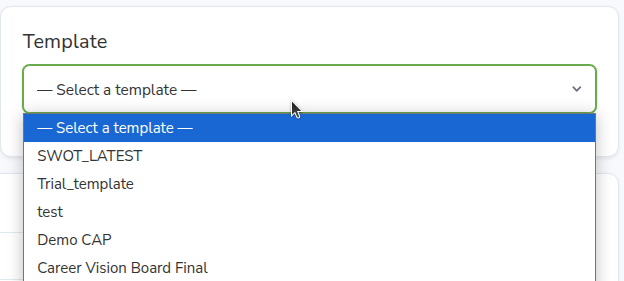
Click Template and pick the template you want. This is the form layout students fill in.
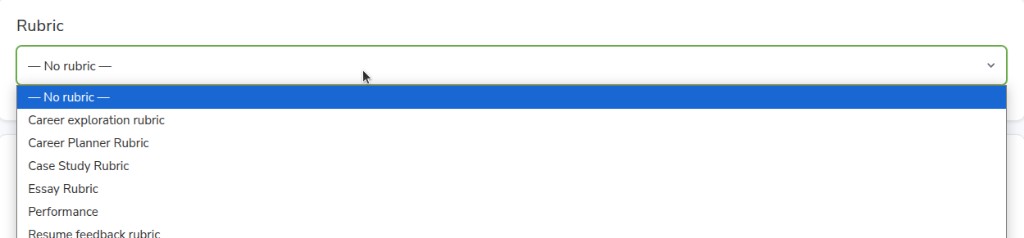
Click Rubric and pick a rubric, or leave — No rubric —.
Under Student Instructions, type the text learners see before they open the submission form.
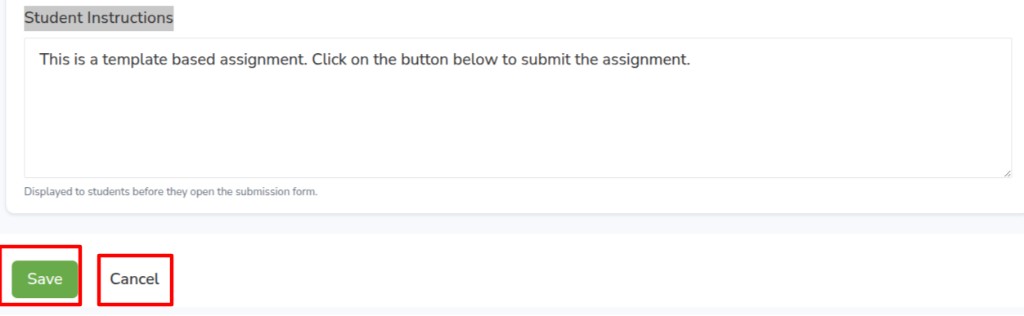
Click Save. Cancel closes without saving.