Account & registration
Log in with your email id and password
login sign-in signin email password
Use Log In when you already have an account. You need the same email and password you used when you signed up. After a successful sign-in you go to My Learning.
Open the VigyanShaala Android app. On the welcome screen, tap Log In.
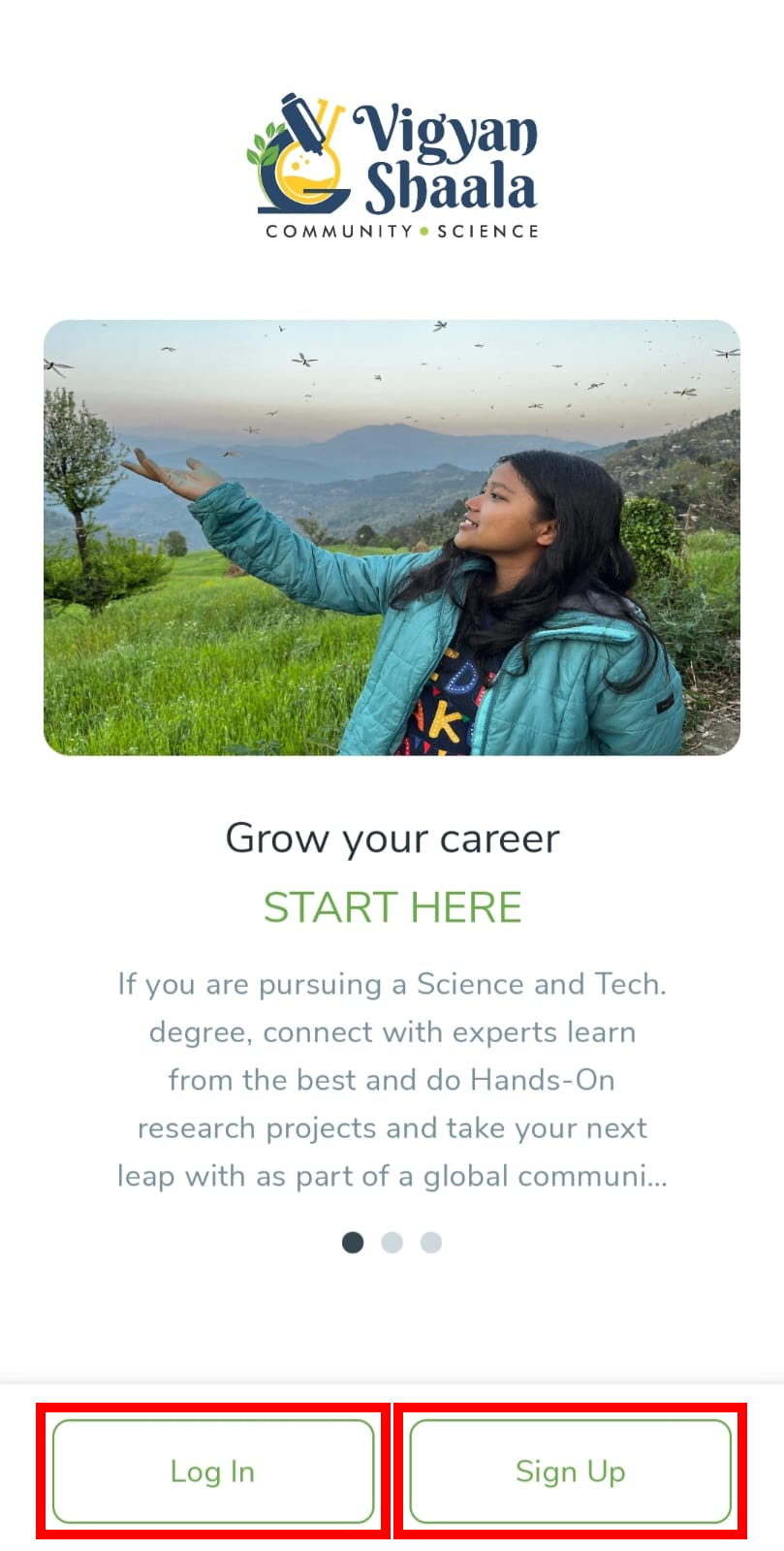
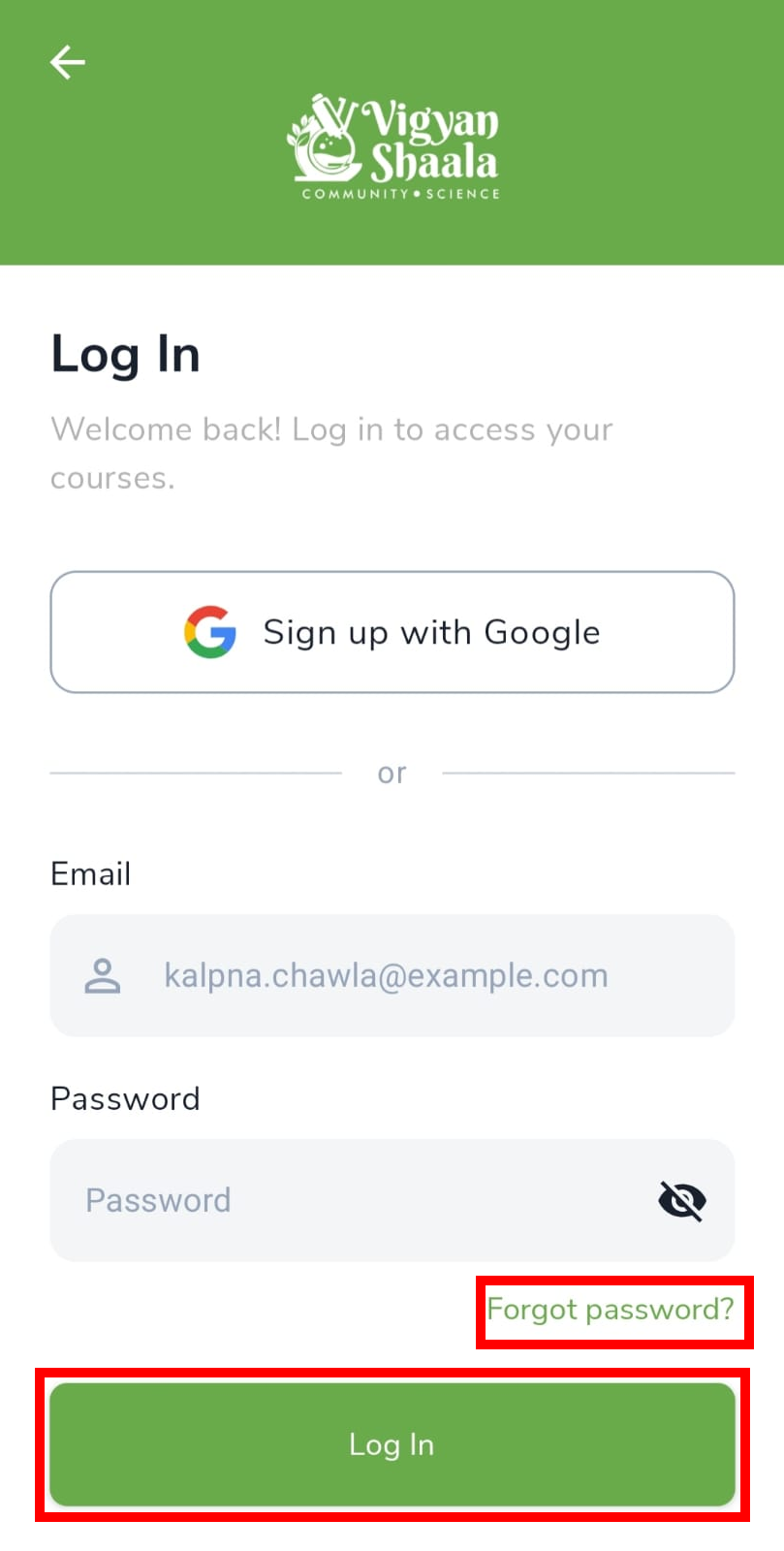
- Enter Email and Password, then tap Log In.
- After a successful login you go to My Learning.
Log in with Google SSO
gmail sso google login continue with google
Continue with Google lets you sign in with a Google account (such as Gmail) instead of typing a password. Use the same Google account every time so you return to the same programs.
- On the Log In or Sign Up screen, tap Continue with Google (or Sign in with Google).
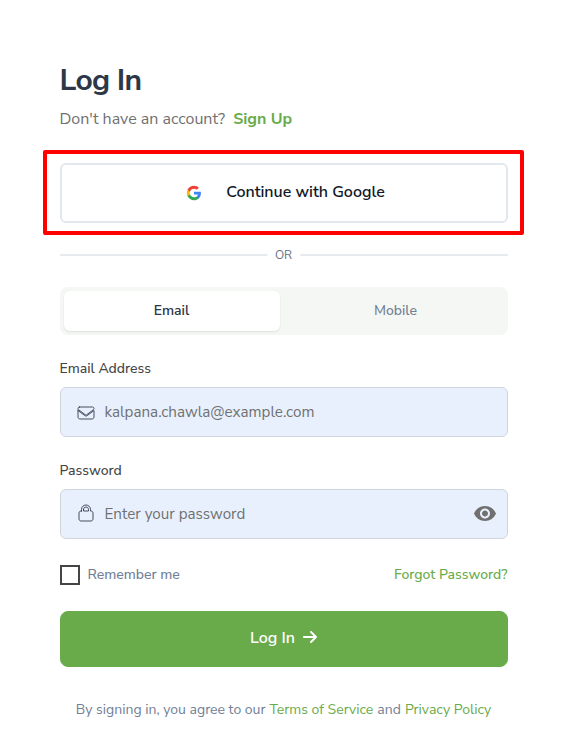
- If your Google account is already listed, tap it.
- If it is not listed, tap Use another account and add your Google account.
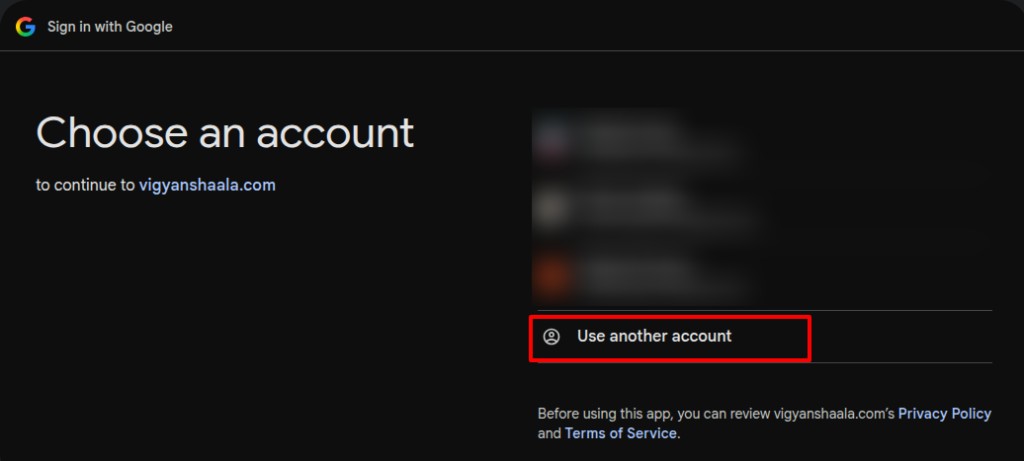
- Allow access. You go to My Learning after Google confirms your sign-in.
Forgot password
forgot password recover reset
If you cannot sign in, use Forgot password? on the Log In screen. A reset link is sent to your email. Set a new password, then come back to the app and log in with it.
- On the Log In screen, tap Forgot password?.
- Follow the email link, set a new password, then come back and log in.
Register with a QR code/link
qr qrcode qr-code scan cohort enrollment
Your teacher shares a QR code or a link. Scan or open it to start the Registration Form. If you are new, this can create your account and enroll you. If you already have an account, sign in first, then submit the form.
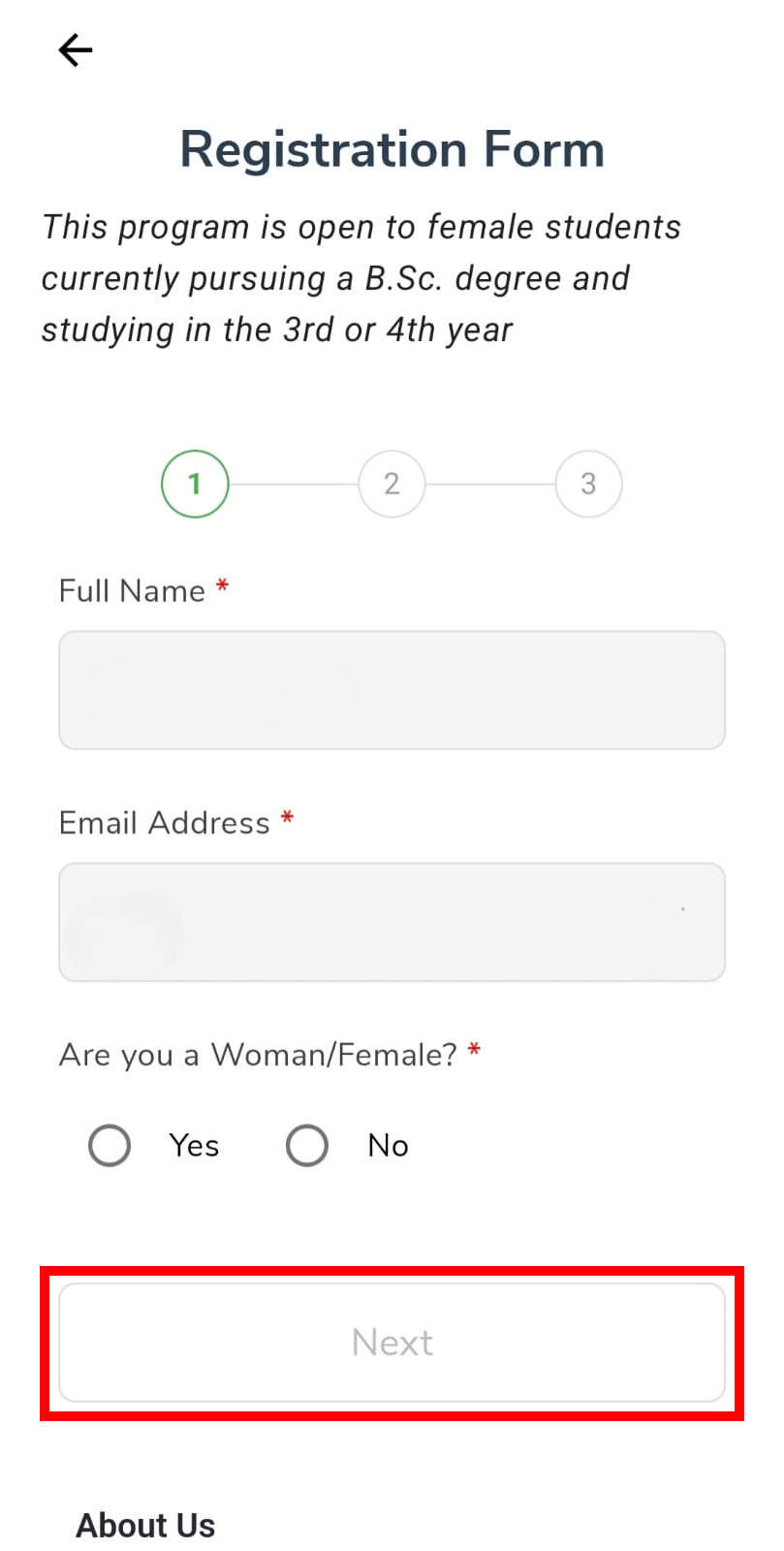
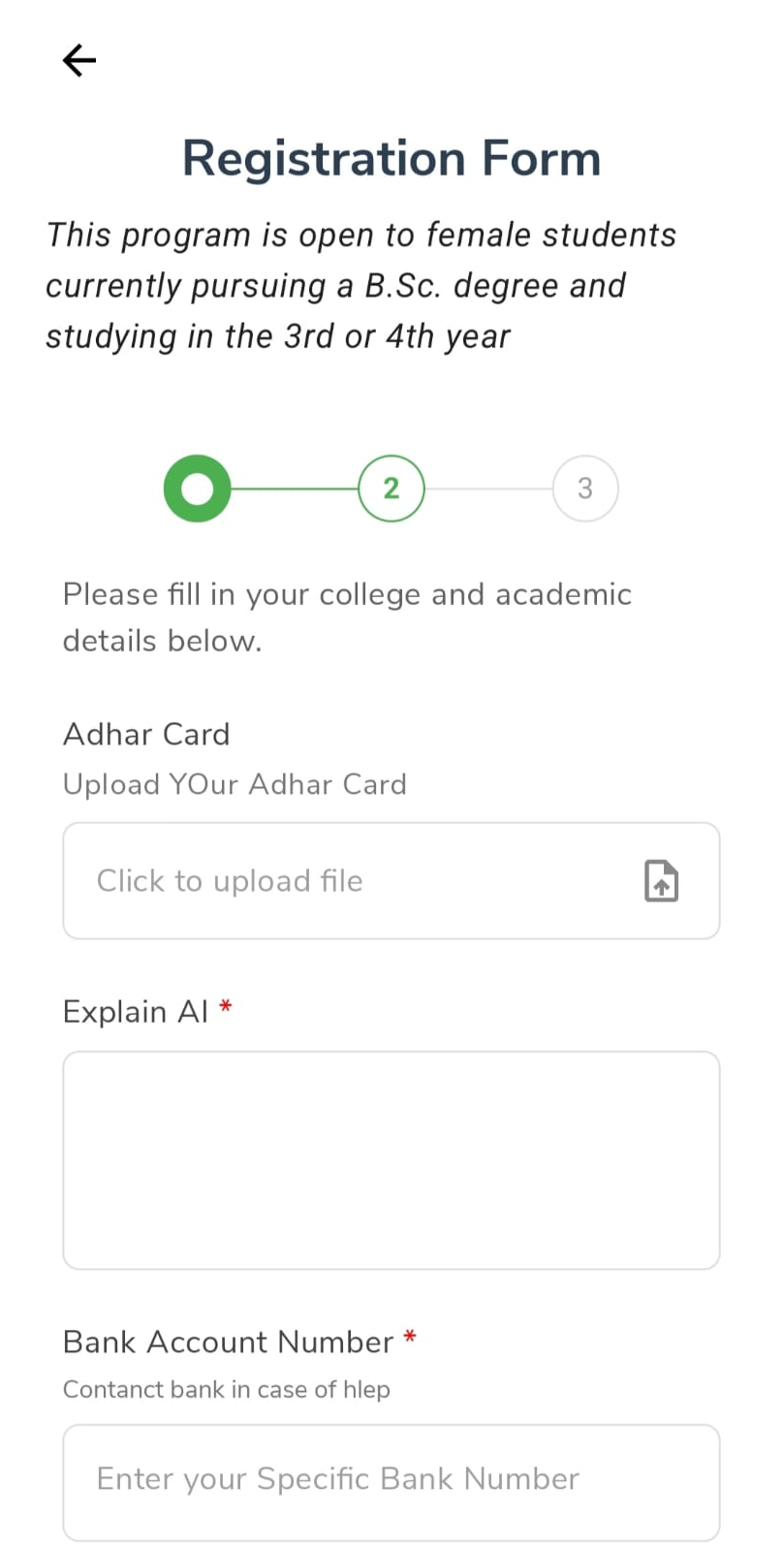
- Fill every required field. Tap Next, then submit.
- Wait for confirmation — you may join straight away, or a teacher may need to approve you first.
- Then log in. The program appears on My Learning.
Fields can change
Teachers can change the questions. Complete every required field shown for your program.
Create your account
signup sign-up register create account
Create an account if you are new. You need your full name, email, and a password. Choose Student (not Mentor). After you create the account, check your email if the app asks you to activate it.
On the welcome screen, tap Sign Up.
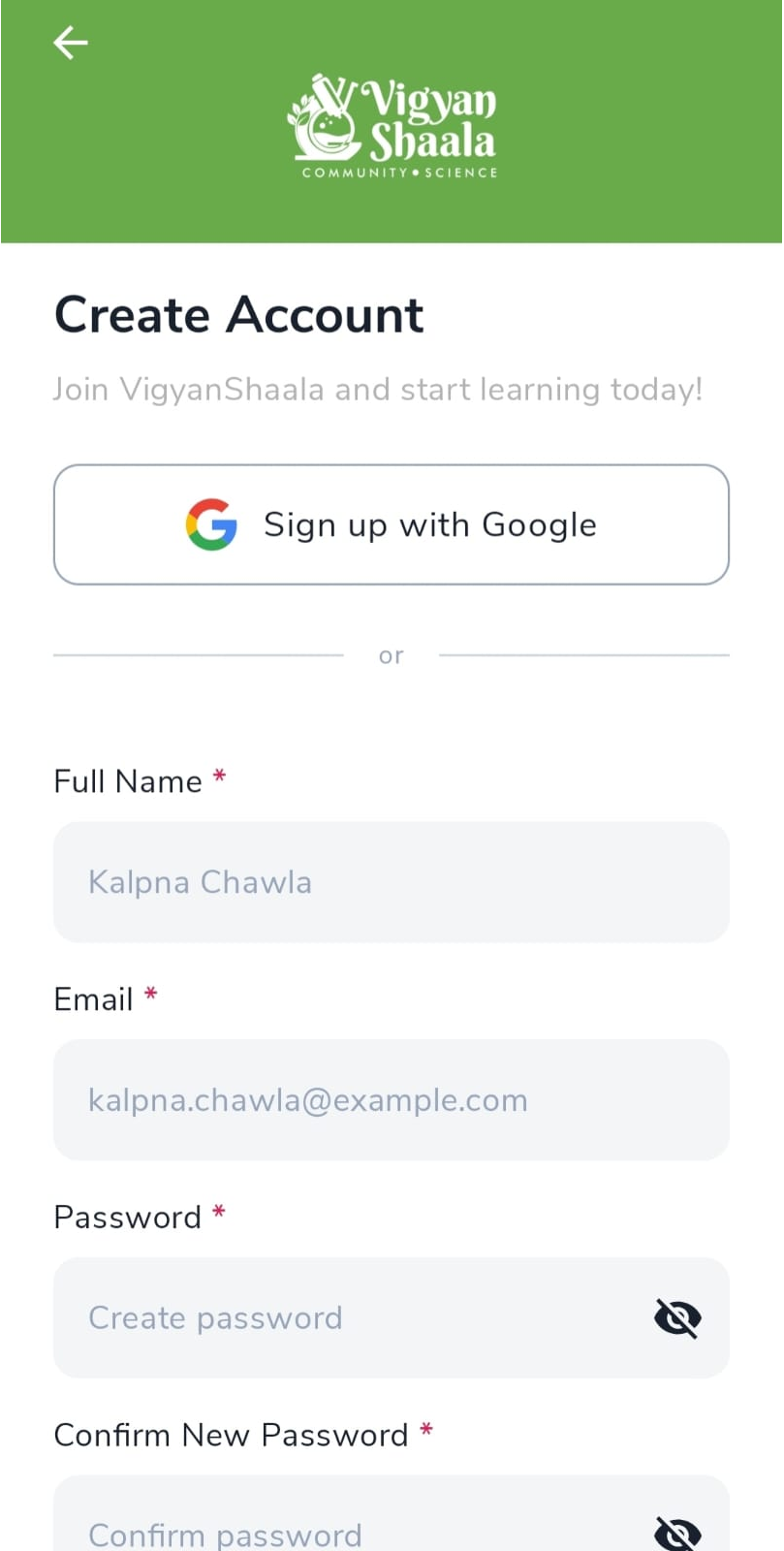
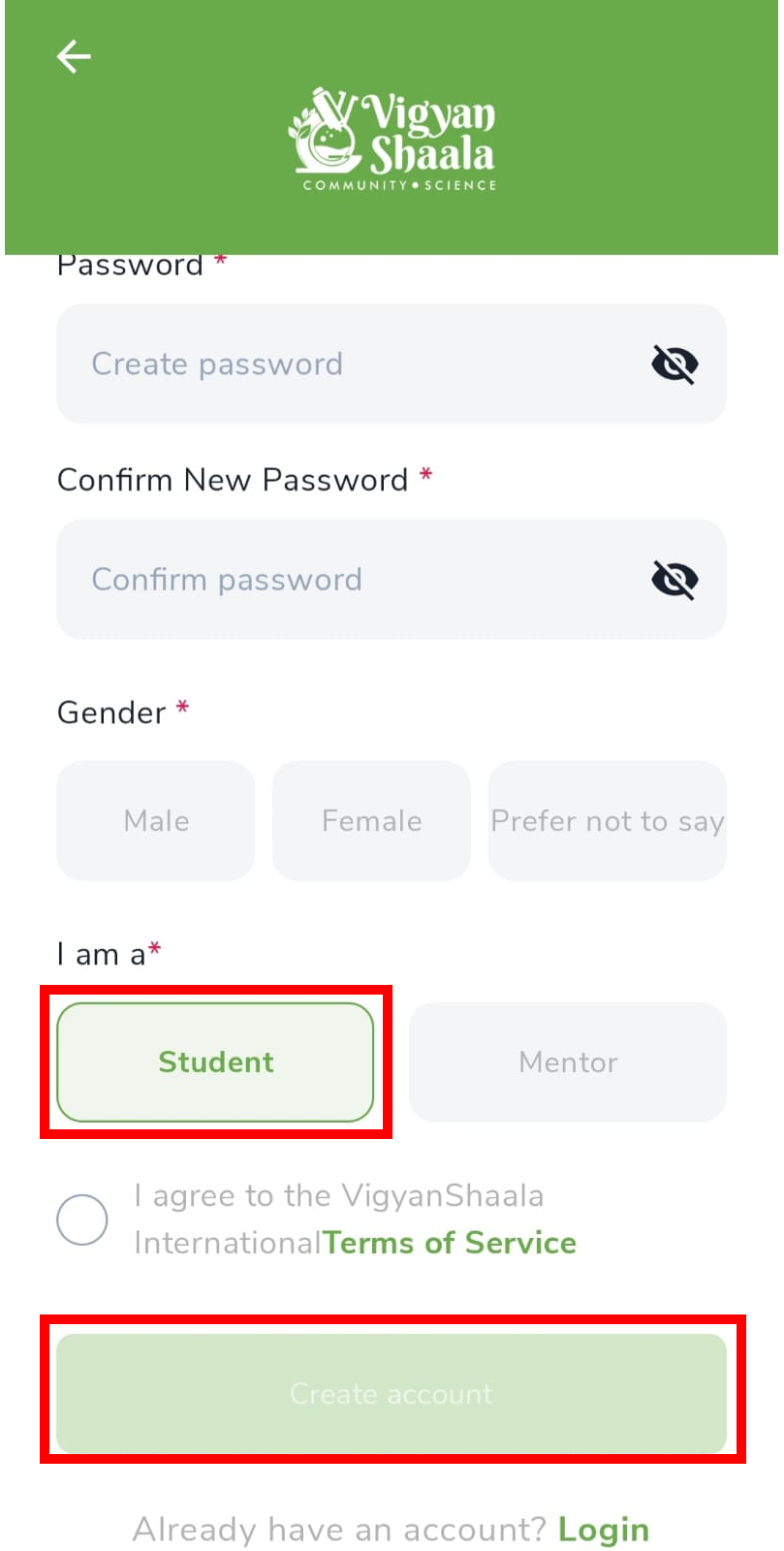
- Fill in Full Name, Email, Password, Gender, and choose Student (not Mentor).
- Tick I agree to the Terms of Service, then tap Create account.
Check your email
If asked to activate your account, open your inbox and follow the link.