Inside a Program
Open a program
After you join a program, open it from My Dashboard. Tabs across the top let you learn, track progress, join live sessions, and more. The learning screen may still say Course — that is the program you joined.
- On My Dashboard, click Start, Continue, or View Progress.
- Use the tabs: Course, Progress, Dates, Discussion, Handouts, Updates, Bookmarks, Leaderboard, Live-Session.
Course — learn and submit work
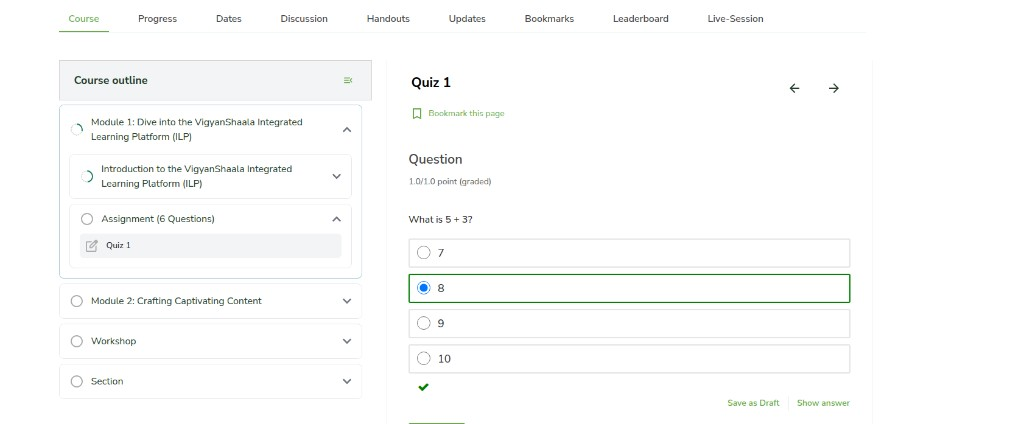
The Course tab is where you watch lessons, open the outline, and submit quizzes or assignments. Use the left outline to jump to a topic, and the arrows to move page by page.
- Click Course. Use the outline on the left to open lessons, quizzes, and assignments.
- Use the arrows to move between pages. Click Bookmark this page to save for later.
- For quizzes: choose your answer, then Save as Draft or submit. A green tick shows a correct answer.
Progress
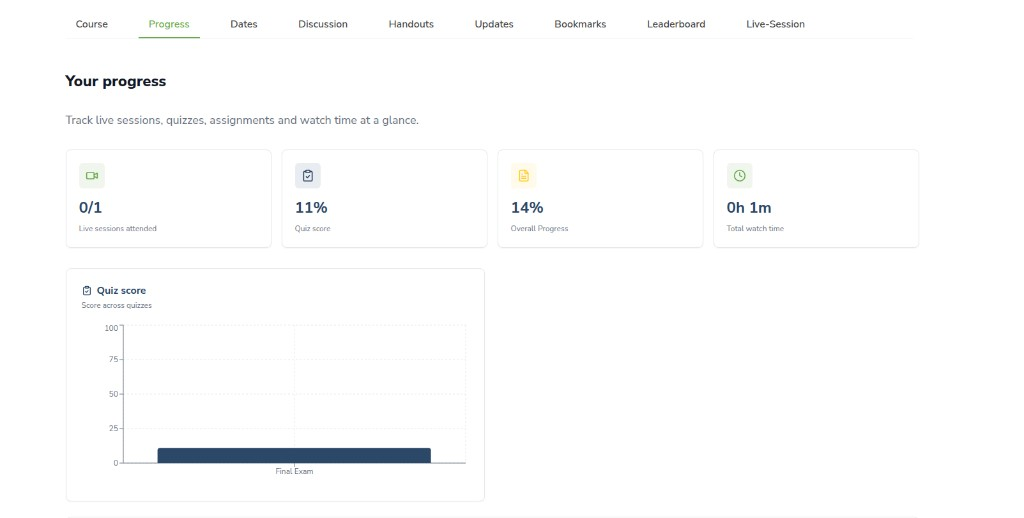
The Progress tab shows how much of the program you have finished. Check it when you want to see attendance, quiz scores, and what is still left to do.
Four cards show live sessions attended, quiz score, overall progress, and total watch time. Below that, a bar chart breaks down quiz scores.
Dates
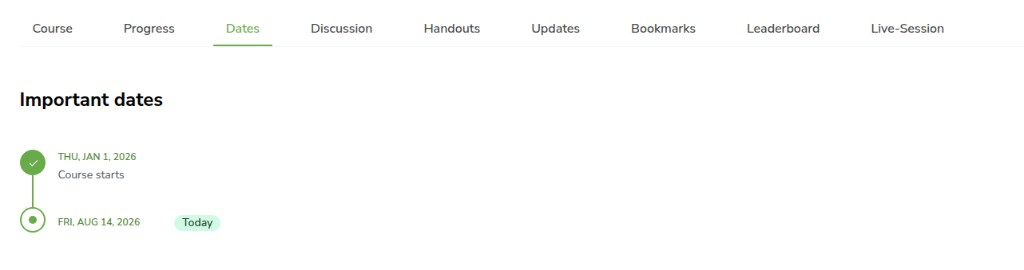
The Dates tab is a timeline of important days for this program — such as live sessions or due dates. A green check means that date has already passed.
- Click Dates for the Important dates timeline. A green check means a date has passed; Today marks today.
Leaderboard
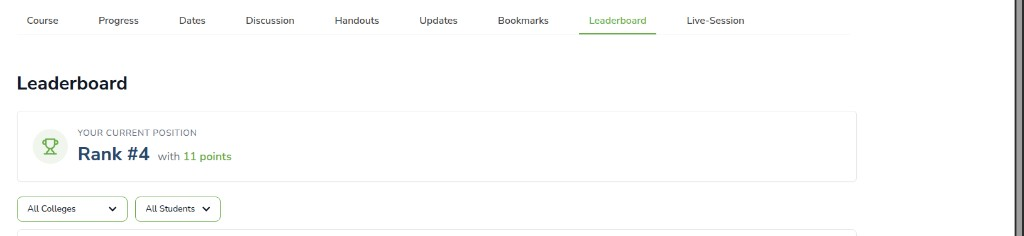
The Leaderboard shows how you compare with other learners in the program. Points come from lessons, quizzes, and live sessions. Rank 1 is the top of the list.
- Click Leaderboard to see how you compare with other learners.
- The table columns mean:
| Column | What it means |
|---|---|
| Rank | Your place in the list (1 is the top) |
| User | The learner's name |
| College | The college the learner belongs to |
| Points | Score earned from lessons, quizzes, and live sessions |
- Filter by All Colleges or All Students. Keep learning to earn more points.

Live sessions
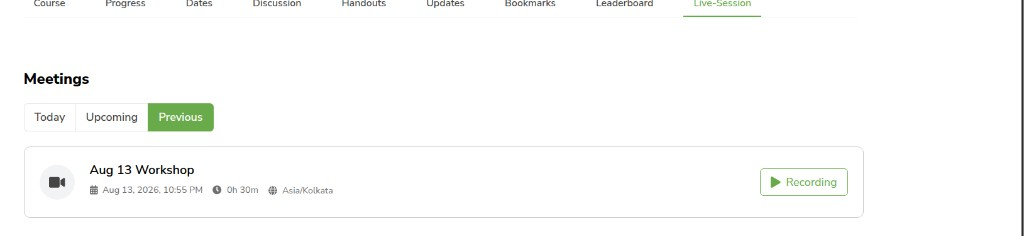
The Live-Session tab lists live classes. Join when a session is running, or watch a recording if you missed it. You may also get an email or WhatsApp reminder before a session starts.
- Click Live-Session for Today, Upcoming, and Previous meetings.
- Click Join when a session is live. Use Recording to watch a session you missed.
Reminders
You may get an email or WhatsApp reminder before a live session.
Discussion, Handouts, Updates, and Bookmarks
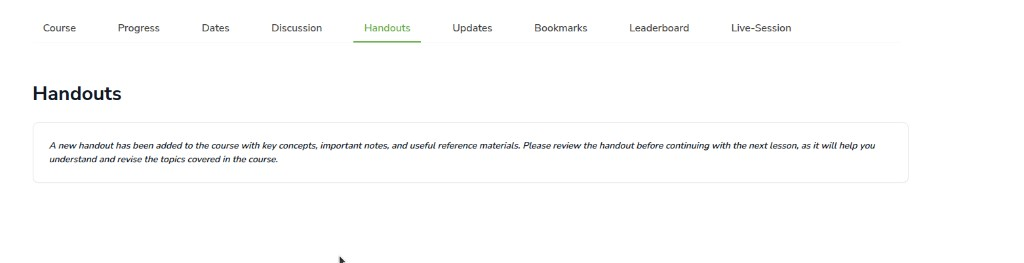
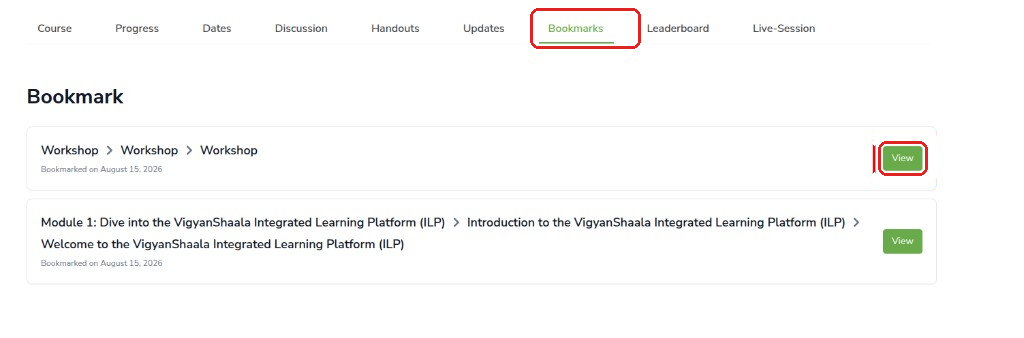
These tabs sit next to the main learning tabs. Use them to talk to others, download files, read teacher messages, and reopen pages you saved.
| Tab | What to do |
|---|---|
| Discussion | Browse topics and post or reply |
| Handouts | Open files and notes your teacher shared |
| Updates | Read teacher announcements |
| Bookmarks | Click Bookmark this page while learning, then open saved pages here |