How to Submit a Template based assignment
assignment submit template based worksheet career exploration save next pdf score
Some programs include a template based assignment (for example Career Exploration). Open the program, click the assignment in the Course outline, fill it in, then submit. Your teacher can later give a score and feedback.
- Open your program from My Dashboard. Stay on the Course tab.
- In the left Course outline, click the assignment (for example Assignment: Career Exploration).
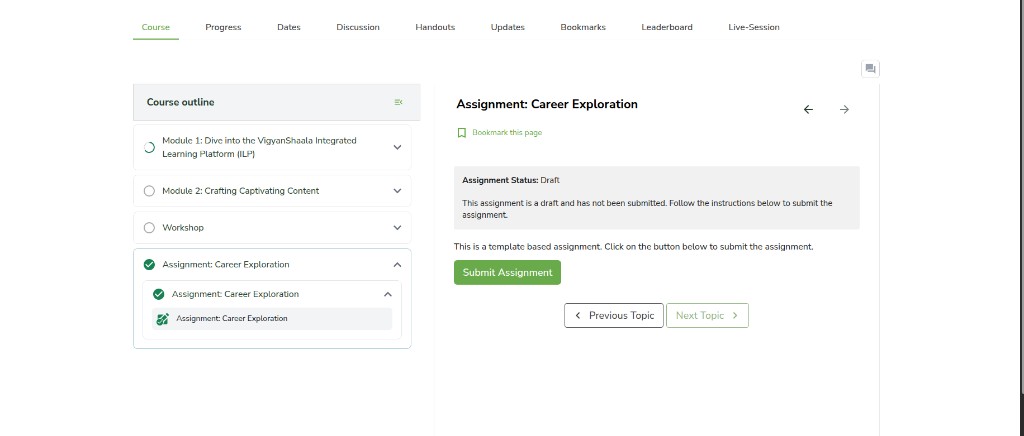
- When the status is Draft, click Submit Assignment.
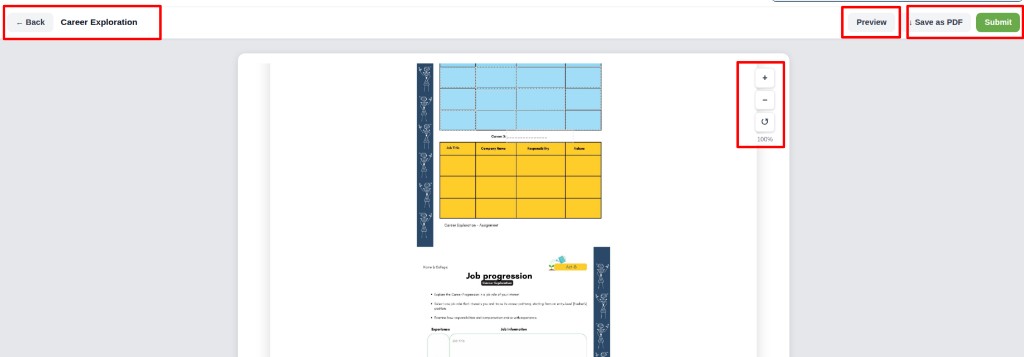
The assignment opens in edit mode. The title (for example Career Exploration) is at the top.
- ← Back returns to the program. Your work is saved.
- Preview shows how the assignment looks.
- Save as PDF downloads a copy.
- Submit sends the assignment when you are finished.
- Use + and − on the right to zoom in or out. The reset icon returns the zoom to 100%.
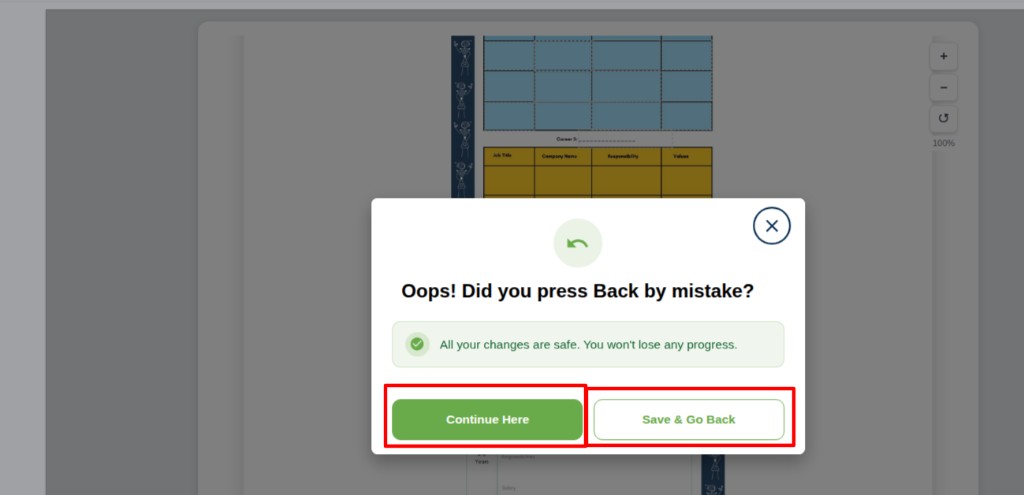
If you click ← Back, a popup asks Oops! Did you press Back by mistake? Your changes are safe.
- Continue Here stays on the assignment.
- Save & Go Back saves and returns to the program.
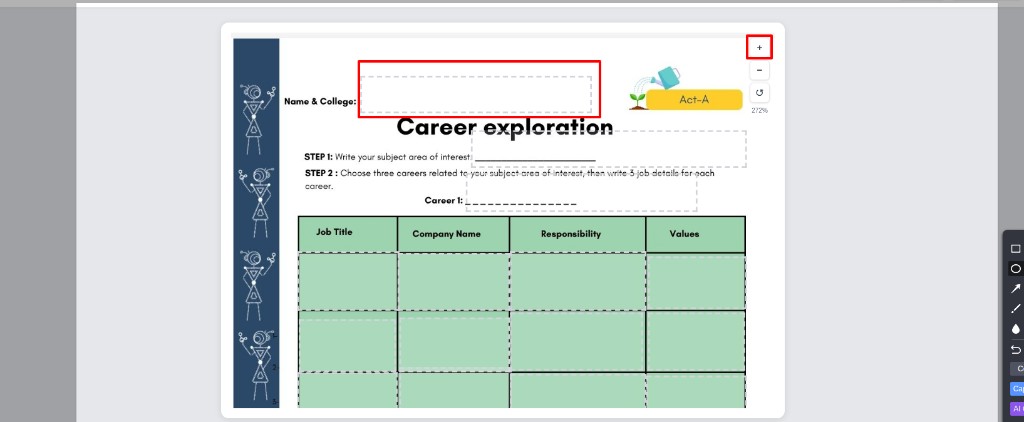
To fill a box (for example Name & College), zoom with + if the text is small, then click the box.
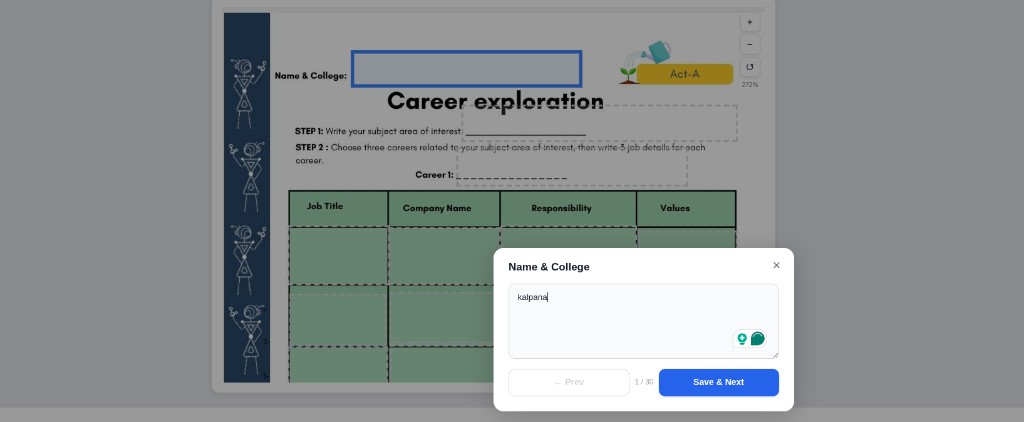
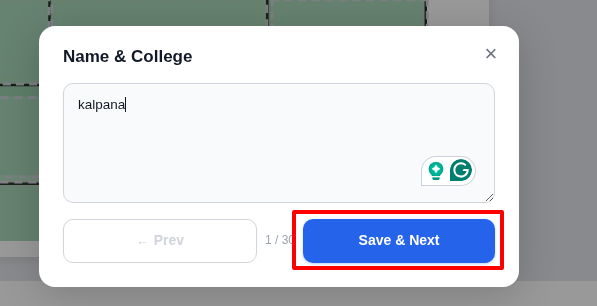
A window opens so you can type. Add your details, then click Save & Next. The counter (for example 1 / 30) shows how many boxes you have done. Use ← Prev to go back one box.
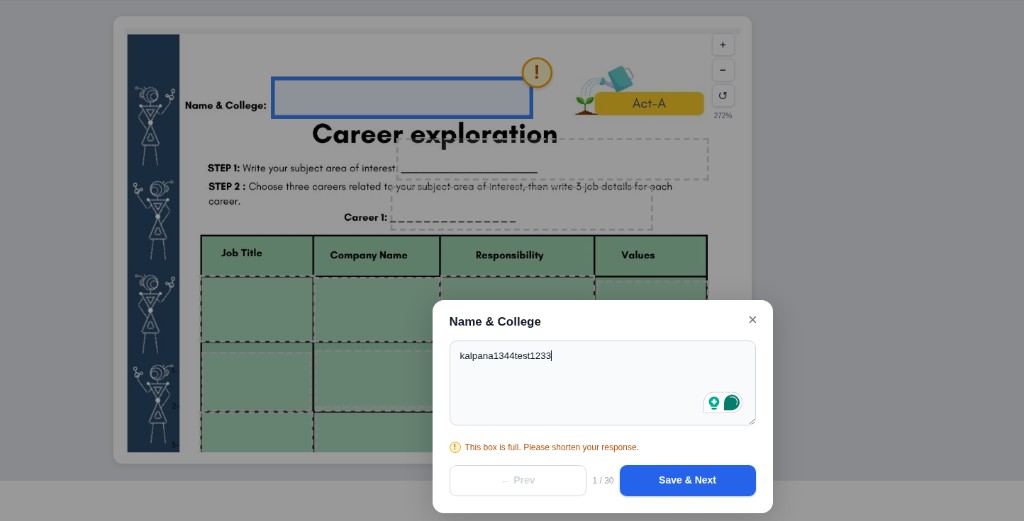
If your text is too long, you see This box is full. Please shorten your response. Shorten the text, then click Save & Next again.
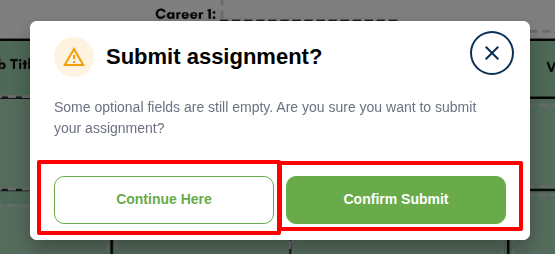
When every box you need is done, click Submit. If some optional boxes are empty, you see Submit assignment?
- Continue Here keeps editing.
- Confirm Submit sends the assignment.
After you confirm, you see Assignment submitted! and Submission History. Click Download PDF if you want a copy. View Feedback is there when the teacher has left comments.

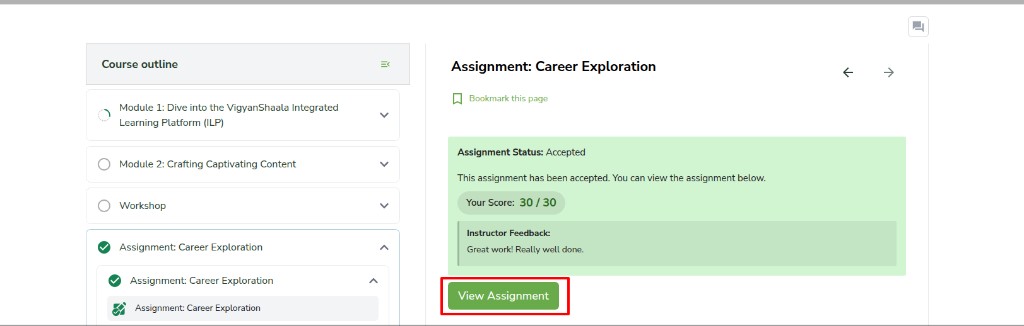
When the teacher accepts the assignment, the status is Accepted. Your score (for example 30 / 30) and instructor feedback appear on the assignment page. Click View Assignment to open it again.