Course Management
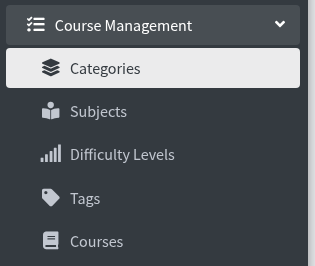
Course Management is in the left sidebar. Open it to see Categories, Subjects, Difficulty Levels, Tags, and Courses. New courses are created in Studio. Here you set names, search courses, and manage each course.
Course Management overview
course management categories subjects difficulty levels tags courses
Click Course Management in the sidebar. You see:
- Categories
- Subjects
- Difficulty Levels
- Tags
- Courses
Manage Categories
manage categories create new category image png jpg webp
Click Categories. The page title is Manage Categories. Breadcrumb: Home / Categories.

Click Create New Category.
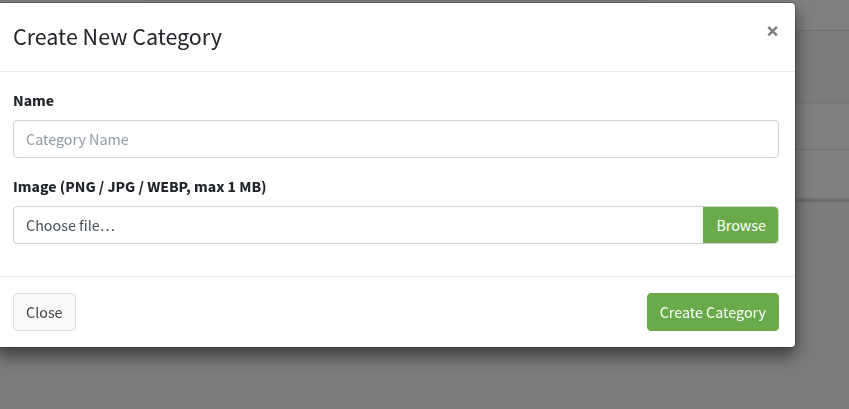
- Type a Name (placeholder Category Name).
- Under Image (PNG / JPG / WEBP, max 1 MB), click Browse and pick a file.
- Click Create Category.
Close or x cancels.
The table shows Sr. No, Image, Name, and Actions.
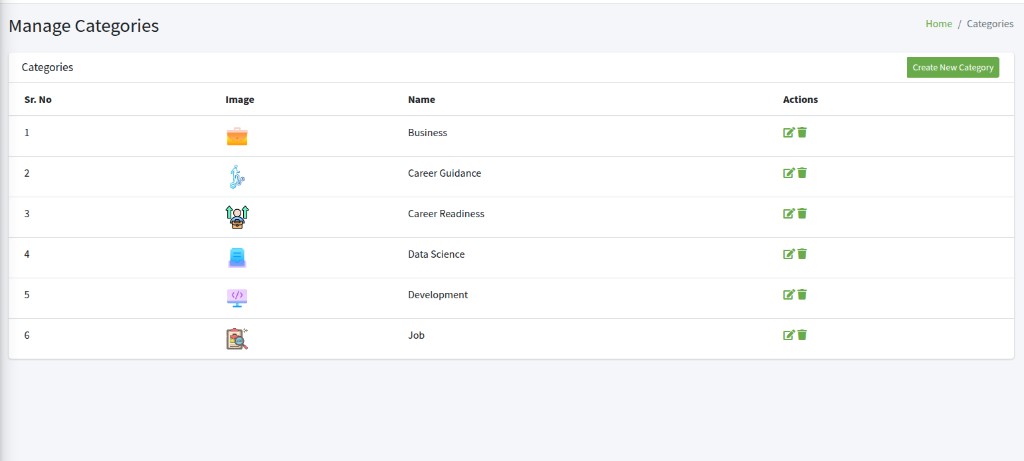
In Actions:
- Pencil icon — Edit Category. Change Name. To change the picture, use Replace Image (PNG / JPG / WEBP, max 1 MB). Leave it empty to keep the current image. Click Save.
- Trash icon — Delete Category. The box says Are you sure you want to delete Category? and Deleting this Category is permanent and cannot be undone. Click Yes, Delete it, or Close.
Manage Subjects
manage subjects create new subject
Click Subjects. The page title is Manage Subjects. Breadcrumb: Home / Subjects.

Click Create New Subject.
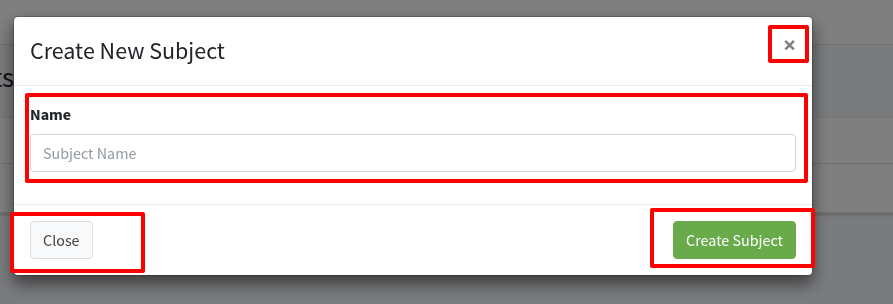
Type a Name (placeholder Subject Name), then click Create Subject. Close or x cancels.
The table shows Sr. No, Name, and Actions.
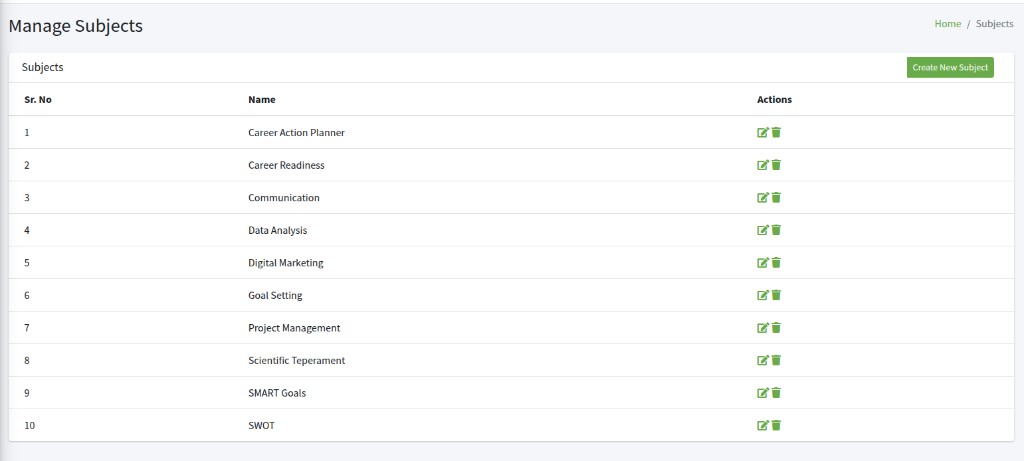
In Actions:
- Pencil icon — Edit Subject. Change Name, then Save.
- Trash icon — Delete Subject. The box says Are you sure you want to delete Subject? Click Yes, Delete it, or Close.
Manage Difficulty Levels
manage difficulty levels create new difficulty level beginner intermediate
Click Difficulty Levels. The page title is Manage Difficulty Levels. Breadcrumb: Home / Difficulty Levels.

Click Create New Difficulty Level.
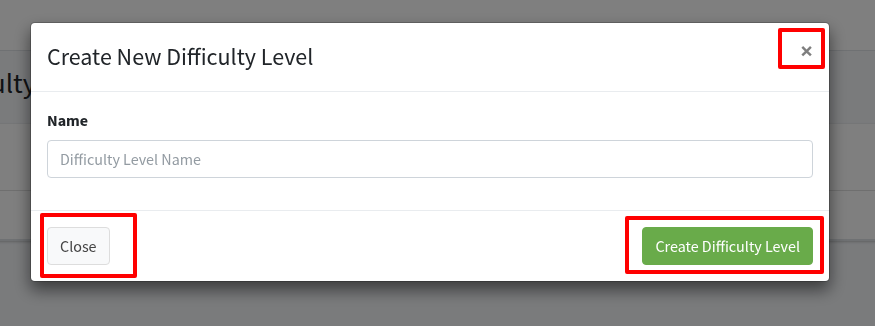
Type a Name (placeholder Difficulty Level Name), then click Create Difficulty Level. Close or x cancels.
The table shows Sr. No, Name, and Actions.
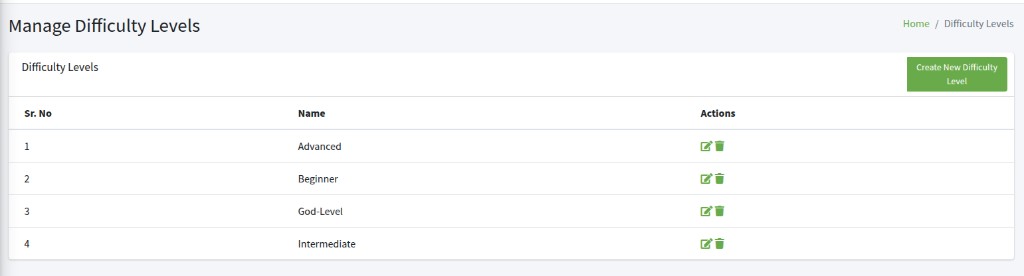
In Actions:
- Pencil icon — Edit Difficulty Level. Change Name, then Save.
- Trash icon — Delete Difficulty Level. The box says Are you sure you want to delete Difficulty Level? Click Yes, Delete it, or Close.
Manage Tags
manage tags create new tag
Click Tags. The page title is Manage Tags. Breadcrumb: Home / Tags.

Click Create New Tag.
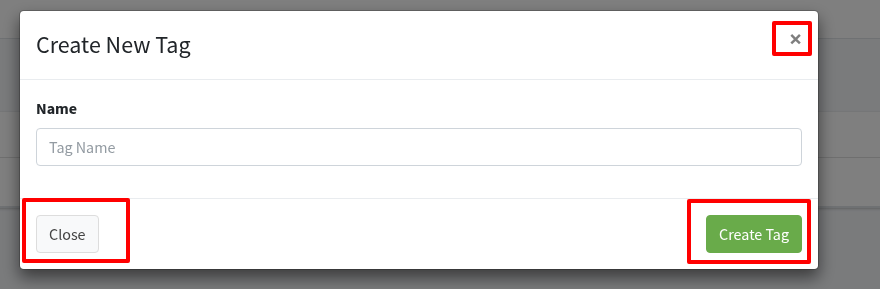
Type a Name (placeholder Tag Name), then click Create Tag. Close or x cancels.
The table shows Sr. No, Name, and Actions.
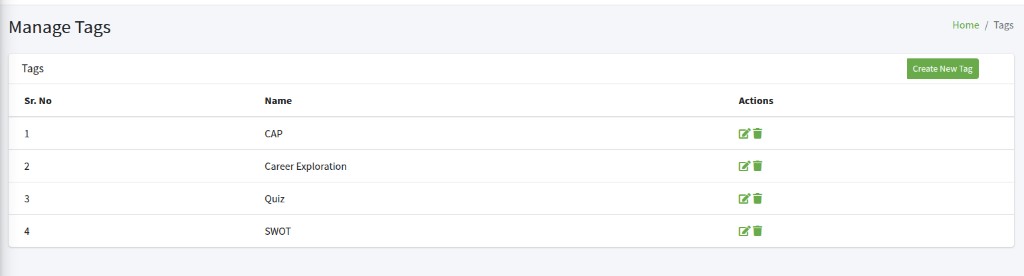
In Actions:
- Pencil icon — Edit Tag. Change Name, then Save.
- Trash icon — Delete Tag. The box says Are you sure you want to delete Tag? Click Yes, Delete it, or Close.
Manage Courses
manage courses search course list view grid view create new course
Click Courses. The page title is Manage Courses. Breadcrumb: Home / Courses.
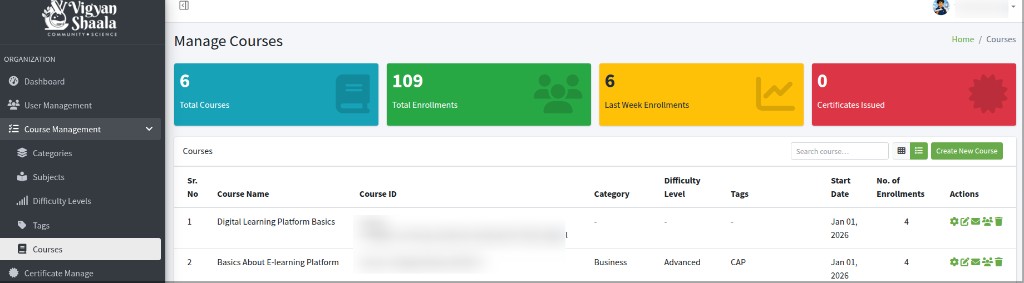
The cards at the top:
- Total Courses — how many courses are on the site
- Total Enrollments — how many people are enrolled across all courses
- Last Week Enrollments — how many enrollments happened in the last 7 days
- Certificates Issued — how many certificates learners have received
These numbers are an example. Your site shows its own counts.
Use Search course… to find a course. Switch Grid view (grid icon) or List view (list icon). List view is on by default.


Create New Course
create new course studio home new course cms
Click Create New Course.

You go to Studio home (CMS). There, click + New course to start a course. You can also use + New library.

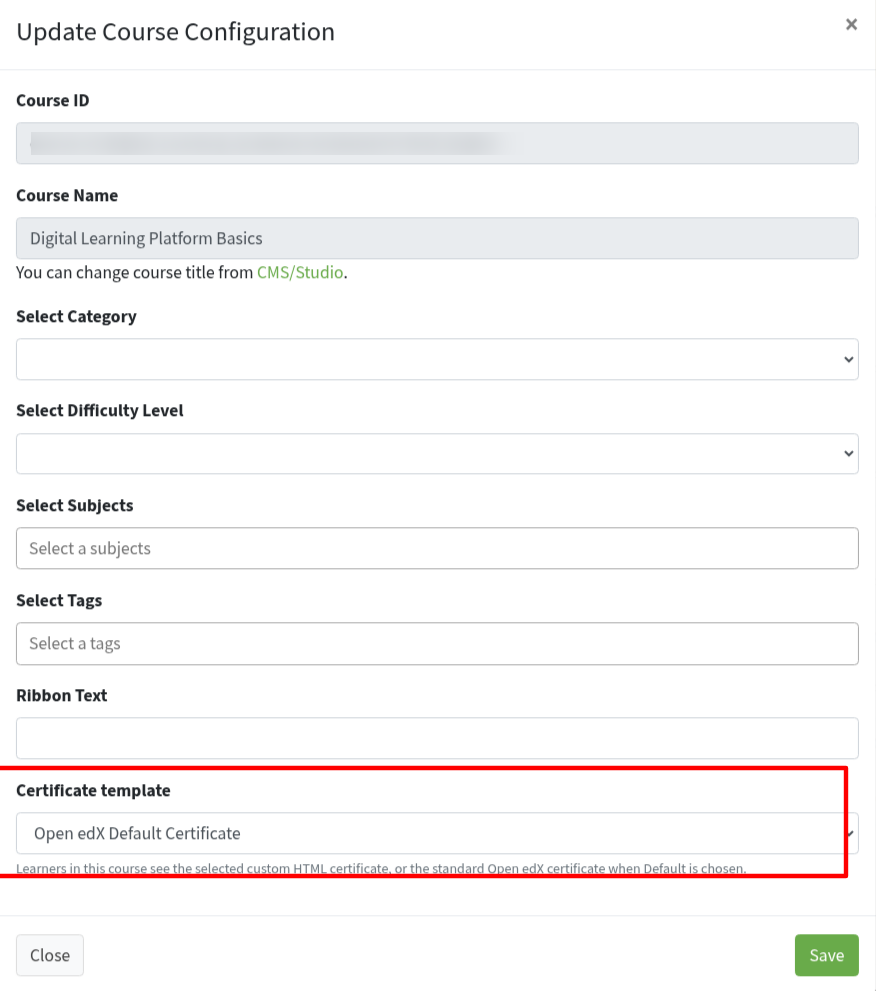
Update Course Configuration
update course configuration gear icon select category tags certificate
In Actions, click the gear icon.
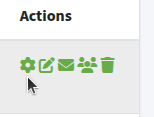
The box is Update Course Configuration.
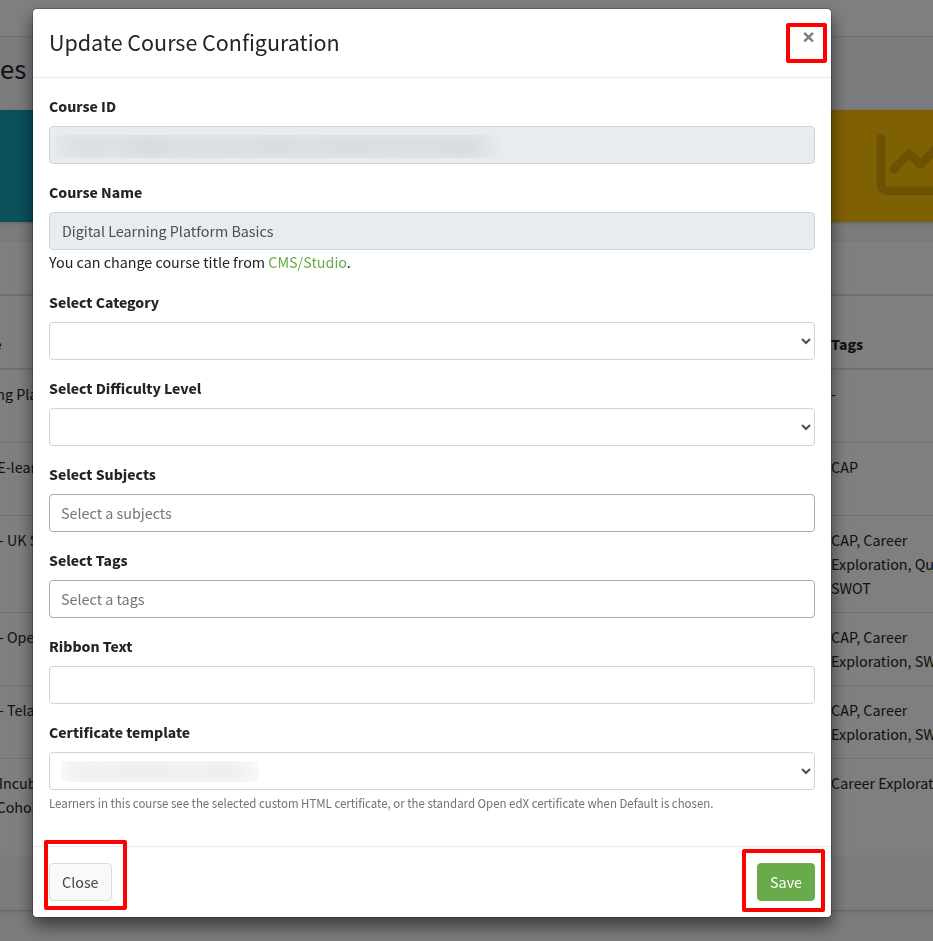
- Course ID — you cannot change this here
- Course Name — you cannot change this here. Change the title from CMS/Studio
- Select Category
- Select Difficulty Level
- Select Subjects (placeholder Select a subjects)
- Select Tags (placeholder Select a tags)
- Ribbon Text — short label on the course card
- Certificate template — choose an Active template from Certificate Manage, then Save. Learners who complete this course get that certificate with their name, the course name, and the signatories. If you choose Open edX Default Certificate, they get the standard Open edX certificate. Inactive templates do not appear here.
Click Save. Close or x cancels.
Course outline
course outline pencil icon studio section subsection unit
In Actions, click the pencil icon.
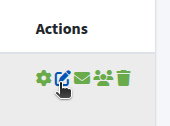
You go to that course in Studio, on Course outline. There you can add sections, subsections, units, and more course content.
Batch Enrollments for a course
batch enrollments envelope icon automatically enroll send email notifications
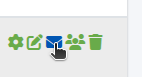
In Actions, click the envelope icon for that course.
The page title is Batch Enrollments for (course name). Enrollment Activity lists past jobs.
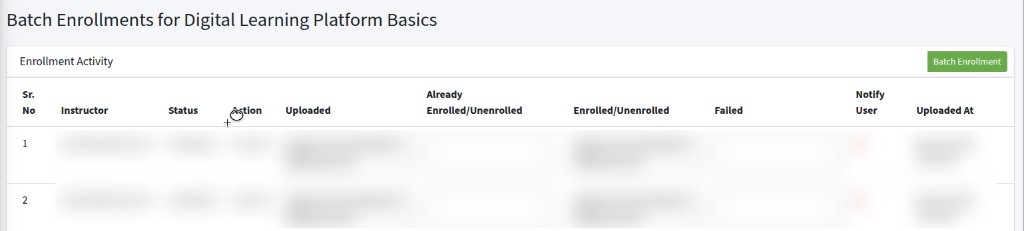
Columns: Sr. No, Instructor, Status, Action, Uploaded, Already Enrolled/Unenrolled, Enrolled/Unenrolled, Failed, Notify User, Uploaded At.
Click Batch Enrollment.
The box is Batch Enrollment. Enter email addresses and/or usernames, separated by commas or new lines. Ensure all entries are accurate as you will not receive notifications for failed email deliveries.
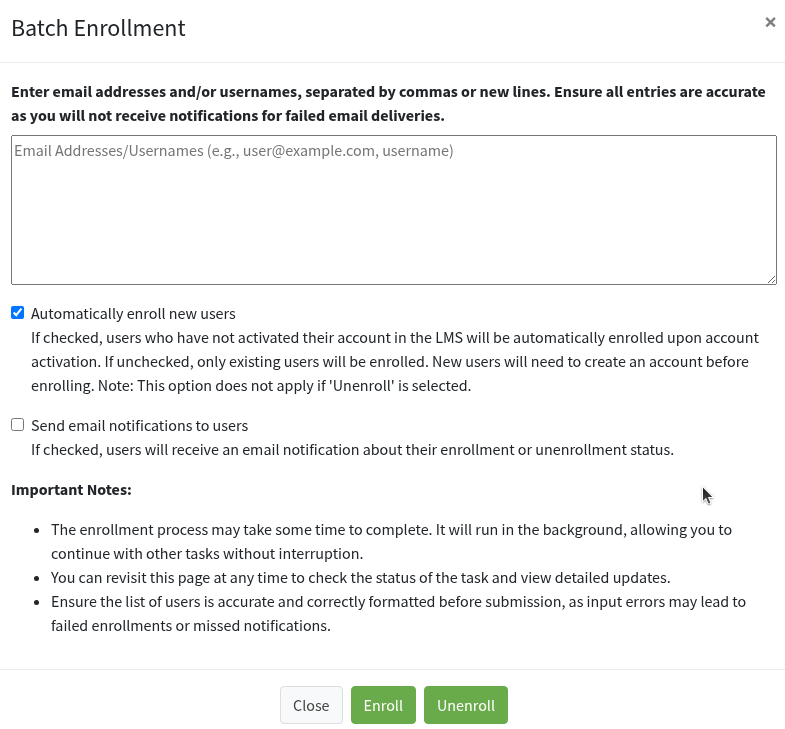
Automatically enroll new users
If checked, users who have not activated their account in the LMS will be automatically enrolled upon account activation. If unchecked, only existing users will be enrolled. New users will need to create an account before enrolling. Note: This option does not apply if Unenroll is selected.
Send email notifications to users
If checked, users will receive an email notification about their enrollment or unenrollment status.
Click Enroll or Unenroll. Close or x cancels.
Enrollments for a course
enrollments for course people icon total enrollments delete enrollment
In Actions, click the people icon for that course.
The page title is Enrollments for (course name). Breadcrumb: Home / Enrolled Users.
Cards for that course:
- Total Enrollments
- Last 24h Active Enrollments
- Last Week Active Enrollments
- Certificates Issued
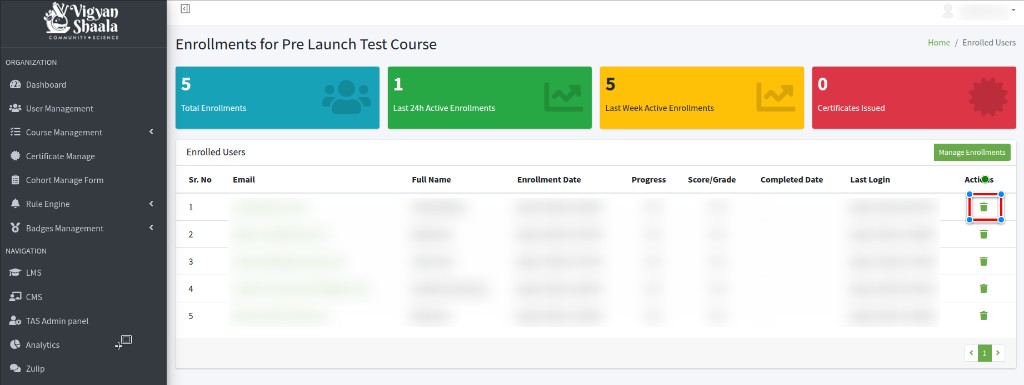
Enrolled Users columns: Sr. No, Email, Full Name, Enrollment Date, Progress, Score/Grade, Completed Date, Last Login, Actions.
Trash icon — Delete Enrollment. That person loses access to this course only (the account stays).
Manage Enrollments on this page opens Batch Enrollments for the same course. See Batch Enrollments for a course.
Delete Course
delete course trash icon permanent yes delete it
This step is important. Be careful.
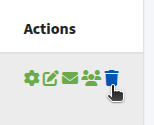
In Actions, click the trash icon.
The box is Delete Course. It says Are you sure you want to delete course? and Deleting this course is permanent and cannot be undone.
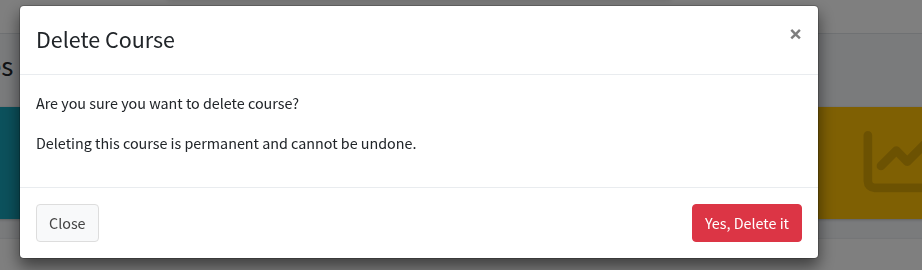
Yes, Delete it removes the course and related records (content, enrollments, and the other actions for that course). You cannot get them back. Close or x cancels.