How to Submit a Template based assignment
assignment submit template based worksheet career exploration save next finish
Some programs include a template based assignment (for example Career Exploration). Open the program, tap the assignment, fill it in, then submit.
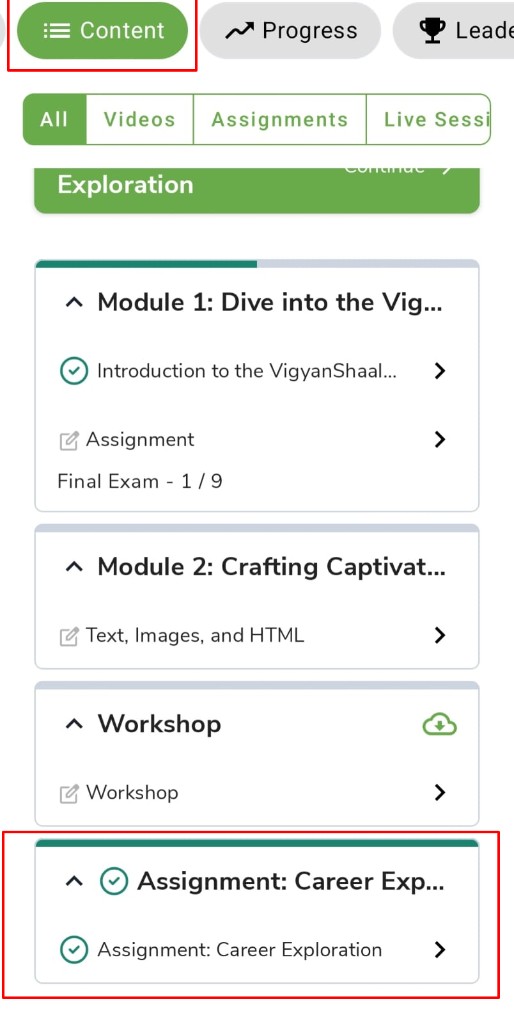
- Open your program from My Learning.
- Tap Content.
- Tap the assignment (for example Assignment: Career Exploration).
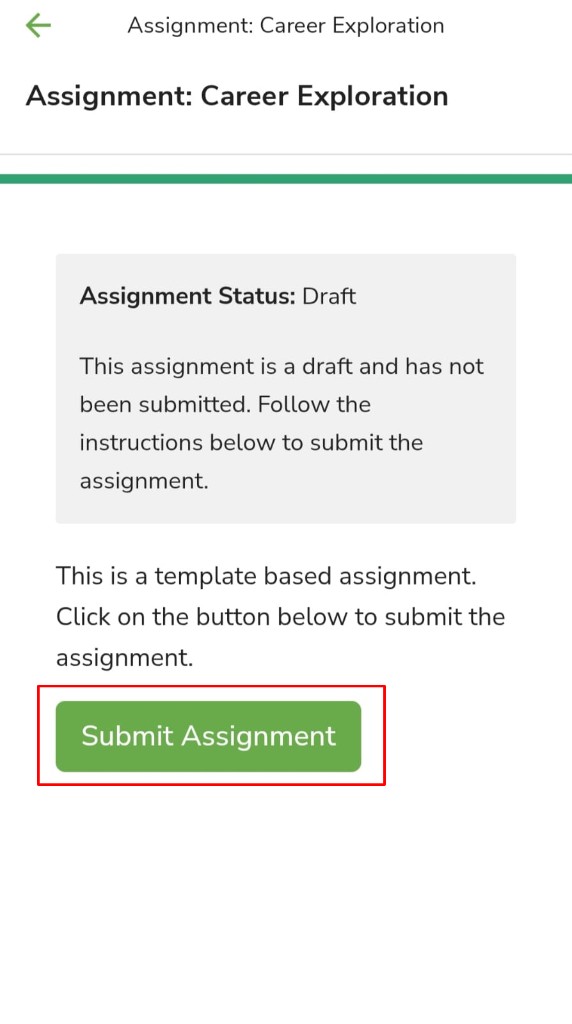
- When the status is Draft, tap Submit Assignment.
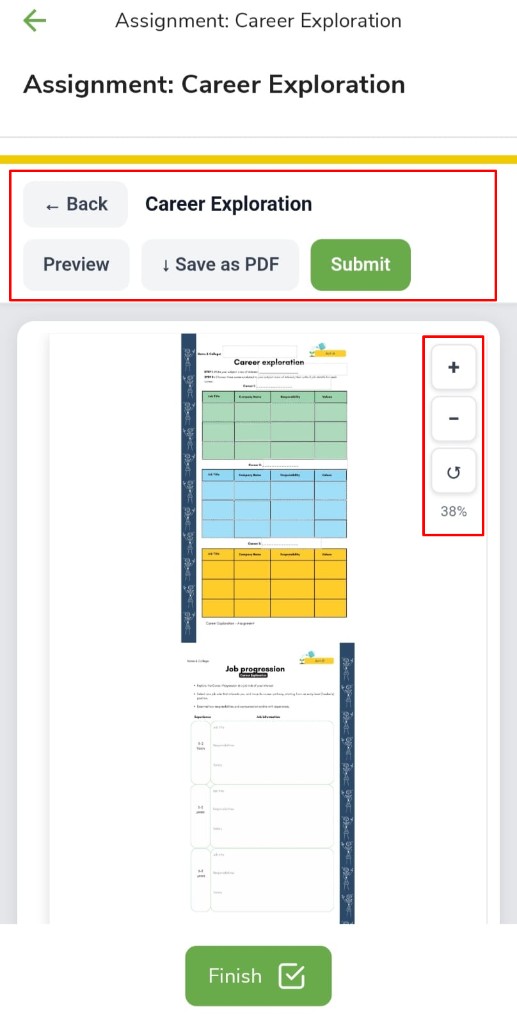
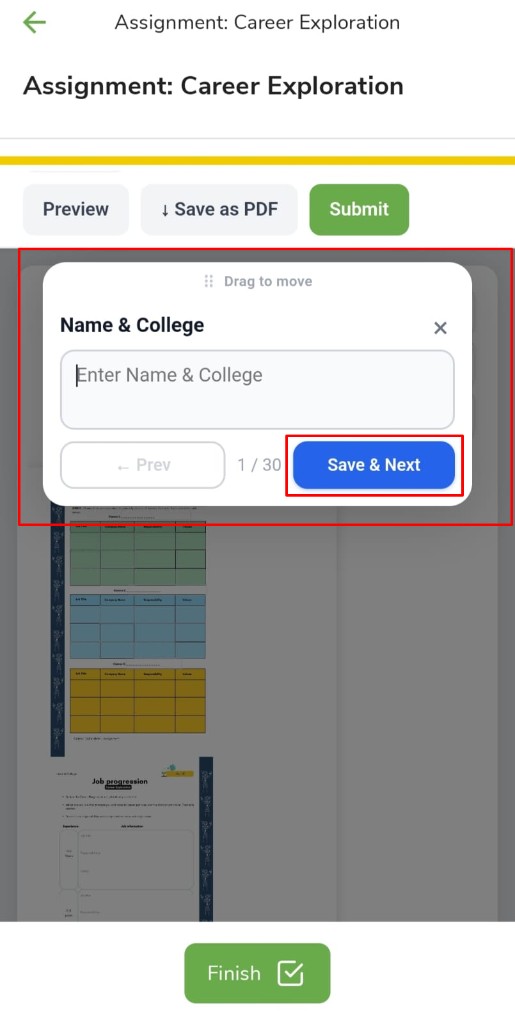
The assignment opens in edit mode.
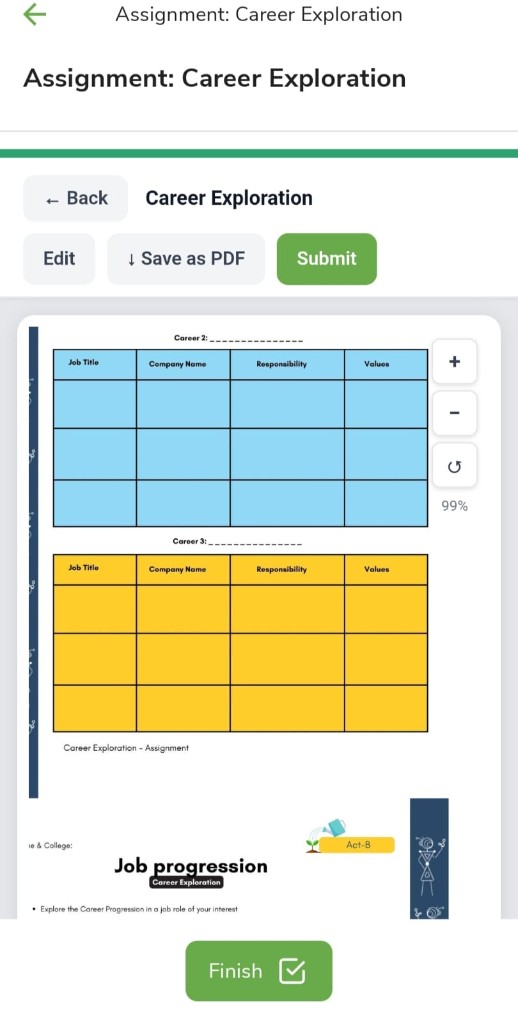
- ← Back returns to the program.
- Preview shows how the assignment looks.
- Save as PDF downloads a copy.
- Submit sends the assignment when you are finished.
- Use + and − on the right to zoom in or out.
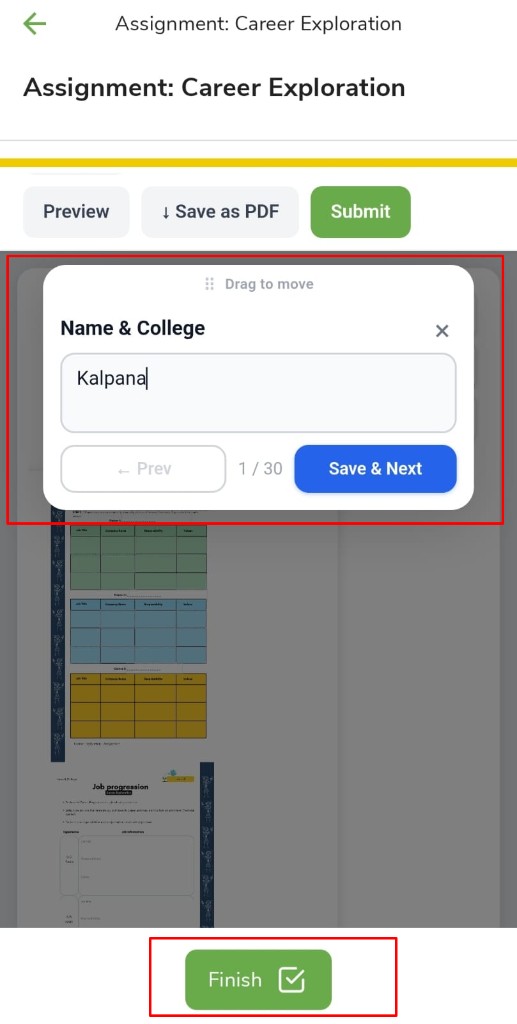
- Finish at the bottom when you have filled the boxes.
Tap a box (for example Name & College). A window opens so you can type. Add your details, then tap Save & Next. The counter (for example 1 / 30) shows how many boxes you have done. Use ← Prev to go back one box.
After you add details, tap Save & Next again until you are done, then tap Finish.
If you need to change answers, tap Edit. You can still use + and − to zoom, and Save as PDF or Submit.
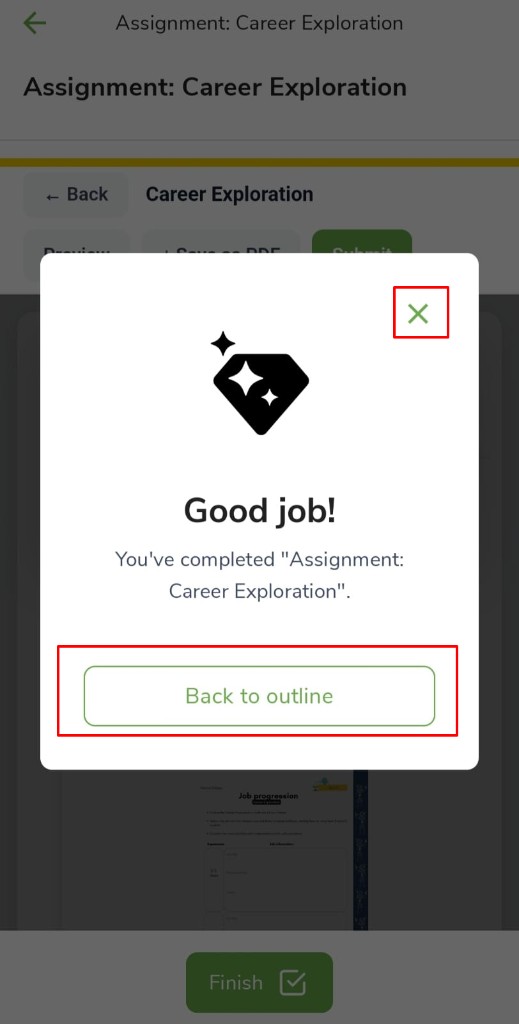
When you finish, you see Good job! Close with X to stay on the assignment, or tap Back to outline to return to Content.