Account & registration
Log in with your email id and password
login sign-in signin email password
Use Log In when you already have an account. You need the same email and password you used when you signed up.
Start from the home page. Click Log In. Enter your email and password, then click Log In. After a successful sign-in you go to My Dashboard.
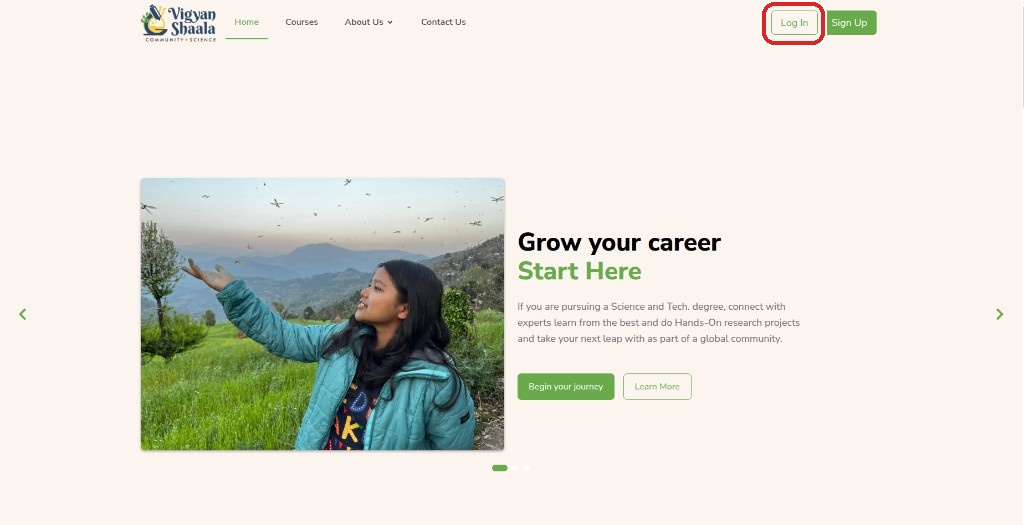
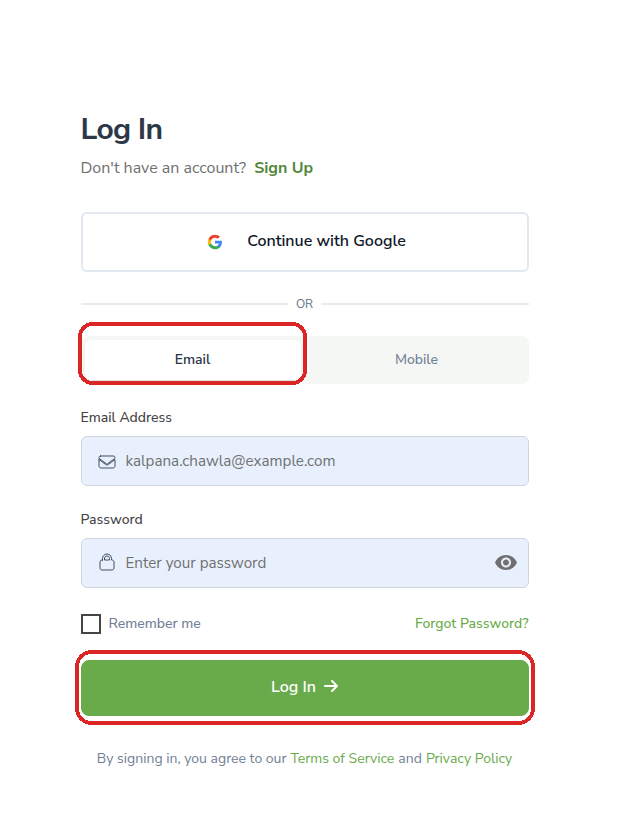
You can also log in with Google or with your WhatsApp number from the same page.
Log in with Google SSO
gmail sso google login continue with google
Continue with Google lets you sign in with a Google account (such as Gmail) instead of typing a password. Use the same Google account every time so you return to the same dashboard.
- On the Log In or Sign Up page, click Continue with Google.
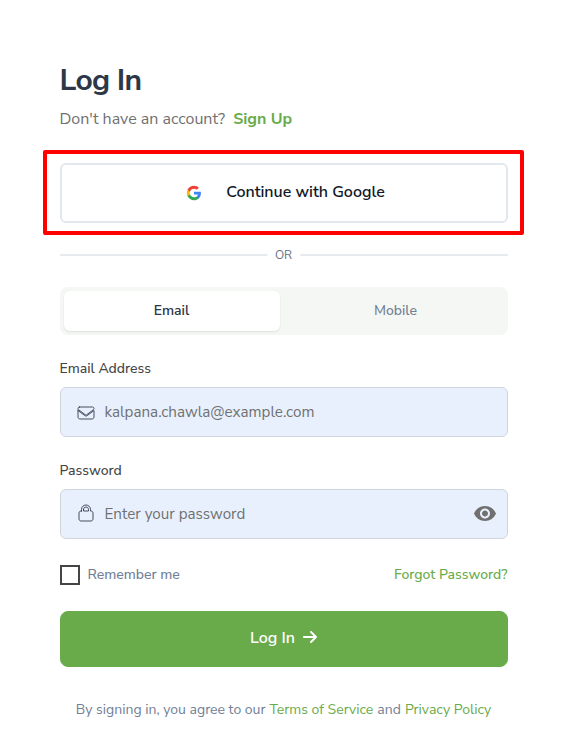
- If your Google account is already listed, click it.
- If it is not listed, click Use another account and add your Google account.
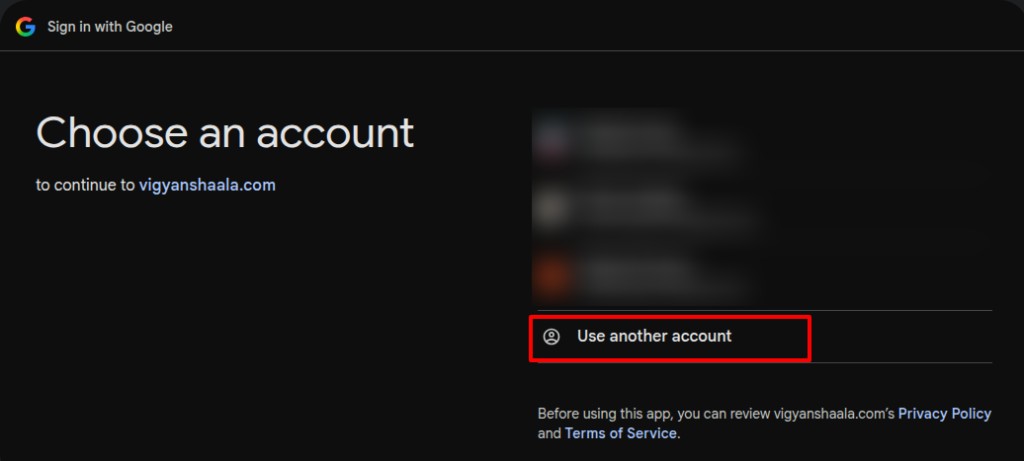
- Allow access. You go to My Dashboard after Google confirms your sign-in.
Create your account
signup sign-up register create account
Create an account if you are new. You need your full name, email, and a password. Choose Student (not Mentor). After you create the account, check your email if the site asks you to activate it.
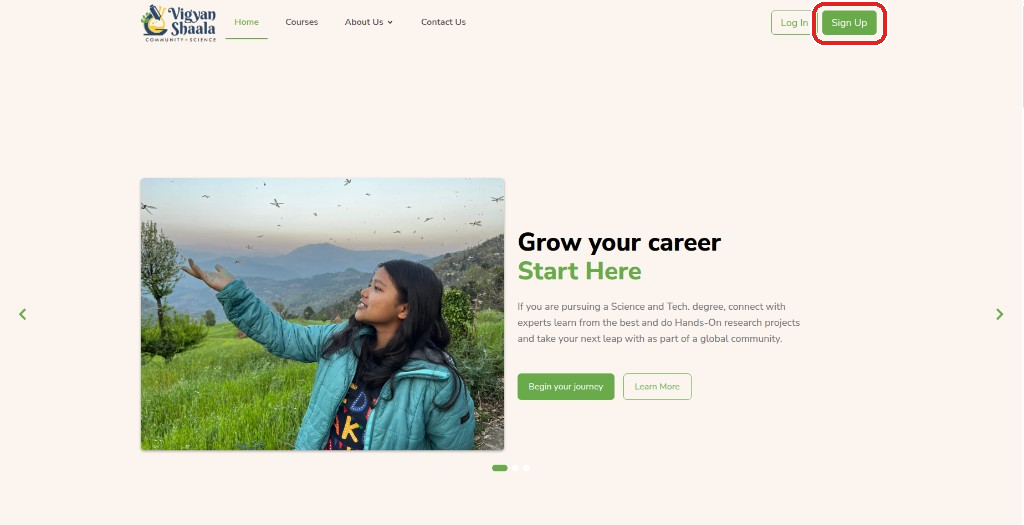
- Open https://mycommunity.vigyanshaala.com/ and click Sign Up, or go to register.
- Optionally click Continue with Google.
- Or fill in Full name, Email, Password, Gender, and choose Student (not Mentor).
- Tick I agree to the Terms of Service, then click Create Account →.
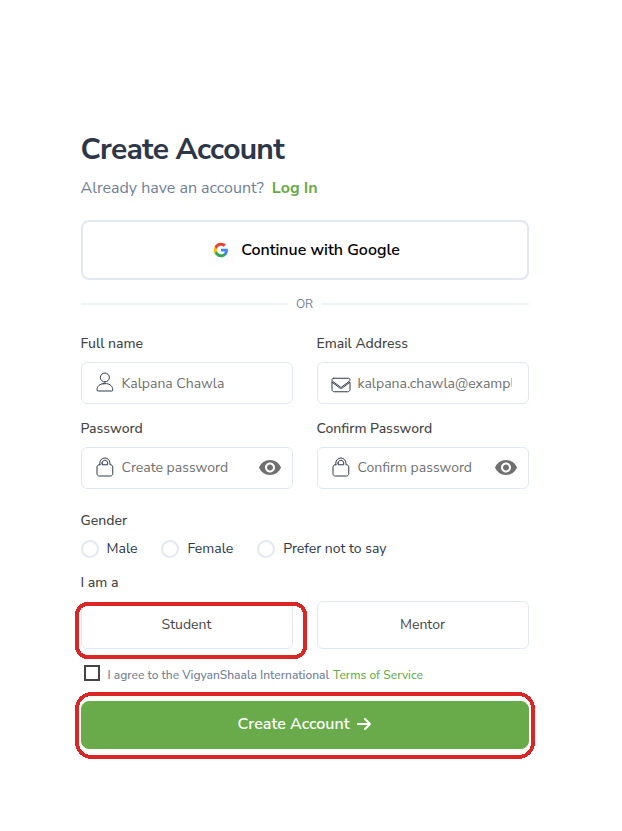
No mobile number on sign-up
Phone and OTP are used on the Log In Mobile tab, not during sign-up.
Check your email
If asked to activate your account, open your inbox and follow the link.
After your first sign-in you may be prompted to verify your WhatsApp number.
Log in with your WhatsApp number
otp whatsapp phone mobile login
Use the Mobile tab if you prefer to sign in with your WhatsApp number instead of email. A one-time code (OTP) is sent to that number. You must use a number that can receive WhatsApp messages.
Open the Log In page, choose the Mobile tab, enter your WhatsApp number, and tap Send OTP. Enter the code you receive, then continue to My Dashboard.
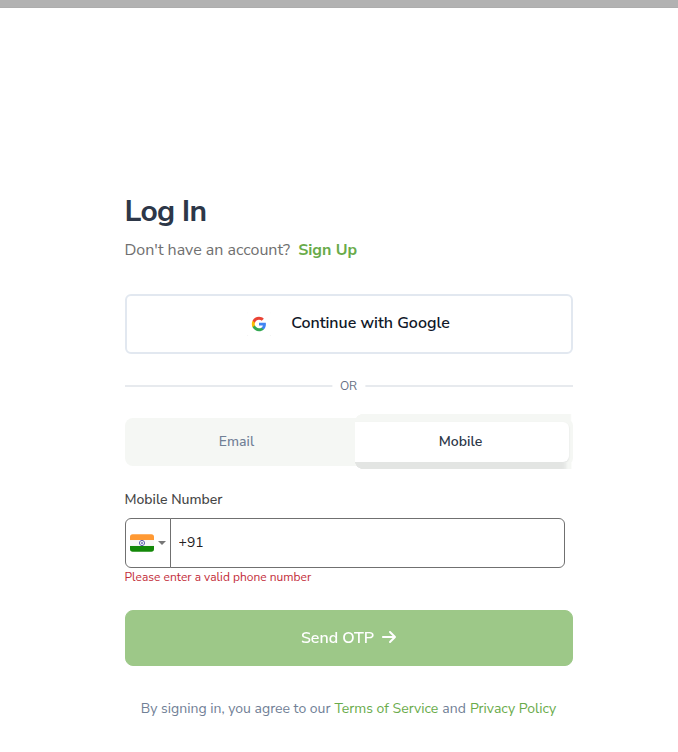
Verify your WhatsApp number
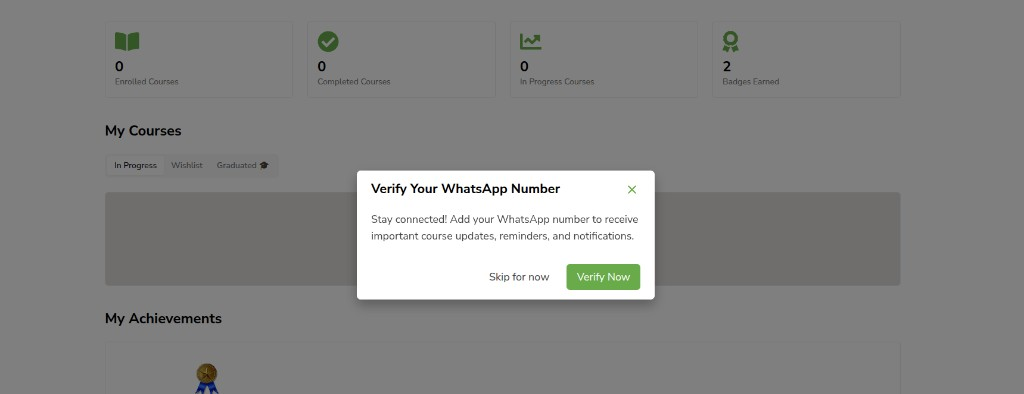
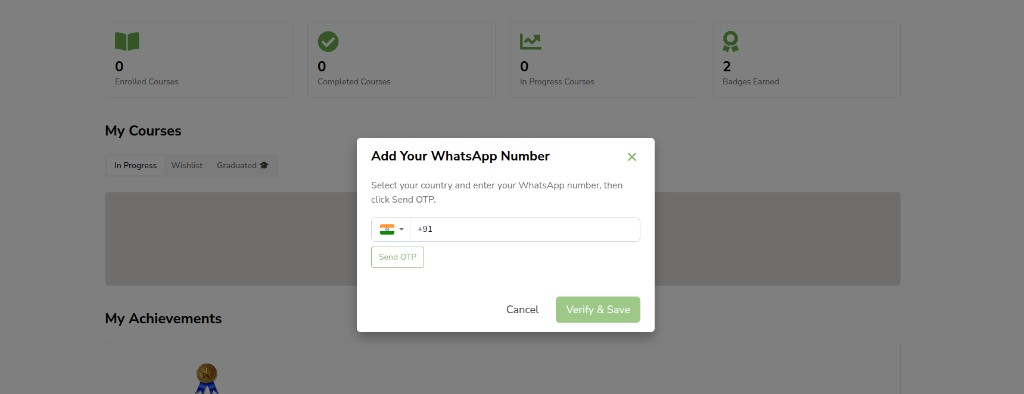
After you sign in, the site may ask you to confirm your WhatsApp number. This helps you get reminders for live sessions. You can verify now, or skip and do it later from Profile.
After sign-in, My Dashboard may show Verify Your WhatsApp Number. Click Verify Now or Skip for now.
- Select your country code, enter your number, tap Send OTP, then enter the code and click Verify & Save.
- You can also update WhatsApp later from Profile.
Reset a forgotten password
forgot password recover reset
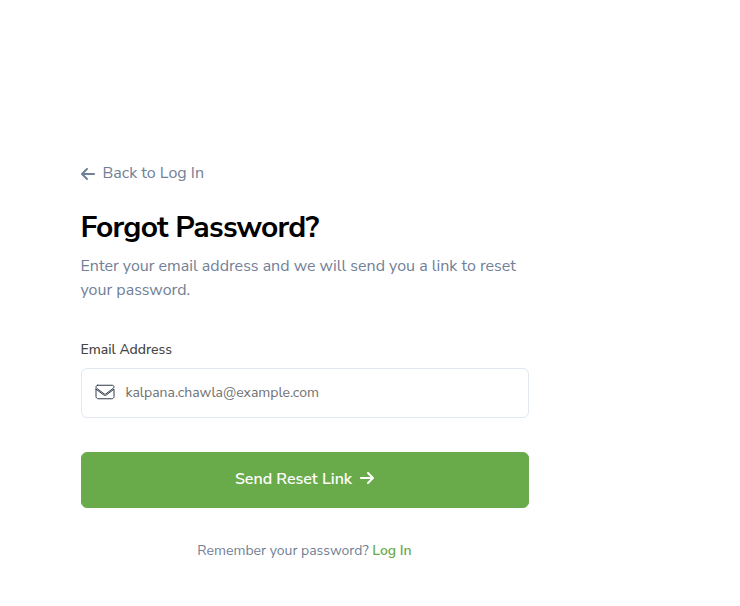
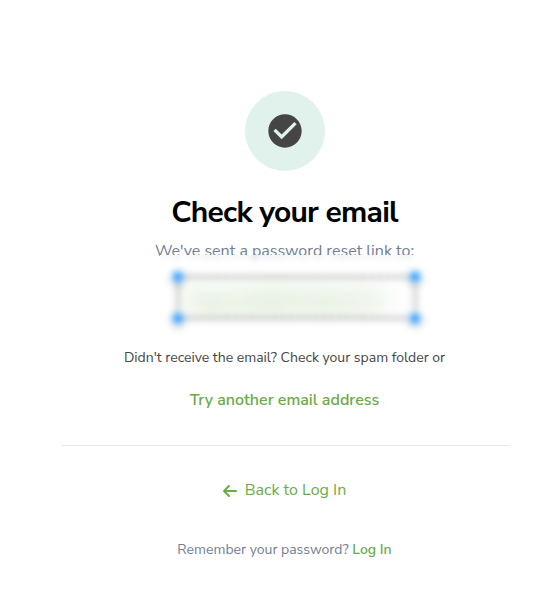
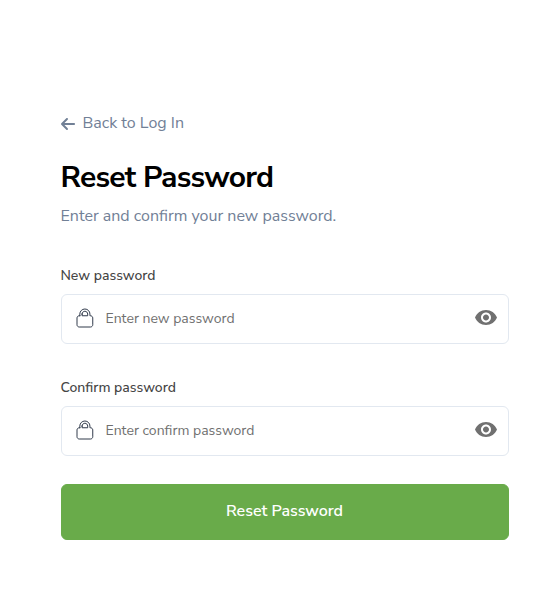
If you cannot sign in, use Forgot Password? on the Log In page. A reset link is sent to your email. Choose a new password, then log in with it. The new password must be at least 8 characters with 1 letter and 1 number.
- On the Log In page (Email tab), click Forgot Password?.
- Enter your email and click Send Reset Link →.
- Open the email, click the reset link, enter a new password, and click Reset Password.
- Return to Log In and sign in.
Already logged in?
You can also reset from Account → Reset Password.