Inside a Program
Home
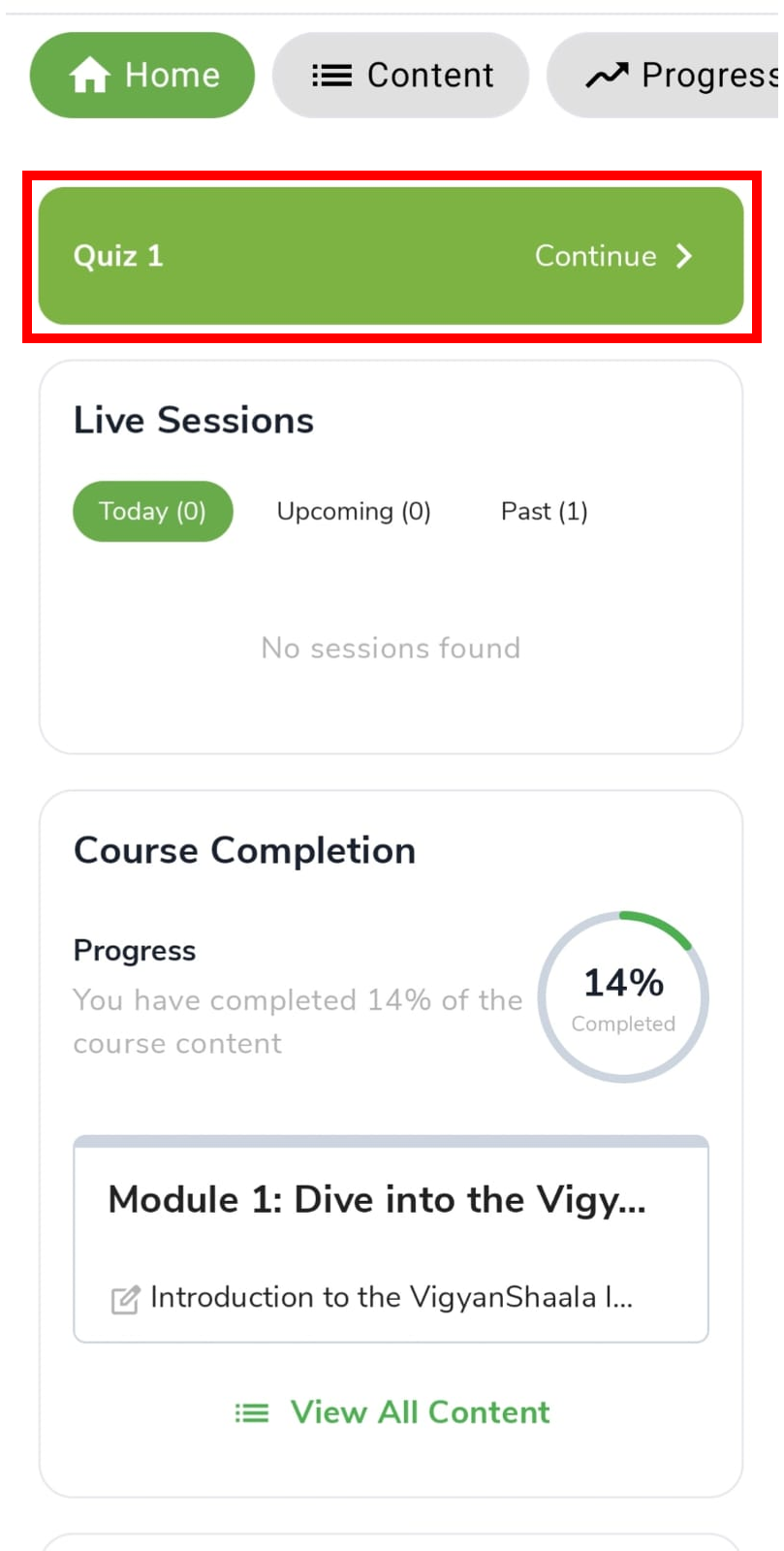
Open a program from My Learning or Explore. Home is the first tab. It shows where you left off, live sessions, announcements, videos, assignments, and grades.
Swipe across the top tabs: Home · Content · Progress · Leaderboard · Dates · Downloads · Discussions · More
- Tap the green Continue banner to pick up where you left off.
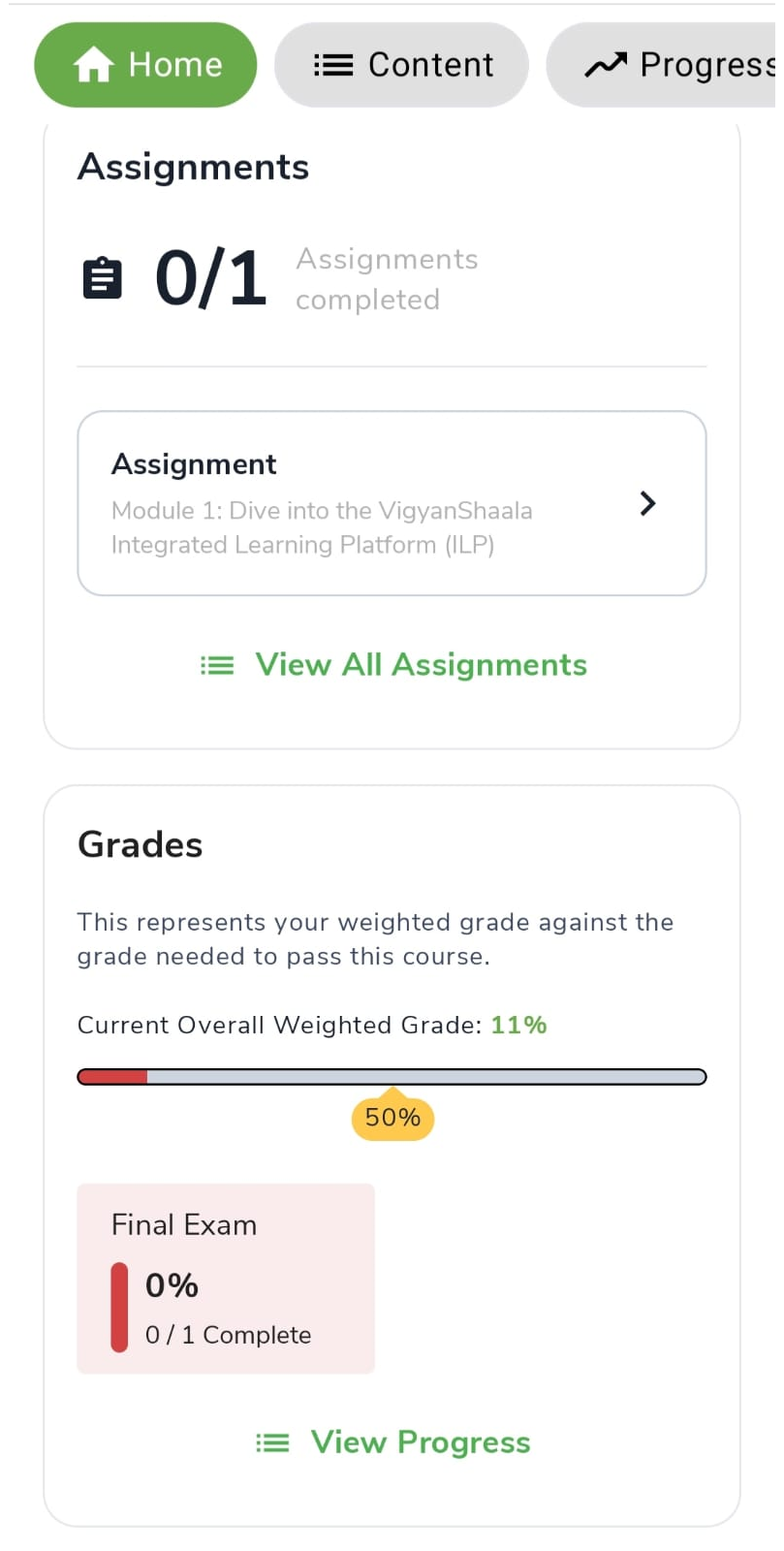
- Check Live Sessions (Today / Upcoming / Past), Course Completion, Announcements, Videos, Assignments, and Grades.
Programs and courses
In this guide we say program. In the app you may still see Course — both mean the same offering.
Progress
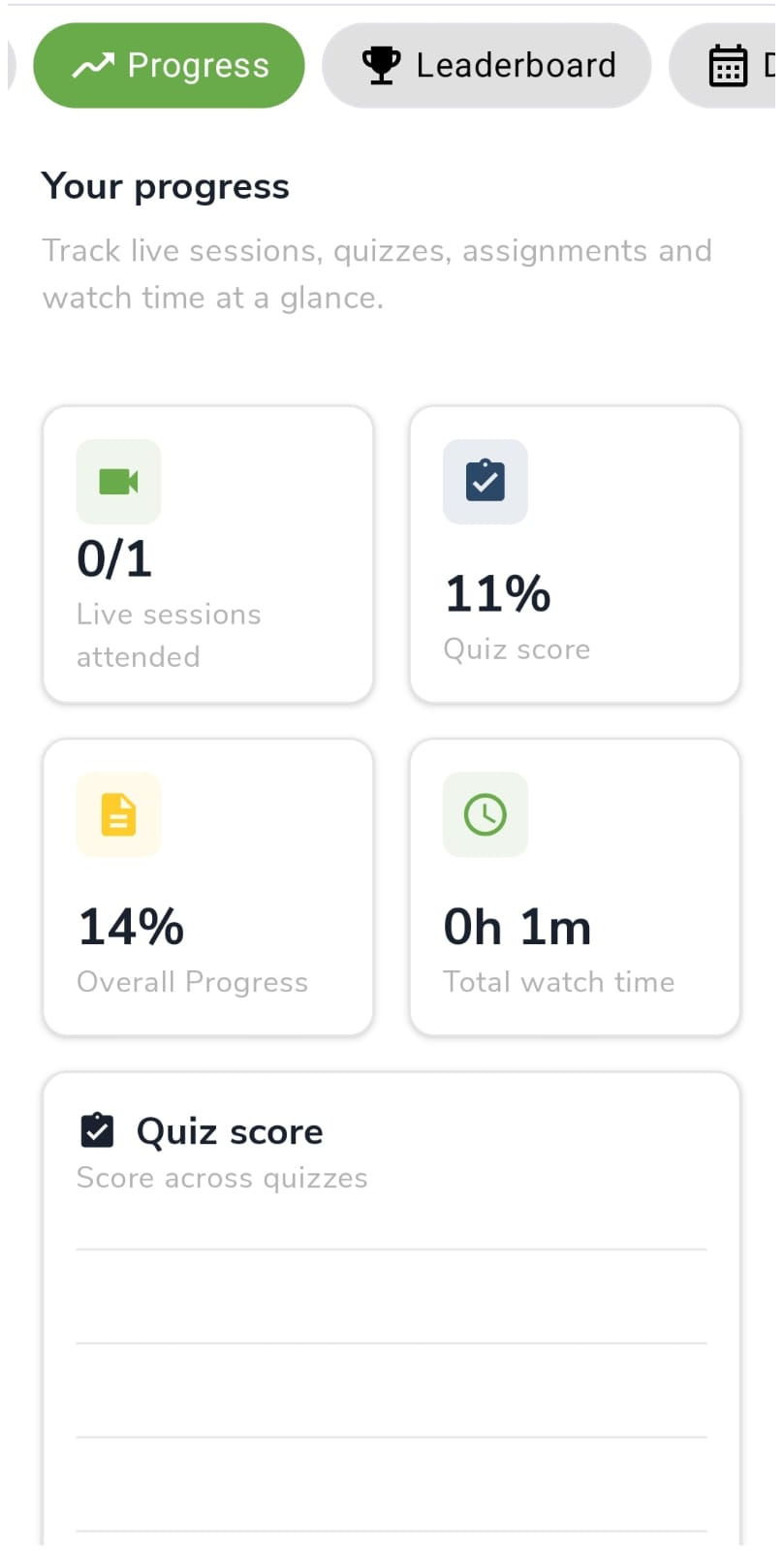
The Progress tab shows how much of the program you have finished. Check it when you want to see attendance, quiz scores, and what is still left to do.
- Four cards: live sessions attended, quiz score, overall progress, total watch time.
- Use this tab to see what you still need to finish.
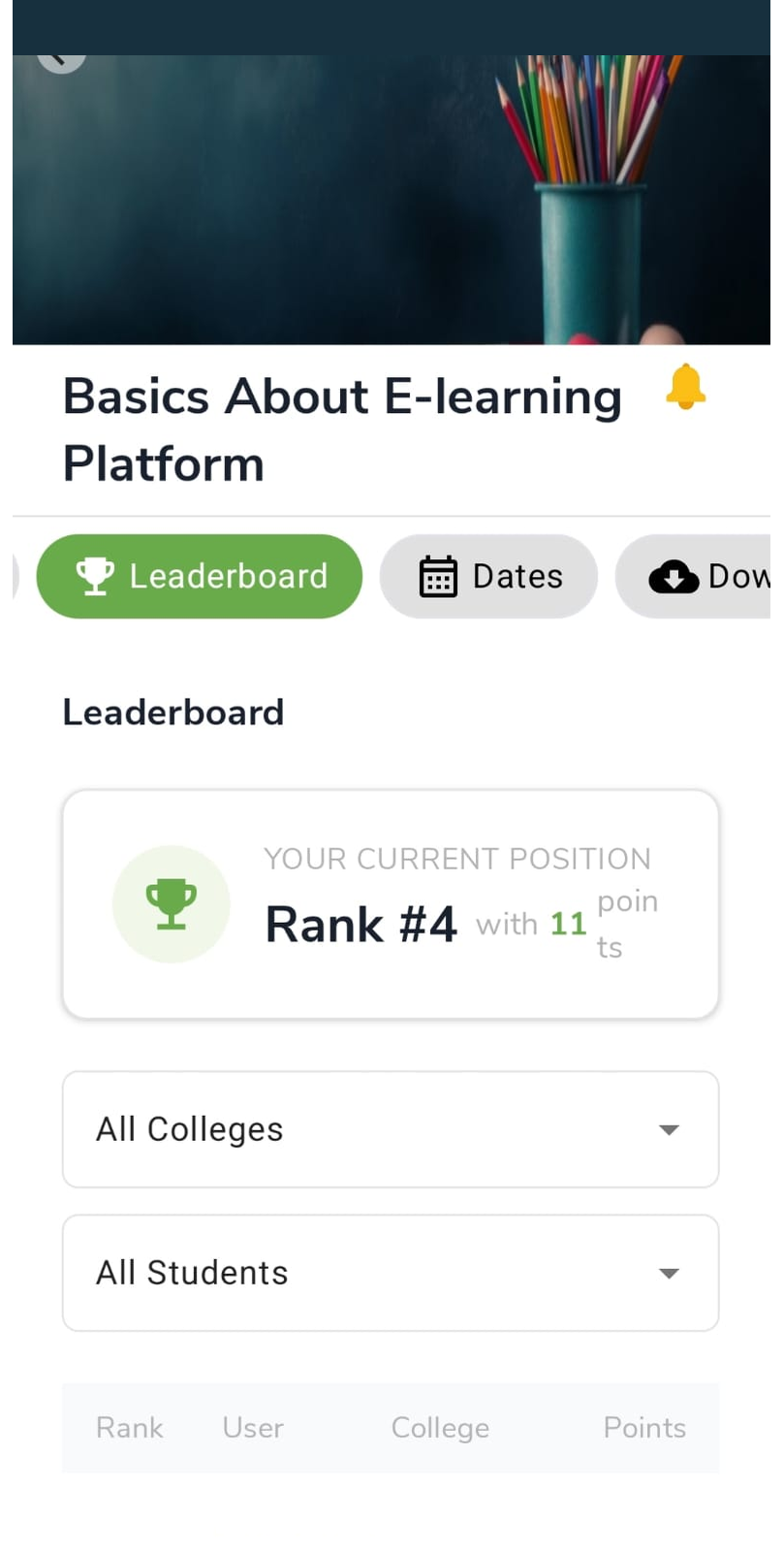
Leaderboard
The Leaderboard shows how you compare with other learners in the program. Points come from lessons, quizzes, and live sessions. Rank 1 is the top of the list.
- See Your Current Position and the list of other learners.
- The table columns mean:
| Column | What it means |
|---|---|
| Rank | Your place in the list (1 is the top) |
| User | The learner's name |
| College | The college the learner belongs to |
| Points | Score earned from lessons, quizzes, and live sessions |
- Filter by college or students. Keep learning to earn more points.

Dates
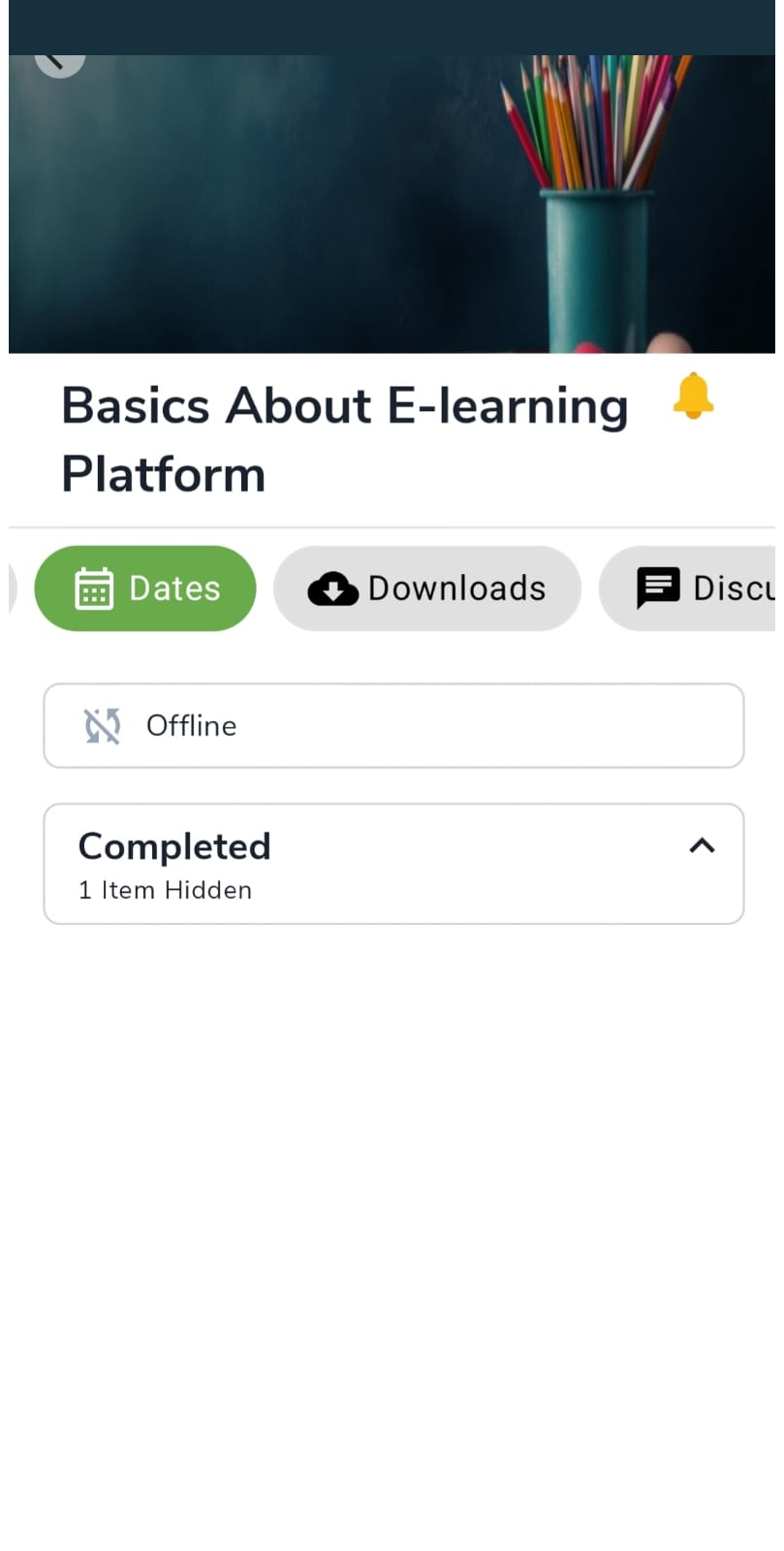
The Dates tab lists schedule items and milestones for this program. Expand Completed if older items are hidden. You can also sync dates to your phone calendar.
- Review schedule items and milestones. Expand Completed if items are hidden.
- To sync to your phone calendar: Dates & Calendar in Settings.
Downloads
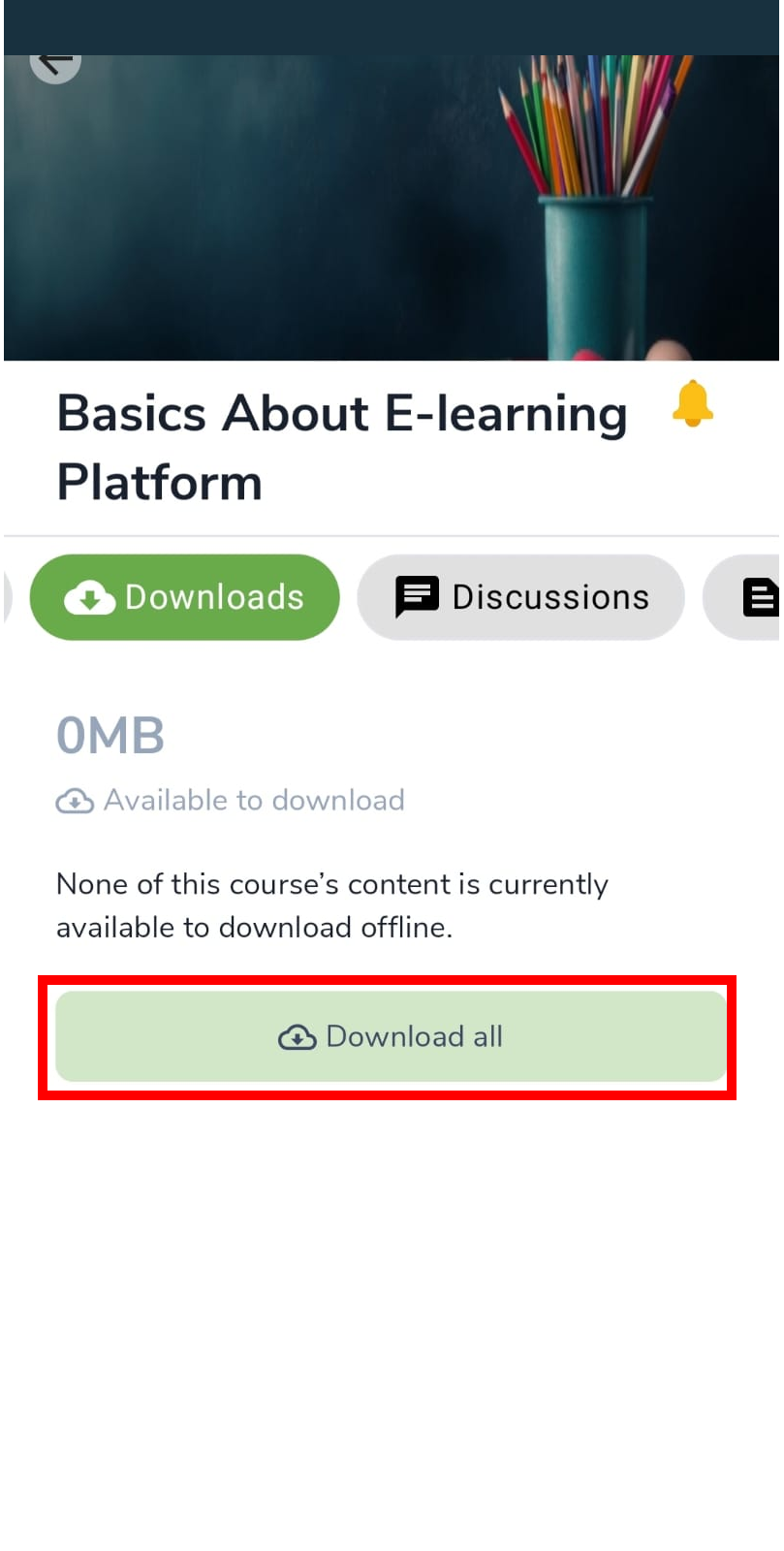
Downloads lets you save program content on your phone for offline use. You can download all listed items, and you can limit downloads to Wi‑Fi in Video settings.
- Tap Download all when content is listed for offline use.
- Control Wi‑fi-only downloads under Video settings.
Discussions
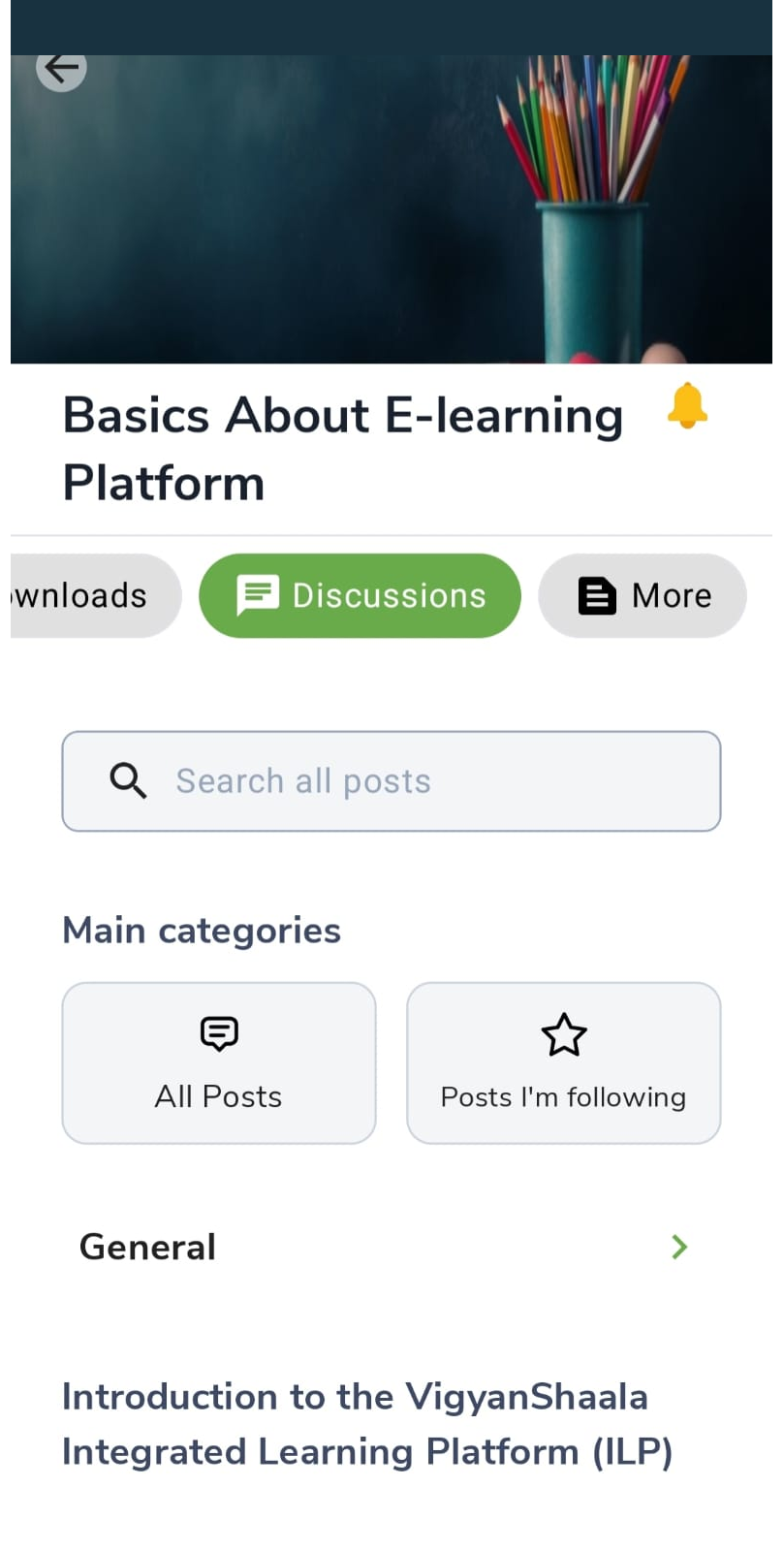
Discussions is where you read and post messages about the program. Search, open a topic, or follow posts you want to come back to.
- Search posts, open All Posts or Posts I'm following, and tap a topic.
More
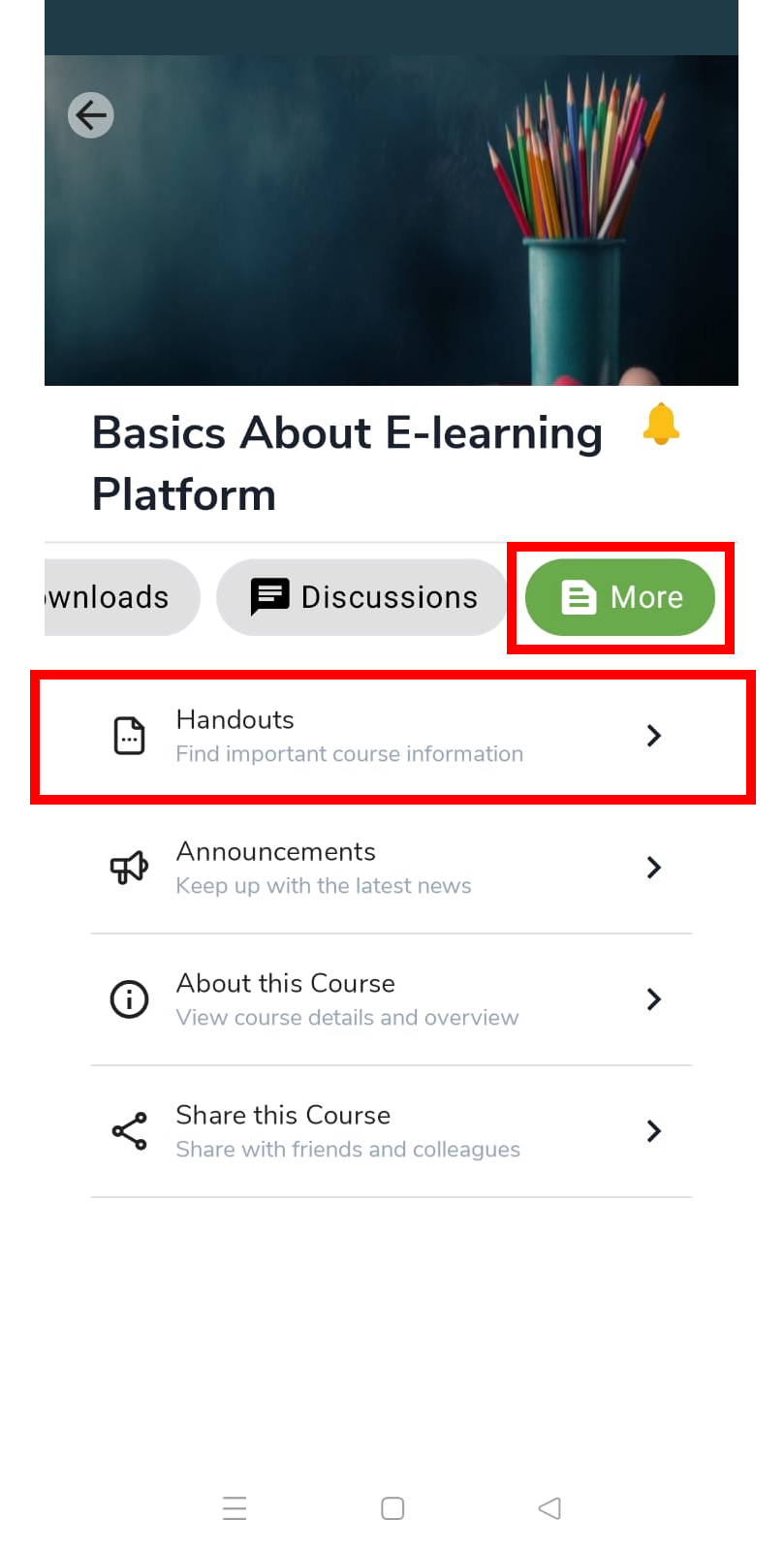
The More tab holds extra program tools that do not have their own top tab — files, news, program info, and sharing.
| Option | What it is for |
|---|---|
| Handouts | Program files and information |
| Announcements | Latest news |
| About this Course | Program overview |
| Share this Course | Share with others |