How to reach Control Hub
Use the same website login as learners. Sign in with your admin account. After login you land on My Dashboard. Control Hub is in the menu under your name at the top right.
Log in with your admin email id and password
admin login sign-in email password control hub
Use Log In with the email and password for your admin account.
Start from the home page. Click Log In. Enter your admin email and password, then click Log In. After a successful sign-in you go to My Dashboard.
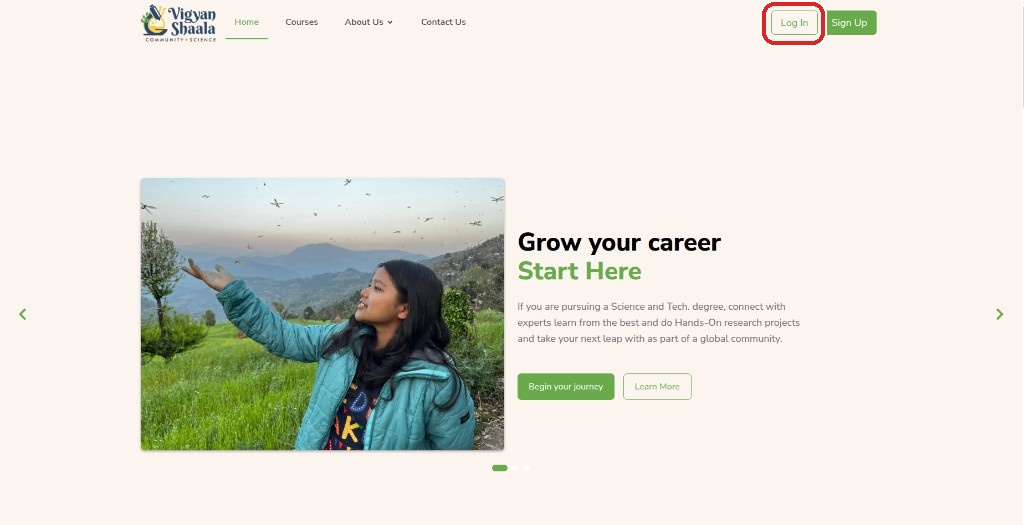
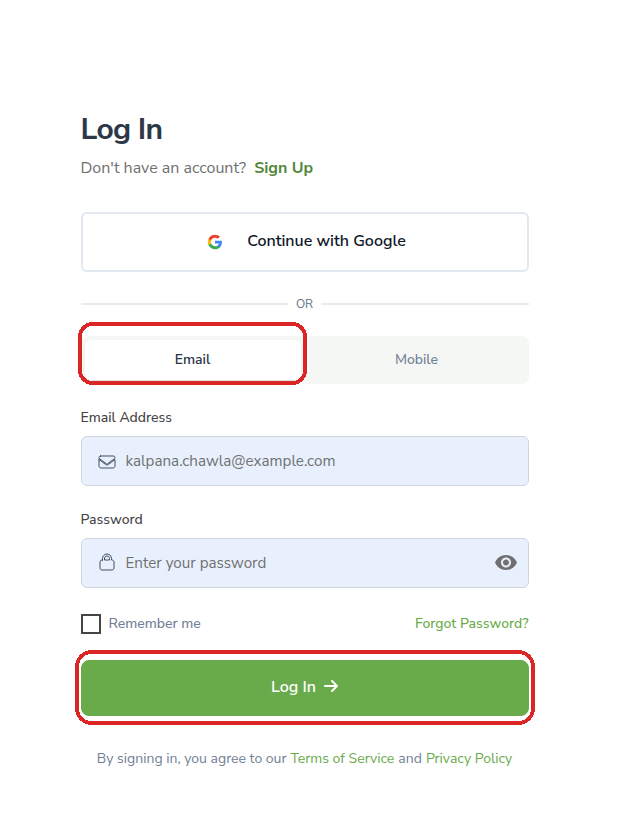
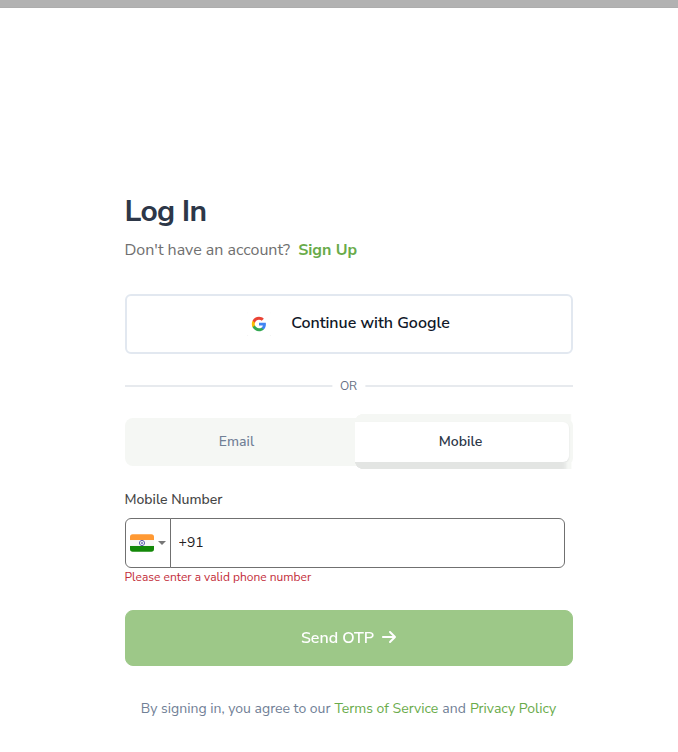
You can also log in with Google or with your WhatsApp number from the same page.
Log in with your admin Google SSO
admin gmail sso google login continue with google
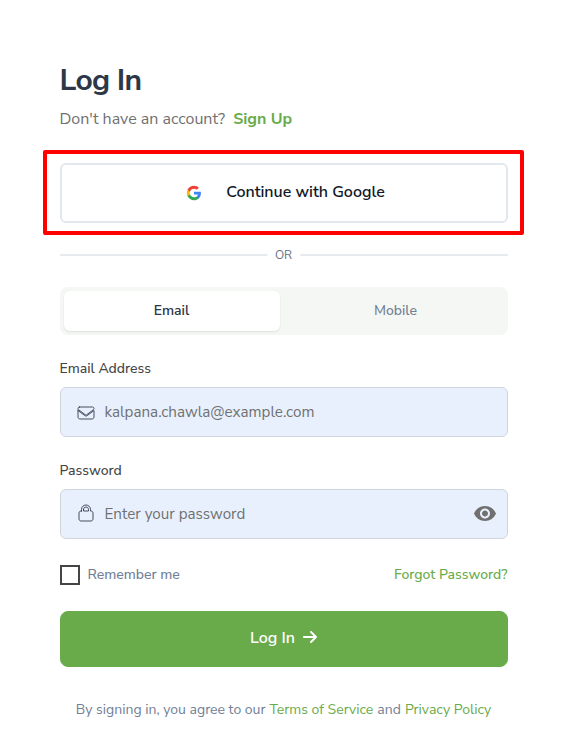
Continue with Google lets you sign in with the Google account linked to your admin user, instead of typing a password. Use the same Google account every time.
- On the Log In page, click Continue with Google.
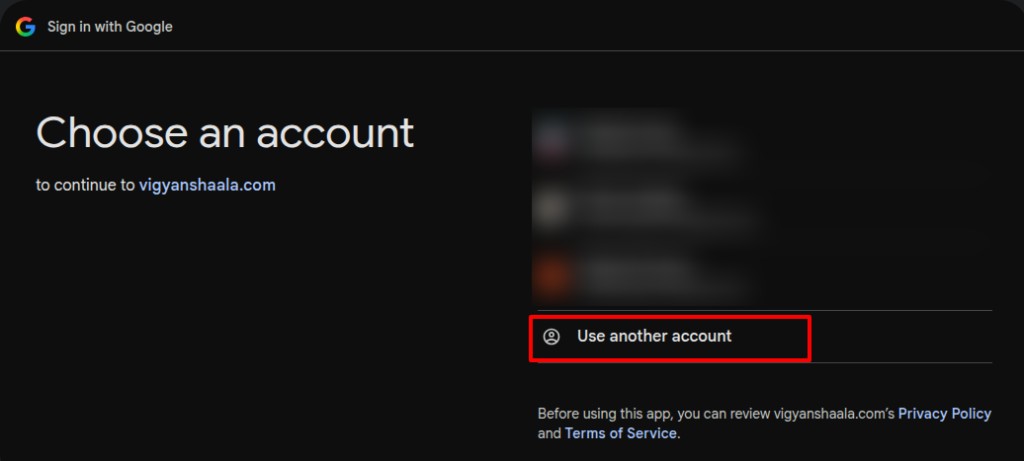
- If your Google account is already listed, click it.
- If it is not listed, click Use another account and add your Google account.
- Allow access. You go to My Dashboard after Google confirms your sign-in.
Log in with your WhatsApp number (admin)
admin otp whatsapp phone mobile login
Use the Mobile tab if you prefer to sign in with the WhatsApp number on your admin account. A one-time code (OTP) is sent to that number. You must use a number that can receive WhatsApp messages.
Open the Log In page, choose the Mobile tab, enter your WhatsApp number, and tap Send OTP. Enter the code you receive, then continue to My Dashboard.
Open Control Hub from My Dashboard
control hub studio profile menu admin dashboard
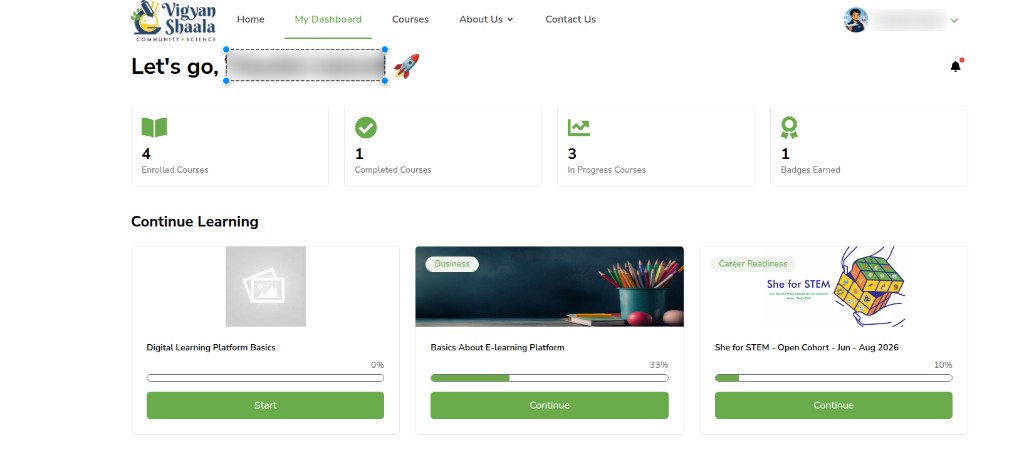
After you log in as admin, you first see My Dashboard — the same learner dashboard. Control Hub is not a separate login.
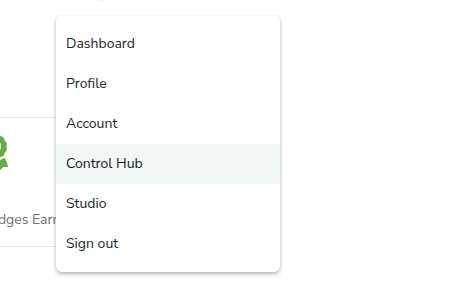
- Click your name or photo at the top right.
- In the list, click Control Hub.
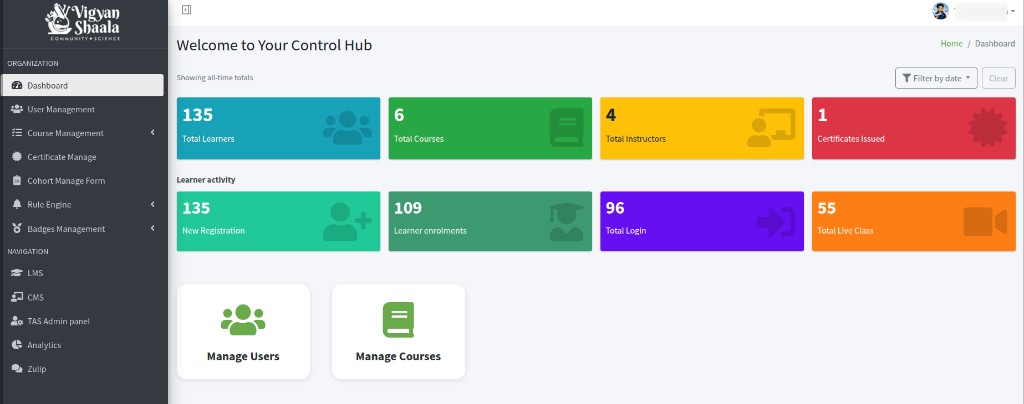
- You open Welcome to Your Control Hub.
The menu also includes Dashboard, Profile, Account, Studio, and Sign out. Control Hub appears only for admin accounts.
Left menu
organization navigation sidebar lms cms tas admin panel analytics zulip cohort rule engine badges
The dark menu on the left has two groups: ORGANIZATION and NAVIGATION.
ORGANIZATION stays in Control Hub:
- Dashboard — totals and shortcuts. See Dashboard.
- User Management — create, find, edit, enroll, and export users. See User Management.
- Course Management — Categories, Subjects, Difficulty Levels, Tags, and Courses. See Course Management.
- Certificate Manage — certificate templates. See Certificate Manage.
- Cohort Manage Form — registration forms, link or QR, submissions. See Cohort Manage Form.
- Rule Engine — Notification Rules, Email Templates, WhatsApp Templates, Push Templates, and Notification Logs. See Rule Engine.
- Badges Management — Badges and Earned Badges. See Badges Management.
NAVIGATION opens another site in a new tab. See NAVIGATION for LMS, CMS, and Zulip. TAS Admin panel and Analytics have their own guides on the admin home.